
Connect MyQ X to SharePoint Online to make SharePoint cloud storage available to supported MyQ scan and print workflows.
SharePoint Online can use the same Microsoft Entra application registration as Microsoft Entra ID and OneDrive for Business, or a dedicated application registration.
Choose the SharePoint Access Model
MyQ supports two ways of accessing SharePoint Online.
Application-wide Access
With application-wide access, MyQ accesses SharePoint using permissions granted to the application rather than the permissions of individual users.
MyQ users do not need to have Microsoft accounts or be synchronized from Microsoft Entra ID.
Important: All MyQ users using this connection receive the same SharePoint access granted to the application. Individual Microsoft or SharePoint permissions are not applied, so users may be able to access files that they could not access with their own Microsoft account.
Use this model only when uniform, centrally managed SharePoint access is appropriate for the users who can access the MyQ workflow.
Individual User Access
With application-wide access disabled, each user must connect their SharePoint Online storage from the MyQ Web Interface using their Microsoft account.
After the user signs in, MyQ stores an access token for that user. SharePoint operations are then performed on behalf of the individual user, and access to sites and files follows the permissions assigned to their Microsoft account. This provides more granular access control and preserves the organization's existing SharePoint Online permissions.
Use this model when access through MyQ should follow the permissions of individual Microsoft users.
Add the SharePoint Online connection
Go to MyQ > Settings > Connections, click Add, and select SharePoint Online.
Enter a Title for the connection and choose how the Microsoft application is configured:
-
Create automatically
-
Set up manually
Create Automatically
Select Create automatically to let MyQ create and configure the required enterprise application in your Microsoft Entra tenant.
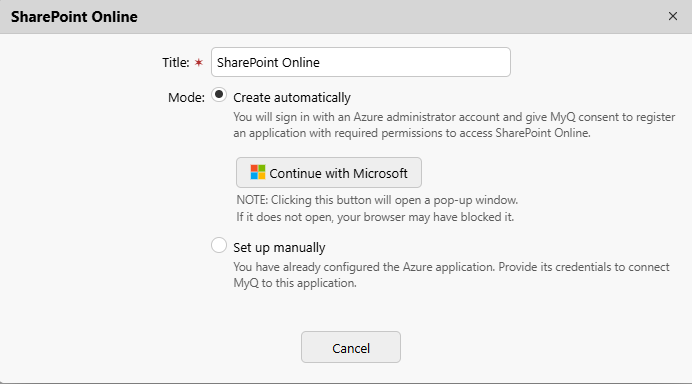
Follow the Microsoft authorization process and then save the connection.
Automatic setup configures application-wide access to SharePoint Online. Individual users do not need to connect their Microsoft accounts to MyQ.
See also: Automatic Microsoft Entra App Registration
Set Up Manually
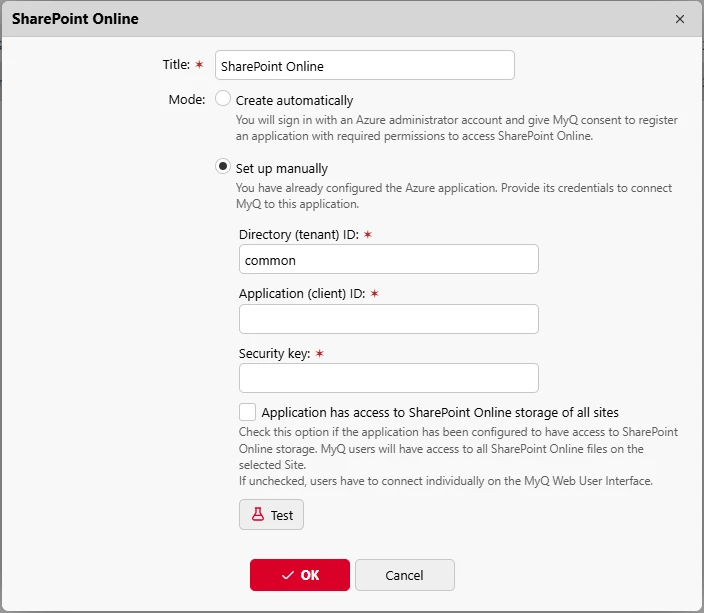
Select Set up manually if your organization manages Microsoft Entra application registrations directly. You can use the same application registration for Microsoft Entra ID, OneDrive for Business, and SharePoint Online, or a dedicated application for each service. The shared application must contain the permissions required by all integrations that use it.
See Manual Microsoft Entra App Registration
SharePoint Online requires the following permissions:
Microsoft Entra ID requires the following runtime permissions:
|
Permission |
API |
Type |
Purpose |
|---|---|---|---|
|
|
Microsoft Graph |
Application |
Read groups and group membership. |
|
|
Microsoft Graph |
Application |
Read users. |
|
|
Microsoft Graph |
Delegated |
Sign in and read the signed-in user's profile. |
-
Title: enter a title for the connection.
-
Directory (tenant) ID: the directory ID of your Entra app. In most cases, the Directory (tenant) ID can remain set to
common. -
Application (client) ID: the application ID of your Entra app.
-
Security key: the Entra app client secret.
-
Application has access to SharePoint Online storage of all sites: select this option for application-wide access. If this option is disabled, users must connect their SharePoint Online account themselves.
Save the connection.
Re-authorize the SharePoint Online Connection
Use the Re-authorize option to repeat the Microsoft authorization process for an existing connection.
Reauthorization can:
-
complete administrator consent that was not granted during the initial setup
-
create a new client secret
-
recreate a deleted enterprise application
-
change the connection between automatic and manual configuration
Reauthorization updates the existing enterprise application when it is still present. It does not create a duplicate.
To re-authorize, right-click on the connection. This opens the create connection dialog. You can repeat all the steps to create a new secret for the existing connection.
Next Steps
When a SharePoint Online connection is configured, you can set it as an Easy Print source or Easy Scan destination in terminal actions.
One connection can support multiple terminal actions. In the terminal action settings, you can control the storage with the following options: all available SharePoint sites (multi-site) a single site, only sites followed by the user, folder browsing, or a specific folder within a site.