This article describes how to configure the Easy Print terminal action to print from SharePoint Online.
Prerequisite
To connect SharePoint Online as a cloud storage to the Easy Print terminal action:
-
Go to MyQ > Settings > Terminal Actions.
-
If there is an Easy Print action already added, you can configure it by double-clicking it or create a new one by clicking on the actions menu then Add action into this folder and selecting Easy Print from the list.
-
In the options menu, go to Storages > Add > Cloud Storage.
-
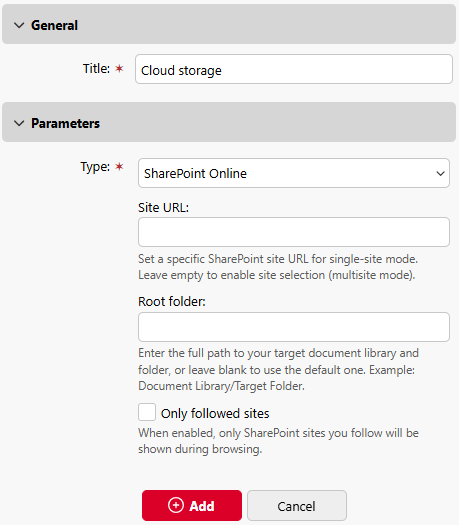
Under General, enter a name for the cloud storage location
-
Under Parameters, select the Type (SharePoint Online) from the dropdown
-
(Optional) Specify a Site URL and a Root folder to specify the location users can print from, optionally with folder browsing. When empty, users select a site at the terminal. When folder browsing is enabled, users can browse locations across SharePoint Online sites.
-
(Optional) Select Only followed sites to display only sites that the user follows. This option is unavailable when a Site URL or root folder is specified, and when application-wide access is enabled in the SharePoint Online connection settings.
-
Click Add to save the cloud storage location.