
Go to MyQ > Reports to generate and view reports with a variety of data concerning your printing environment. The reports can be related to users, printing devices, print jobs, etc.
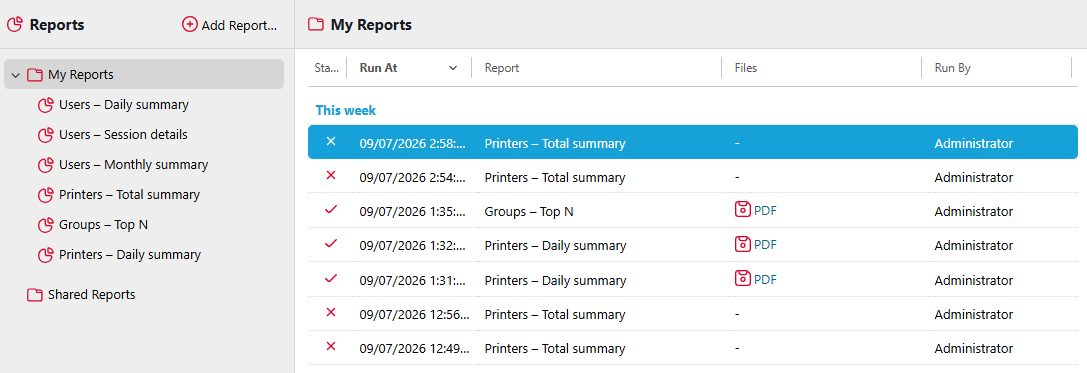
Reports in MyQ are divided into two main categories: My reports and Shared reports. My reports show users reports created by themselves, while Shared reports show them reports created by the administrator or by other users.
The default reports are displayed in the My reports folder of the MyQ administrator, who can modify them, delete them or change their design.
For all the other users, the default reports are displayed in the Shared reports folder and cannot be changed in any way.
-
Daily summary
-
Session details
-
Monthly summary
In addition to the three default reports, the administrator can create an unlimited number of reports and sort them into sub-folders of the My reports folder. Users can create their own reports but they are limited to use only certain report types depending on the rights granted by the administrator.
Each report can be viewed in the web interface and saved in any of the following formats:
-
PDF
-
CSV
-
XML
-
XLSX
-
ODS
The reports can be automatically generated and stored in a predefined folder. There is no data limitation for the generated report, it includes all the data from the specified period.
All the reports have the MyQ logo displayed by default, but it can be replaced by your company's logo. To upload a custom logo go to MyQ > Settings > Personalization. In the Custom application logo section, click +Add next to Custom logo and upload your own file (supported formats - JPG, JPEG, PNG, BMP and recommended size - 398px x 92px).
Granting Users Rights to Use a Report
The administrator can run all the built-in reports and provide other users and groups with rights to run them as well. In MyQ > Settings > Reports, right-click on a report and click Edit. On the General tab, in the Permission for running the report field, choose users and groups from the list and click Save.
You can also add custom report types developed by the MyQ development team. To do so, just click +Add, upload the custom report definition file, select users or groups to access it, and click OK. For more information about custom report types, please contact MyQ support.
See also: Personalization Settings