
The MyQ Web Interface is the central access point for both administrators and users.
Administrators use the interface to configure and manage the MyQ system. Standard users have access to a limited set of self-service features, such as managing their account and PIN, viewing their jobs, uploading files for printing, checking their credit or quota status, and accessing reports available to them.
Additional administrative features can be delegated to selected users or groups through access rights. This allows organizations to grant controlled access to specific functions, such as managing printers, jobs, users, reports, or credit, without providing full administrator privileges.
This section explains how to access the MyQ Web Interface and introduces its main navigation, Home dashboard, initial setup options, and system logs.
Accessing the MyQ Web Interface
To access the MyQ Web Interface, open it in a supported web browser and log in with your MyQ account. The available menus and features depend on the rights assigned to your account.
-
Open your web browser, and enter the web address:
https://hostname:port
wherehostnamerepresents the IP address or the hostname of your MyQ Print Server andportis the configured access port (default: 443). -
From the MyQ Easy Config Home tab, click the MyQ Web Administrator link in the MyQ Web Administrator section.
-
Open the MyQ Web Administrator application. You can find this application on the Apps screen in these and later versions: Windows 10, Windows Server 2019.
Log In as an Administrator
Enter the MyQ administrator name (*admin) and the password that you have set in the MyQ Easy Config application, and then click Log In. If you have not changed the default password yet (not recommended), enter the default one: 1234.
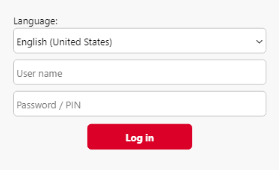
In the drop-down at the top of the login window, you can select your preferred language.
Before logging in, you can click Theme to choose the theme for the interface. The options are: Synchronize with the operating system, Blue, Red (default), Dark, High Contrast.
Click Lost PIN and you are taken to a window where you can either enter your email in order to receive a PIN reset code or if you already have the code, you can type it and reset your PIN.