
MyQ X Server
10.3 10.2 8.2 EoL Print Server Central Server English French German Italian Portuguese Spanish

Connect to Gmail

To send email from MyQ using Gmail, create a connection. MyQ connects to Gmail using OAuth 2.0, so MyQ doesn't need to store your Google account password.

Create a Gmail Connection in MyQ

  1. Go to MyQ > Settings > Connections.

  2. Click +Add and select Gmail.

  3. In the pop-up window, click Continue with Google.

  4. Sign in with your Gmail account and authorize MyQ.
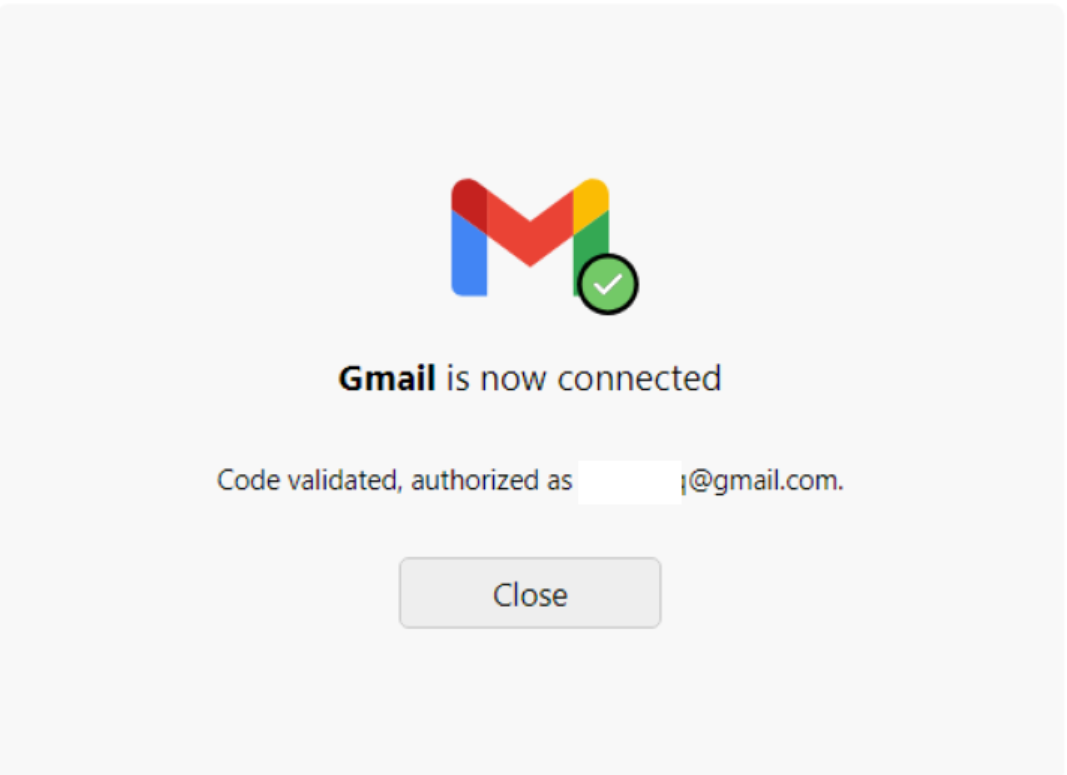
settings-network-connections-gmail-confirmation.png

Gmail is now connected to MyQ and is ready to be used in the Network settings tab as an Outgoing SMTP server.

Gmail can also be configured in the Jobs settings tab, under Jobs via Email as a POP3 or IMAP server.

MyQ uses and transfers information received from Google APIs to any other app in adherence with Google API Services User Data Policy, including the Limited Use requirements. See Google API Services User Data Policy.


Troubleshooting

Gmail SMTP authentication fails with error 535-5.7.8

If the SMTP connection test in MyQ fails with an authentication error such as 535-5.7.8 Username and Password not accepted, a Google account setting may be blocking it. To fix this, turn off Skip password when possible for the Google account that MyQ sends email from.

Personal Google account

  1. Sign in to the Google account that MyQ sends email from.

  2. Go to Google Account > Security & sign-in (myaccount.google.com/security).

  3. Under How you sign in to Google, turn off Skip password when possible.

  4. Go to MyQ > Settings > Connections, open the connection in Edit mode, and click Test.

Google Workspace account

The account user can turn off the setting as described above. A Workspace administrator can also turn off the setting for an organizational unit or for the whole organization:

  1. Sign in to the Google Admin console as an administrator.

  2. Go to Security > Authentication > Passwordless.

  3. Select the organizational unit that contains only the sending account. If possible, keep the account in its own organizational unit so the change doesn't affect other users.

  4. Set Allow users to skip passwords at sign-in by using passkeys to OFF.

  5. Go to MyQ > Settings > Connections, open the connection in Edit mode, and click Test.

    Admin console changes can take up to 24 hours to take effect.