
Connect MyQ X to Microsoft Exchange Online to use an Exchange Online mailbox for MyQ email services.
The connection can be used for:
-
sending MyQ system email through Exchange Online
-
sending scanned documents by email
-
receiving print jobs through Jobs via Email
Microsoft Exchange Online requires a dedicated Microsoft Entra application registration. Do not reuse the application registration used for Microsoft Entra ID, OneDrive for Business, or SharePoint Online.
If MyQ will send email through Exchange Online, SMTP AUTH must be enabled for the Exchange Online tenant and for the mailbox used by MyQ. If SMTP AUTH is disabled, MyQ cannot send email through the connection.
For information about enabling SMTP AUTH, see the Microsoft Exchange Online documentation.
Configure the Microsoft application
Configure the dedicated application registration for Microsoft Exchange Online as described in Set up Microsoft Exchange Online.
The application uses delegated permissions and is authorized by the Microsoft account of the mailbox that MyQ will use.
No client secret is required.
Microsoft Exchange Online requires the following runtime permissions:
|
Permission |
API |
Type |
Purpose |
|---|---|---|---|
|
|
Microsoft Graph |
Delegated |
Sign in and read the mailbox user's profile. Required for authentication. |
|
|
Microsoft Graph |
Delegated |
Read, update, create, and delete email in the user's mailbox. Required for Jobs via Email using IMAP. Does not include sending email. |
|
|
Microsoft Graph |
Delegated |
Send email from the user's mailbox. Required for outgoing mail. |
Create the Exchange Online connection
Go to MyQ > Settings > Connections, click Add, and select Microsoft Exchange Online.
Enter:
-
Title – a name for the connection.
-
Directory (tenant) ID – the tenant ID of the Microsoft Entra application.
-
Application (client) ID – the client ID of the Microsoft Entra application.
Save the connection. Next, authorize the mailbox user.
Authorize the mailbox user
After the connection is created, MyQ displays a Microsoft device authorization code and a link to the Microsoft sign-in page. Open the link and enter the displayed code.
Sign in with the Microsoft account that owns the mailbox MyQ will use.
For example, if MyQ will send email from print@example.com, authorize the connection by signing in as print@example.com.
After successful authorization, Microsoft Exchange Online is connected to MyQ.
The connection cannot be used until this authorization is completed. The authorization code is valid for a limited time.
Microsoft Exchange Online is now connected to MyQ and is ready to be used in the Network settings tab, as an Outgoing SMTP server, and in the Jobs settings tab, in Jobs via Email as a POP3 or IMAP server.
Send scan as the logged-in user
If you have configured MyQ > Settings > Scanning & OCR - Default settings of an email with scan - Sender, the mailbox authenticated in MyQ has to have a Send As permission for all users.
If you select to send emails as the default sender, this change is not required.
-
Log in to Exchange admin center.
-
Go to Mailboxes, select all users.
-
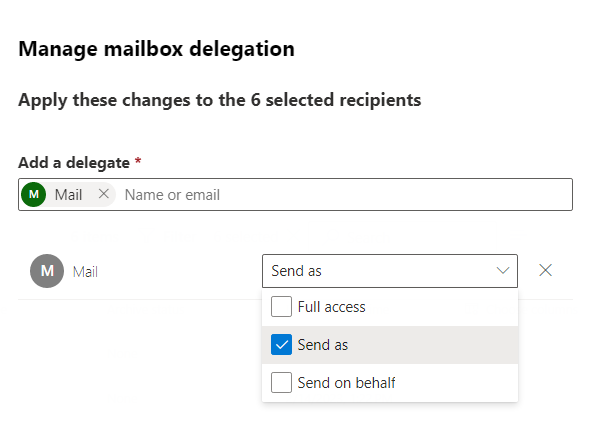
Click on Mailbox delegation.
-
Select the mailbox that was authenticated in MyQ when the MS Exchange Online connector was created (visible in MyQ > Settings > Connections).
-
Choose Send as permission.
-
Click Save.
Your selected mailbox for outgoing emails has now been assigned the rights to send scanned documents on behalf of the user who scanned them.