
MyQ X can synchronize users from any LDAP-compatible directory service. Supported sources include Active Directory, OpenLDAP, Novell, Google Workspace, and Microsoft Entra ID Domain Services (via LDAPS). MyQ can communicate with up to five LDAP servers simultaneously.
This article describes the settings common to all LDAP synchronization sources. For directory preparation and source-specific requirements, see:
OpenLDAP and Novell use the common LDAP configuration described here. Lotus Domino synchronization is supported only for legacy deployments and must be explicitly enabled.
For Microsoft Entra ID synchronization through Microsoft Graph, see Synchronize Users from Microsoft Entra ID.
Prerequisites
Before creating the synchronization source:
-
Prepare the directory scope, attribute mappings, groups, directory account, and network connection.
-
Configure the LDAP server under MyQ > Settings > Authentication Servers.
-
Verify that MyQ can connect to the LDAP server.
-
For LDAPS, verify that the directory certificate is trusted by the MyQ server.
LDAPS is recommended because it protects directory credentials and data in transit. It commonly uses TCP port 636. Use another security mode or port only when it is supported by the directory and permitted by your organization’s security policy.
For preparation guidance, see Prepare for LDAP User Synchronization.
Create an LDAP Synchronization Source
-
Go to MyQ > Settings > User Synchronization.
-
Click +Add.
-
Select Add LDAP source.
The LDAP synchronization properties panel opens.
-
Configure the synchronization on the General, Users, and Groups tabs.
-
Save the settings on each tab after making changes.
After it is saved, the source appears in the synchronization-source list.
General Tab
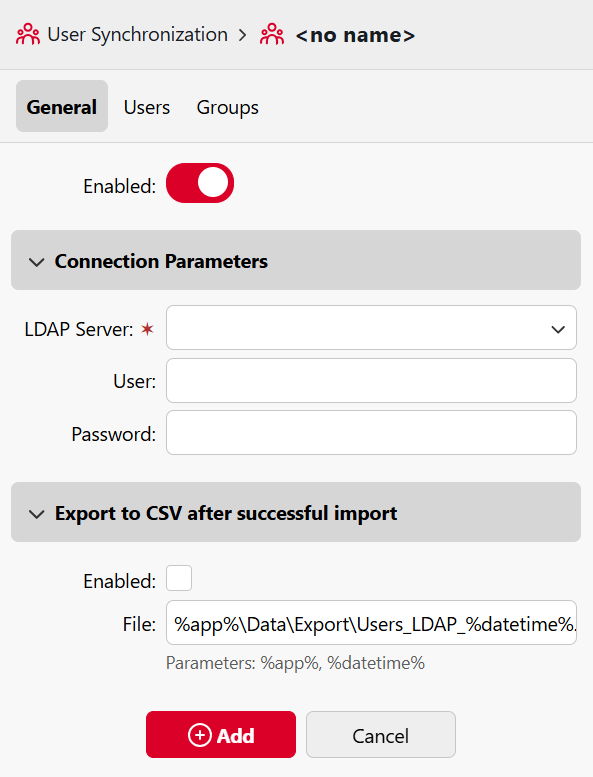
Use the General tab to select the LDAP server and provide the account MyQ uses to query it.
|
Setting |
Description |
|---|---|
|
Enabled |
Enable or disable this synchronization source. |
|
LDAP Server |
Select the LDAP server added as an authentication server. |
|
User |
Username for access to the LDAP server. |
|
Password |
Password for the service account. |
|
Export to CSV after successful import |
When enabled, MyQ writes a CSV file of imported users after each sync run. |
|
File |
File path using |
Use a username format accepted by the directory. If the account belongs to a subdomain, a domain-qualified username may be required. For example:
Administrator@cz.example.local
After valid connection parameters are saved, the LDAP browser opens on the right side of the panel. Use it to browse the directory and drag directory objects or attributes into fields on the Users and Groups tabs.
Users Tab
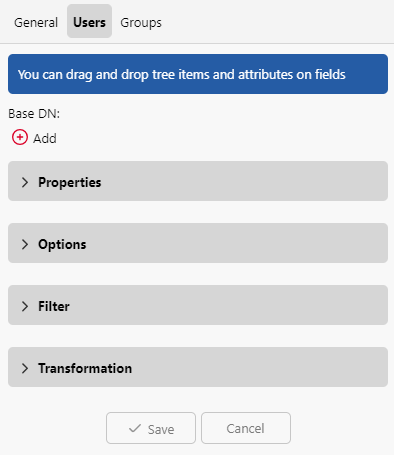
Use the Users tab to define which users are imported, map directory attributes to MyQ properties, and control how existing MyQ users are updated.
Base DN
Add one or more Base DNs from which MyQ should search for users.
To add a Base DN:
-
Click +Add.
-
Enter the distinguished name, or drag the required directory object from the LDAP browser into the field.
For example:
OU=Prague,DC=example,DC=com
Multiple Base DNs can be used to import users from separate organizational units or directory branches.
The correct Base DN depends on the directory structure and LDAP server. In configurations where searches must begin at the directory root, the Base DN can be left empty.
Properties
Map LDAP attributes to MyQ user properties. To assign an attribute, type its name in the property field or drag it from the LDAP browser and drop it in. Where a default mapping exists, it is applied automatically – the Username property is the only one that cannot be changed.
|
MyQ property |
Default mapping |
Notes |
|---|---|---|
|
Username |
|
The username mapping is determined by the LDAP source type and cannot be changed. |
|
Full name |
|
|
|
|
|
|
|
Alias |
None |
Accepts multiple comma-separated values. |
|
Personal number |
None |
Can be used to pair an imported identity with an existing MyQ user. |
|
Card |
None |
Accepts multiple comma-separated values. Synchronization behavior is configurable. |
|
PIN |
None |
Accepts multiple comma-separated values. Synchronization behavior is configurable. |
|
Language |
None |
Map an attribute containing supported language abbreviations, such as |
|
User storage |
None |
Storage destination associated with the user. |
|
Notes |
None |
|
The Alias, Card, and PIN properties support multiple values separated by commas. For example:
alias1,alias2,alias3
Attribute names containing semicolons, such as email;x-private, are supported from Print Server 10.2 patch 24. In earlier versions, a semicolon in an attribute name can prevent that attribute from being synchronized.
Using semicolons to separate multiple values is deprecated from patch 24. Use commas instead.
Card and PIN Synchronization
For the Card and PIN properties, select how synchronization affects values already stored in MyQ.
|
Mode |
Behavior |
|---|---|
|
Do not synchronize |
Does not change existing values in MyQ. |
|
Full synchronization |
Replaces existing values with the directory values. Existing values are removed if the corresponding directory value is empty. |
|
Synchronize if not empty |
Replaces existing values only when the directory provides a value. Existing values remain when the directory value is empty. |
|
Add new |
Adds new directory values without replacing or removing existing values. |
Choose the mode according to whether the directory or MyQ is authoritative for cards and PINs.
Options
|
Option |
Description |
|---|---|
|
Deactivate missing users |
Deactivates users previously imported from this source when they are no longer present in the synchronization results. |
|
Add new users |
Imports new directory users. When disabled, synchronization updates matching MyQ users but does not create accounts. |
|
Convert user name to lowercase |
Converts imported usernames to lowercase, preventing separate MyQ accounts from being created solely because of differences in letter case. |
|
Use authentication server |
Assigns the source LDAP server as the authentication server for synchronized users. Username and password authentication is then performed against LDAP instead of the MyQ database. |
|
Pair by the personal number |
Uses a synchronized personal number to associate a directory identity with an existing MyQ account. This allows the existing account to be retained when its username changes. |
|
Ignore synchronization source |
Allows this source to consider and update matching users regardless of which source originally created or imported them. |
|
Append the domain name to the username |
Stores usernames in a domain-qualified form such as |
Pair by the Personal Number
Use Pair by the personal number when a stable personal number should identify the same person after their username changes.
For example, if the directory username changes from cat.stevens to yusuf.islam, MyQ can update the existing account instead of creating another account, provided both identities have the same unique personal number.
Before enabling this option, confirm that personal numbers are:
-
Populated for all relevant users
-
Unique across the synchronization scope
-
Stable throughout the user’s lifecycle
-
Never reassigned to another person
Ignore Synchronization Source
By default, a synchronization source updates users associated with that source. If another source already owns a matching username or alias, MyQ can report a conflict instead of updating that user.
Enable Ignore synchronization source when the current synchronization should update matching users regardless of their original synchronization source.
This can be useful during migrations or when several sources intentionally manage the same user population. However, it changes the scope of users that the synchronization can affect.
Use Ignore synchronization source with Deactivate missing users only when the current LDAP source is authoritative for all affected users. With both options enabled, users imported or created through other sources can be deactivated when they are absent from the current LDAP results.
Filter
Use an LDAP filter to restrict which directory objects are imported. If the field is empty, MyQ applies the default filter for the selected LDAP source type.
|
Example filter |
Matches |
|---|---|
|
|
All objects. |
|
|
All user objects except |
|
|
All objects with a surname starting with |
|
|
Contact objects whose surname is |
The * wildcard can be used with string-valued attributes. Distinguished-name attributes such as memberOf do not support partial wildcard matching and must be matched using the complete value.
For example:
(memberOf=CN=Print Users,OU=Groups,DC=example,DC=com)
Escape Special Characters
When a special character forms part of an attribute value rather than LDAP filter syntax, escape it as follows:
|
Character |
Escaped form |
|---|---|
|
|
|
|
|
|
|
|
|
|
|
|
|
|
|
|
|
|
Transformation
A regular expression transformation can parse or reformat directory values before MyQ stores them.
Use transformations when, for example:
-
Several identifiers are stored in one attribute.
-
A prefix or suffix must be removed.
-
A source value must be divided into separate MyQ properties.
-
An identifier must be normalized into the format used for job detection or authentication.
Groups Tab
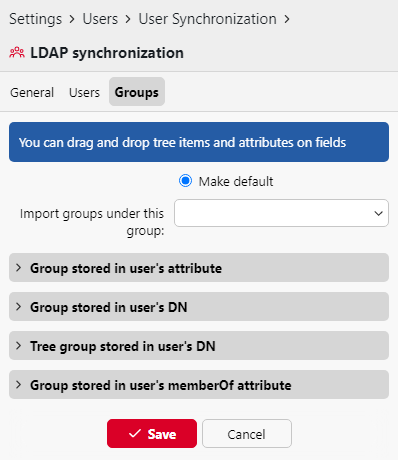
Use the Groups tab to import directory groups and define how they are represented in MyQ.
The Groups tab determines group structure and membership. It does not determine which users are imported; user scope is configured on the Users tab.
General Group Settings
|
Setting |
Description |
|---|---|
|
Do not change default group |
Prevents synchronization from changing a user’s existing default accounting group. |
|
Import groups under this group |
Places all groups imported by this source beneath a selected MyQ group. |
|
Synchronization level |
Determines how changes to directory group membership affect existing MyQ memberships. |
A user can belong to multiple groups, but only one group can be their default accounting group. Print, copy, and scan activity is accounted to this group where group-based accounting is used.
Group Synchronization Level
|
Level |
Behavior |
|---|---|
|
Full synchronization |
Group membership in MyQ follows the directory. Users are added to and removed from groups as directory membership changes. |
|
Synchronize if not empty |
Synchronizes directory memberships while preventing the user from being left without any group. |
|
Add new |
Adds new directory memberships. Memberships removed from the directory remain in MyQ. |
Groups Stored in a User Attribute
Use this method when a user attribute contains the group name or values from which the group name should be created.
Enter the attribute name or drag it from the LDAP browser.
Multiple attributes can be combined. For example:
%attribute1%_%attribute2%
If the attributes contain Prague and Sales, MyQ creates the group:
Prague_Sales
Use vertical bars to create a hierarchy:
%attribute1%|%attribute2%
This produces:
Prague > Sales
Enable Make default to make the resulting group the user’s default accounting group.
Group Stored in the User DN
Use this method to derive one group from an organizational-unit component in the user’s distinguished name.
For example:
CN=Anna Novak,OU=Sales,OU=Prague,DC=example,DC=com
OU components are counted from right to left:
|
OU component |
Index |
|---|---|
|
|
1 |
|
|
2 |
To import Sales as the group, set OU component index to 2.
Enable Make default to make the imported group the user’s default accounting group.
Tree Group Stored in the User DN
Use this method to reproduce an organizational-unit hierarchy from the user’s distinguished name.
For example:
CN=Anna Novak,OU=Sales,OU=Prague,DC=example,DC=com
To derive the hierarchy:
Prague > Sales
remove:
-
The user component from the left:
CN=Anna Novak -
The domain components from the right:
DC=example,DC=com
Configure Strip from left and Strip from right according to the number of components that must be excluded.
At least one component must be stripped from each side.
Enable Make default to make the lowest group in the imported hierarchy the user’s default accounting group. In this example, the default group would be Sales.
Groups Stored in the memberOf Attribute
Use this method to import security or distribution groups referenced by the user’s memberOf attribute.
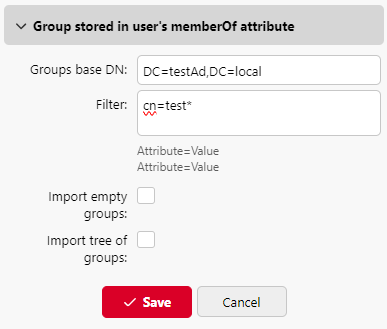
Specify a Groups Base DN to restrict which groups are considered. MyQ ignores groups outside this Base DN.
The Groups Base DN does not need to belong to the same organizational unit as the Users Base DN.
Because memberOf can contain several groups, Make default is not available for this method.
Configure the following options where required:
|
Option |
Description |
|---|---|
|
Filter |
Restricts imported groups using |
|
Import empty groups |
Imports groups from the Groups Base DN even when no synchronized user references them through |
|
Import tree of groups |
Preserves the directory’s parent-child group structure. When disabled, groups are imported as separate, flat groups. |
For example:
cn=*Print*
This accepts groups whose common name contains Print.
Run and Validate the Synchronization
Run the source manually before scheduling it.
-
Use a restricted Base DN or filter for the initial test where possible.
-
Keep Deactivate missing users disabled.
-
Run the synchronization.
-
Review its log and reported conflicts.
-
Verify the imported users, properties, groups, group memberships, and default accounting groups.
-
Test job ownership and user authentication where applicable.
-
Expand the scope only after the results are correct.
-
Enable user deactivation only after confirming which accounts it will affect.
-
Schedule recurring synchronization.