
Synchronize users from Microsoft Entra ID to create and maintain MyQ users and groups.
To synchronize users with Microsoft Entra ID, first plan your synchronization source, user identities, authoritative-source behavior, and multi-tenant environments. Then register a Microsoft Entra ID application. Finally, create a Microsoft Entra ID connection in MyQ that you can use in your synchronization.
Add Microsoft Entra ID as a Synchronization Source
Go to MyQ > Settings > User Synchronization.
Click Add and select Add Microsoft Entra ID source.
Configure the synchronization source on the following tabs:
-
General: select the Entra connection and identify the synchronization source.
-
Users: select which users to synchronize, map their properties, and configure user lifecycle options.
-
Groups: configure which Entra group memberships are represented in MyQ and how they are maintained.
General Tab
Configure the synchronization source:
-
Enable: enable or disable the synchronization source.
-
Authentication Server: select the Microsoft Entra ID connection used to access the tenant.
-
Synchronization Source: enter a descriptive name for the source.
Use clear and unique names if you synchronize users from multiple Entra tenants.
Users Tab
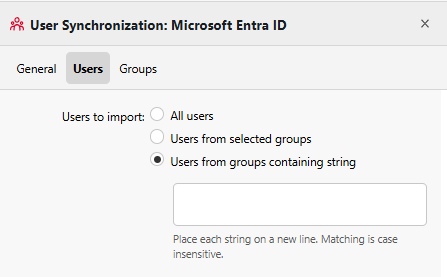
On the Users tab, select which Entra users to synchronize, map their properties to MyQ, and configure how MyQ handles changes detected during synchronization.
Users to Import
Select one of the following:
-
All users: synchronize all users in the tenant.
-
Users from selected groups: synchronize users who are members of at least one selected Entra group.
-
Users from groups containing a string: synchronize users belonging to groups whose names contain one of the specified strings. Enter each string on a separate line. Matching is case-insensitive.
Filtering users by strings in group names can increase synchronization time significantly.
User Properties
Map Microsoft Entra attributes to MyQ user properties.
|
MyQ property |
Available Entra attributes |
|---|---|
|
Full name |
|
|
Personal number |
|
|
|
|
|
Notes |
|
|
Language |
|
|
Department |
|
|
Alias |
|
|
Card |
|
|
PIN |
|
|
Custom 1–3 |
|
You can also enter a supported custom Entra attribute instead of selecting one of the predefined attributes.
The user's Entra UPN is always used as the MyQ username and cannot be remapped.
For the Alias property, you can use onPremisesSamAccountName@onPremisesDomainName to combine the two attributes into an alias such as user@company.com.
User Synchronization Options
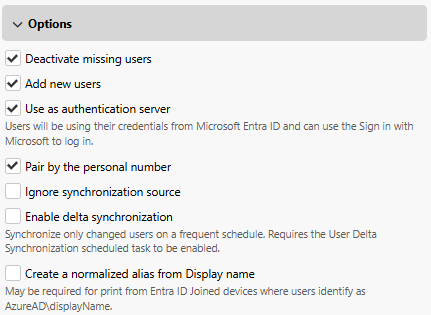
Configure how MyQ handles synchronized users.
-
Deactivate Missing Users: Automatically deactivate users in MyQ that are no longer present in the synchronization scope.
Use this option when Entra ID controls the lifecycle of the synchronized MyQ users. -
Add New Users: Automatically create MyQ users that are found in the synchronization scope but do not yet exist in MyQ.
-
Use as authentication server: Assign the selected Microsoft Entra ID connection as the authentication server for synchronized users.
Enable this when users synchronized from this source should also authenticate against Microsoft Entra ID. -
Pair by the personal number: Match synchronized identities to existing MyQ users by personal number. When a matching personal number is found, MyQ updates the existing user instead of creating another account.
Pairing by personal number is enabled by default for synchronization sources created in current MyQ X versions and is strongly recommended. -
Ignore Synchronization Source: Allows this synchronization source to match and update existing MyQ users even if they are associated with a different synchronization source. Enable this option when migrating users to Entra ID or consolidating multiple user sources without creating duplicate accounts.
-
Enable delta synchronization: periodically check for changes since the last delta run and apply only those changes – new users, updated users, disabled or deleted users, group renames, and membership changes.
Create a Normalized Alias from Display Name
Enable Create normalized alias from Display name to add an additional alias that can be used to identify jobs submitted from Entra ID joined devices.
The alias is generated from the user's Entra display name in the form expected from supported Windows print-job identities.
This alias is added in addition to any aliases configured through the property mappings.
Limitation
If multiple synchronized users have the same display name, the normalized alias can be assigned only to the first matching user. In this case, MyQ cannot reliably distinguish the users from the concatenated name supplied with the print job.
Transformation
Regex transformation rules can be applied to user attributes during sync to parse or reformat values before they are stored in MyQ.
Groups Tab
The Groups tab controls how Entra group memberships are represented in MyQ. It does not determine which users are imported. User selection is configured separately, on the Users Tab in Users to import.
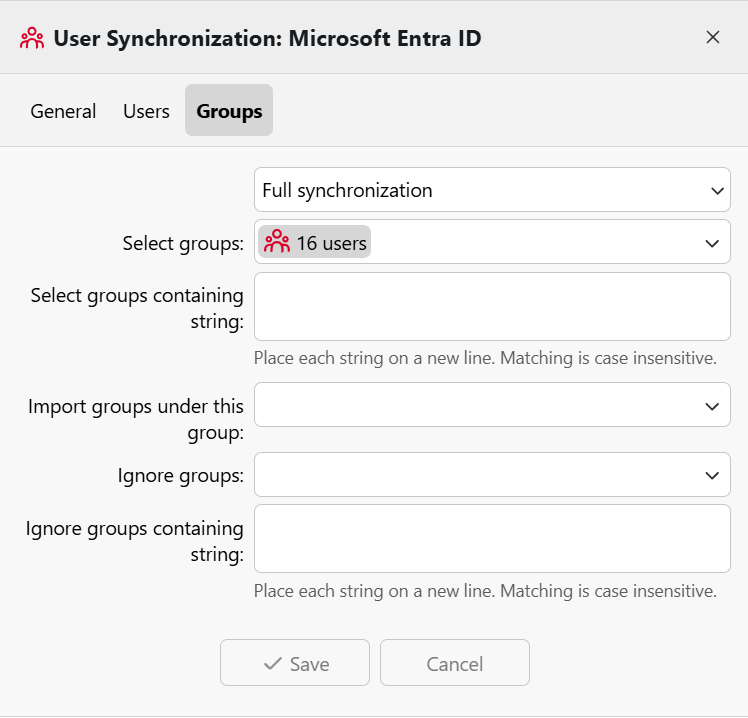
Synchronization Type
Select how MyQ handles changes to group membership:
-
Full synchronization: MyQ group membership follows Entra ID. Users are added to and removed from groups to match the source.
-
Synchronize if not empty: synchronize group membership while preventing a user from being left without any group membership.
-
Add new: add memberships found in Entra ID, but do not remove existing MyQ memberships when users are later removed from the corresponding Entra group.
Select Groups
Use the group filters to determine which Entra group memberships should be created in MyQ:
-
Select groups: select individual Entra groups.
-
Select groups containing string: include groups whose names match the specified strings.
-
Import groups under this group: place synchronized groups beneath an existing MyQ parent group.
-
Ignore groups: exclude selected groups.
-
Ignore groups containing string: exclude groups whose names contain specified strings.
User Selection and Group Synchronization
The groups used to select which users are synchronized do not have to be the same groups whose memberships are created in MyQ.
Example – assume Entra ID contains:
-
All students - 1,500 users
-
Class1A - 1,000 users
-
Class1B - 500 users
To synchronize all students but create only the Class1B membership in MyQ:
-
On the Users tab, select Users from selected groups and select
All students. -
On the Groups tab, select only
Class1B.
All 1,500 users are synchronized, but only the 500 members of Class1B receive that group membership in MyQ.
This allows the user synchronization scope and the MyQ group structure to be controlled independently.
Delta Synchronization
Delta synchronization is an incremental mode that supplements the regular full synchronization. To use this feature, enable the User Delta Synchronization scheduled task, and run synchronization at least once.
Instead of re-reading the entire Entra ID directory, each delta run asks Microsoft Entra ID only for what has changed since the previous run. Because very little data is transferred, the delta task can run every few minutes, so changes in Entra ID reach MyQ much faster than with a daily full sync alone.
Delta synchronization does not replace full synchronization. The regular full synchronization continues to run on its own schedule (typically daily) and acts as a safety net that reconciles anything the delta runs could not cover.
Enabling the checkbox alone does not trigger an immediate delta run. Changes are picked up when the User Delta Synchronization scheduled task next runs.
Run the Synchronization
To run synchronization immediately, go to MyQ > Settings > User Synchronization, select the source, and click Synchronize now. If configured correctly, synced users and groups appear under MyQ > Users.
To synchronize automatically on a schedule, go to MyQ > Settings > Task Scheduler and configure the User Synchronization task.
Synchronize Multiple Entra Tenants
To synchronize users from multiple Microsoft Entra tenants, create a separate Entra connection and synchronization source for each tenant. Give each connection and synchronization source a clear, unique name so that administrators can identify the corresponding tenant.
Each source can have its own:
-
synchronization scope
-
property mappings
-
group configuration
-
user lifecycle options
-
authentication settings
On-Premises Identity for Hybrid Entra ID Users
In hybrid environments where Entra users have corresponding on-premises Active Directory identities, MyQ automatically imports the following attributes when they are available:
|
Entra attribute |
MyQ property |
|---|---|
|
|
On-premises username |
|
|
On-premises domain |
No additional attribute mapping is required.
The values are available in the user's Advanced properties. If they are edited manually, the next Entra synchronization overwrites the manual values.
If either attribute is unavailable for a user, MyQ records this in the synchronization log.
On-Premises Windows Identity
When both on-premises attributes are available, MyQ can construct a Windows identity for operations that must be performed as the user's on-premises account.
The NetBIOS domain is derived from the first label of the synchronized DNS domain:
|
On-premises identity |
Result |
|---|---|
|
Domain |
|
|
Domain |
|
MyQ uses this identity for supported on-premises file operations that are configured to run as the logged-in user.
If MyQ cannot construct the on-premises identity:
-
if the On-premises domain is unavailable, MyQ falls back to authentication-server domain resolution;
-
if the On-premises username is unavailable, MyQ falls back to the user's MyQ username.
A warning is written to the log when a fallback is used.
Cloud-only Entra users without these attributes are unaffected.