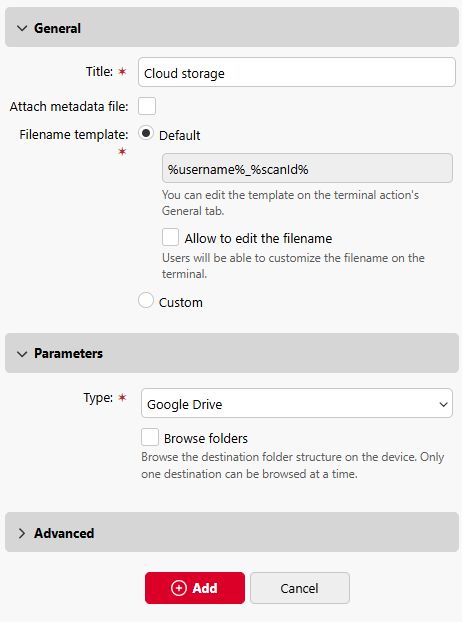
MyQ supports both personal Google Drive and Google Drive for Workspace as scan destinations. If you want to use both, we recommend that you create a separate terminal action for each. If both destinations are used in the same action, folder browsing can be enabled for only one destination.
Set Google Drive as a Scan Destination
-
Open an Easy Scan terminal action and on the Destinations tab select Cloud storage in the +Add dropdown.
-
In the Parameters section under Type, select one of these options.
-
Google Drive
-
Google Drive for Workspace
-
-
Select Browse folders if you want users to be able to browse their My Drive and Shared Drives locations before scanning. If folder browsing is disabled, the scan is delivered to the root of the user's My Drive.
-
(Optional) With Google Drive for Workspace you can restrict browsing to a specific Shared Drive or folder:
-
Drive name
Enter the display name (case-insensitive) of the Shared Drive as it appears in Google Drive for Workspace. When empty, the location defined by Root folder is resolved within My Drive instead.
When Browse folders is enabled, terminal browsing is restricted to the specified Shared Drive. My Drive and other Shared Drives are hidden.
When both Drive name and Root folder are empty, users can browse all accessible Shared Drives, or My Drive if none are available.When Browse folders is disabled, the Drive name field specifies the drive where scans are delivered.
-
Root folder
Enter the path to a subfolder within the drive specified by Drive name, or within My Drive if Drive name is empty.When Browse folders is enabled, browsing starts from this folder. When Browse folders is disabled, Root folder specifies the exact delivery folder. When empty, the root of the target drive is used.
-
-
Click Save.