
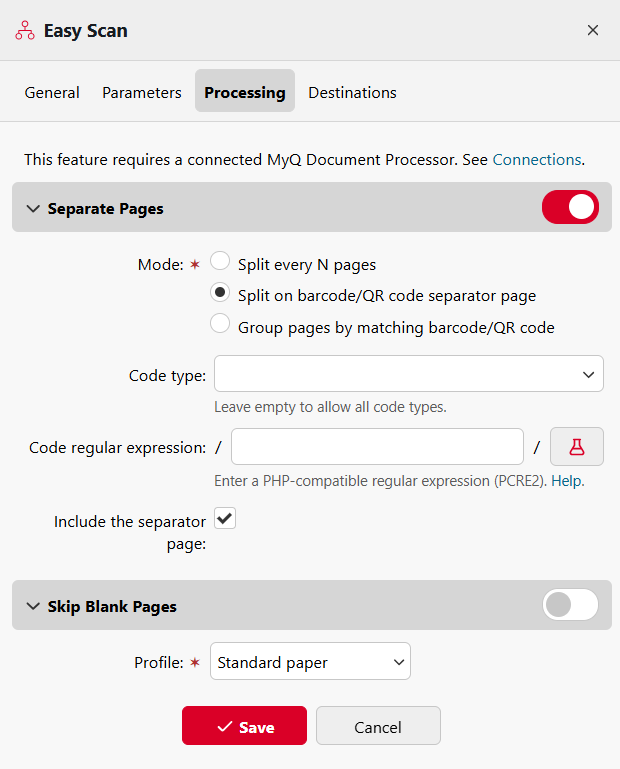
The Processing tab configures document processing options for the Easy Scan action. These options are handled by the MyQ Document Processor service. To use any processing option, you must have at least one MyQ Document Processor connection configured in MyQ > Settings > Connections.
If any processing option is enabled, the Format parameter on the Parameters tab must be set to an OCR profile of type MyQ Document Processor.
Separate Pages
Use these options to automatically split a scanned multi-page document into separate
output files.
Split every N pages
Splits the scanned document into separate files after every N pages. Set the value
of N to define the page interval.
Split on barcode/QR code separator page
Splits the scanned document when a page containing a recognized barcode or QR code
is detected. The barcode or QR code on that page acts as a separator between
documents.
-
Code types: Select which barcode or QR code types to recognize. The following
types are supported:-
AZTEC
-
CODABAR
-
CODE_39
-
CODE_93
-
CODE_128
-
DATA_MATRIX
-
EAN_8
-
EAN_13
-
ITF
-
MAXICODE
-
PDF_417
-
QR_CODE
-
RSS_14
-
RSS_EXPANDED
-
UPCA
-
UPCE
-
-
Code value (regex): Optionally, enter a regular expression to filter which
barcode values trigger a split. Only barcodes whose decoded text matches the
expression will be used as separators. -
Include separator page in split document: If enabled, the page containing the
separator barcode is included as the first page of the new output document. If
disabled, the separator page is excluded from all output documents.
Group pages by matching barcode/QR code
Splits the scanned document so that pages containing the same barcode or QR code
value are grouped into the same output file. A page with no recognized code is
treated as having the same code as the previous page.
-
Code types: Select which barcode or QR code types to recognize. See the list
of supported types above. -
Code value (regex): Optionally, enter a regular expression to filter which
barcode values are used for grouping.
Skip Blank Pages
When enabled, blank pages are automatically detected and removed from the scanned
output before processing. This prevents blank pages with punch holes or staple marks from being included unnecessarily. Select a paper profile that best matches the type of paper you need to scan.
The available profiles are:
-
Standard paper
-
Standard paper - staple
-
Standard paper - punch
-
Eco paper
-
Eco paper - staple
-
Eco paper - punch