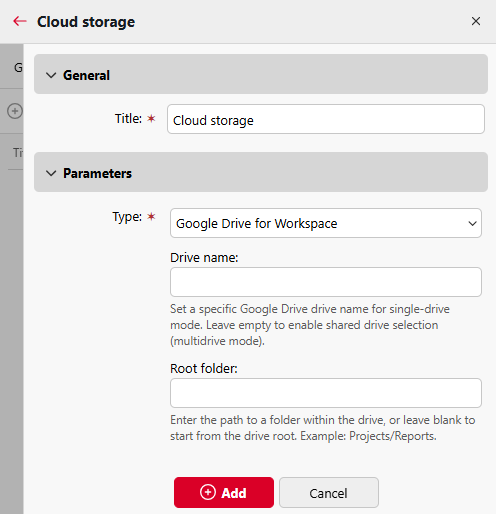
To connect Google Drive or Google Drive for Workspace as a cloud storage for use with the Easy Print terminal action, follow these steps.
-
Go to MyQ > Settings > Terminal Actions.
-
If there is an Easy Print action already added, you can configure it by double-clicking it or create a new one by clicking on the actions menu then Add action into this folder and selecting Easy Print from the list.
-
In the options menu, go to Storages > Add > Cloud Storage.
-
Under General, you can rename your cloud storage, and under Parameters, set Type to Google Drive or Google Drive for Workspace. For Google Drive for Workspace, you can optionally set:
-
Drive name
Enter the display name (case-insensitive) of the Shared Drive as it appears in Google Drive for Workspace. When empty, the location defined by Root folder is resolved within My Drive instead. -
Root folder
Enter the path to a subfolder within the drive specified by Drive name, or within My Drive if Drive name is empty.
-
-
Click Add.