
Jobs via Email allows users to submit print jobs by sending email attachments to a designated mailbox. MyQ polls the mailbox at a configured interval, retrieves messages, and processes attachments as standard print jobs. The email body can optionally be printed as well.
All jobs submitted via email are assigned to the Email queue and can only be released on devices assigned to that queue.
This method is useful for guest and remote users, BYOD scenarios, and environments where users cannot reach the print server directly. It can also drive automated guest account creation when combined with user self-registration.
Prerequisites
-
A dedicated mailbox for receiving print jobs, accessible via POP3, IMAP, Microsoft Exchange Online, or Gmail.
-
For Exchange Online: a registered Azure application with the required permissions.
-
For Gmail: a Gmail with OAuth2 connection configured under MyQ > Settings > Connections.
-
For MS Office format attachments: see Office Format Processing.
Supported Formats
PDF/A, TXT, and JPEG are supported natively. For MS Office formats (Word, Excel, PowerPoint), additional server-side configuration is required – see Office Format Processing.
The maximum message size, including all attachments, is 500 MB.
Enable Jobs via Email
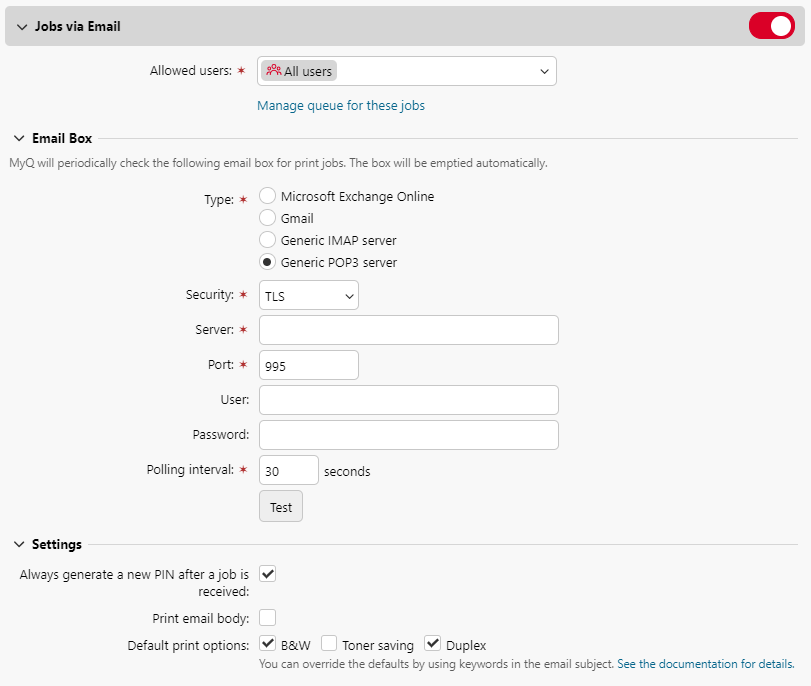
-
Go to MyQ > Settings > Jobs and locate the Jobs via Email section.
-
Set the feature to Enabled.
-
In Allowed users, specify which users may send jobs via email, or leave set to all users.
-
Select the queue to which incoming email jobs will be assigned.
Configure the Email Box
Under Email Box, configure the mailbox MyQ will poll for incoming jobs. The box is emptied automatically.
Microsoft Exchange Online
Exchange Online uses IMAP to collect emails for printing.
If a Microsoft Exchange Online connection has already been configured under MyQ > Settings > Connections, it is available in the Connection field. If not, click the Connection field and then click Add to create one. Enter a Title, Client ID, and Tenant ID, then click OK.
-
User: the email address of the mailbox that will receive print jobs.
-
Polling interval: how often MyQ checks for new messages, in seconds.
Click Test to verify the connection, then click Save.
Gmail
Gmail uses IMAP to collect emails for printing.
If a Gmail with OAuth2 connection has already been configured under MyQ > Settings > Connections, it is available in the Connection field. If not, click the Connection field and then click Add to create one. Enter a Title, Client ID, and Security key, then click OK.
-
User: the email address of the Gmail mailbox that will receive print jobs.
-
Polling interval: how often MyQ checks for new messages, in seconds.
Click Test to verify the connection, then click Save.
Generic POP3 or IMAP Server
-
Type: select Generic POP3 server or Generic IMAP server.
-
Security: select None, SSL, or STARTTLS.
-
Server: the IP address or hostname of the mail server.
-
Port: confirm the correct protocol port for your selected type and security option.
-
User: the email address of the mailbox.
-
Password: the password for the mailbox account.
-
Polling interval: how often MyQ checks for new messages, in seconds.
Click Test to verify the connection, then click Save.
Additional Settings
-
Always generate a new PIN after a job is received: when enabled, a new PIN is generated each time a user sends a job via email, replacing any existing PIN. If this option is enabled, also enable Send new PIN via email under MyQ > Settings > Users > PIN – otherwise users will not receive their new PIN and will be unable to log in.
-
Print email body: when enabled, the body of the email is printed in addition to any attachments. You can restrict the body print to B&W, Toner saving, and/or Duplex using the Default print options.
-
Subject keywords: users can override the default print options by adding keywords to the email subject line. Keywords take priority over Default print options. Available keywords:
|
Keyword |
Effect |
|---|---|
|
|
Color print |
|
|
Monochrome print |
|
|
Print on both sides |
|
|
Print on one side |
|
|
Toner saving on |
|
|
Toner saving off |
Keywords can appear anywhere in the subject and do not need to be separated. For example: MyPrintJob #mono#duplex.