
Jobs via Web allows users to upload and submit print jobs directly from the MyQ web interface without installing a print driver. Once the feature is enabled, a Print File button appears on each user's web interface account. Users click the button, select a file, and the job is queued for authenticated release at a printing device.
All jobs submitted via the web interface are assigned to the Web queue and can only be released on devices assigned to that queue.
This method is useful for guests, contractors, and users on platforms where driver installation is not practical.
Prerequisites
-
The Web queue must exist and have at least one printing device assigned to it.
-
For MS Office format uploads: see Set Up Office Format Processing.
Supported Formats
PDF/A, JPEG, BMP, TIF, PNG, and TXT are supported natively. For MS Office formats (Word, Excel, PowerPoint) and LibreOffice formats, additional server-side configuration is required.
Enable Jobs via Web
-
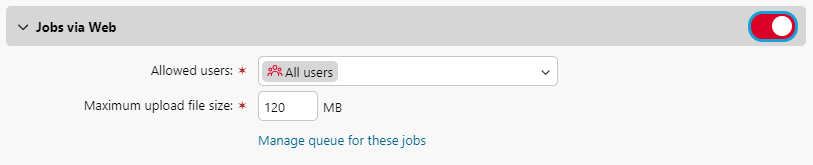
Go to MyQ > Settings > Jobs and locate the Jobs via Web section.
-
Set the feature to Enabled.
-
In Allowed users, specify which users or groups may submit jobs via the web interface, or leave it set to All Users.
-
Set the Maximum upload file size as required. The allowed range is 20–120 MB; default is 120 MB.
-
Click Save.