
MyQ can process and print MS Office and LibreOffice attachments received via Jobs via Email, Jobs via Web, and Easy Print. This page covers the prerequisites, processing method options, and the local admin account configuration required for the Convert to PDF method.
Prerequisites
Microsoft Office (64-bit, minimum version 2016, with latest service pack) or LibreOffice (minimum version 6, 64-bit) must be installed on the MyQ server. If both are installed, MS Office handles MS Office formats and LibreOffice handles LibreOffice formats.
After installation, restart MyQ services for the server to begin recognizing these formats.
Select a Processing Method
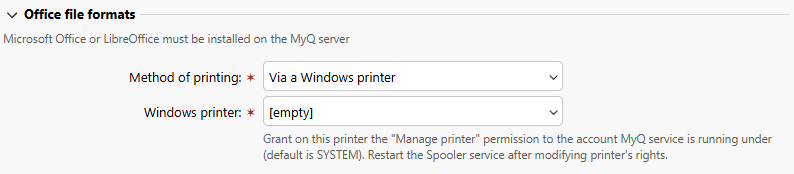
Go to MyQ > Settings > Jobs > General > Office file formats and select one of the following:
-
Convert to PDF (default): MyQ opens the document in the Office application, converts it to PDF, and sends it directly to the printing device. The device must support direct PDF printing.
-
Via a Windows printer: MyQ opens the document in the Office application and prints it using a selected Windows print driver. Select the driver from the drop-down. You must also update the printer's security settings to allow the MyQ services account to print: in Devices and Printers, right-click the printer, open Properties > Security, and grant Print and Manage printers permissions to the account running MyQ services.
Enable Office Document Processing
-
Install the corresponding Office package or packages on the MyQ server.
-
Open each application that will be used for conversion (Word, Excel, PowerPoint, LibreOffice, etc.), and click through any welcome screens and dialog boxes that might appear during the initial application startup.
-
Enter any necessary license information and complete any activation steps, if required.
-
Open MyQ Easy Config and go to Settings. Under Windows Services Account, ensure that Local System account is selected, and click Save. MyQ services restart automatically.
See also: