
On the Jobs settings tab, you can set the global properties of jobs in the MyQ print environment.
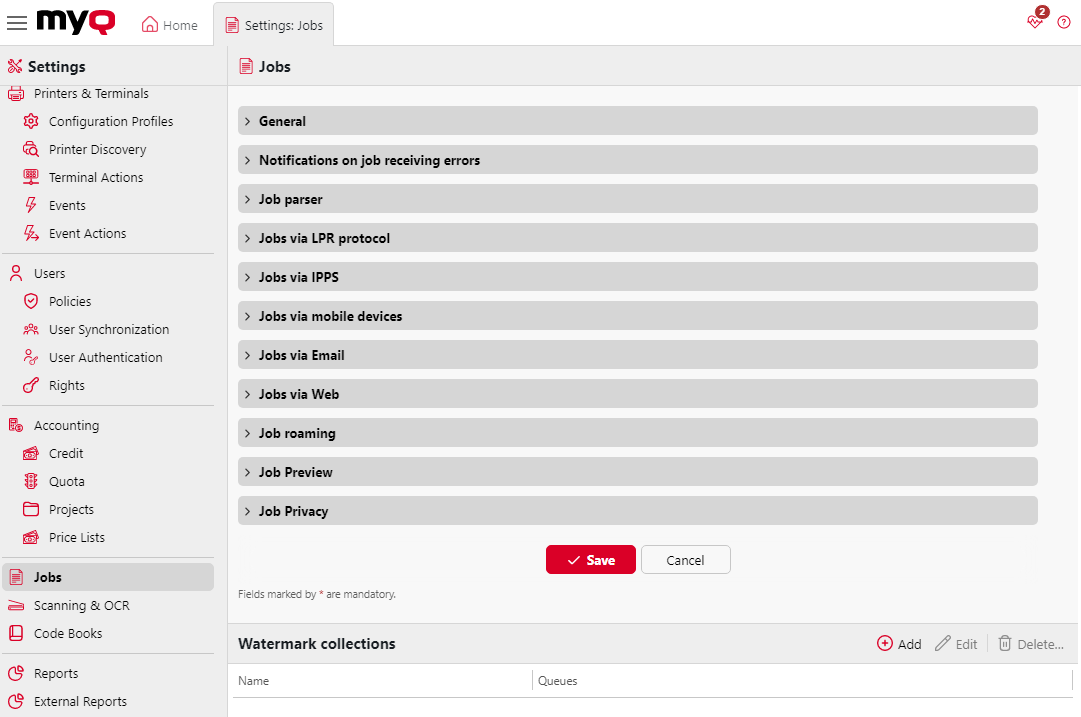
General
Here you can set the Maximum job size (default size is 600MB).
In the Office file formats subsection, select the method MyQ uses to process and print MS Office and LibreOffice attachments.
See also: Set Up Office Document Processing
Notifications on Job Receiving Errors
Check the Notify the administrator via email and/or the Notify the job sender via email boxes, to send notification emails about refused jobs.
The job sender is always notified via MyQ Desktop Client, if installed.
Job Parser
Here you can set the job parsing mode, which dictates which level of job details will be reported. You need to activate the Job Parser if you want to know job details (page count, color, paper size, etc.) before the job is printed. It is necessary for features like credit, quota and PHP scripting. There are three levels of job parsing available:
-
Basic (lower CPU usage) - This method doesn't estimate number of mono and color pages.
-
Standard (default option) - This method will estimate the number of monochrome and color pages. This method is optimal for most office documents.
-
Enhanced (higher CPU usage) - Every page of the document will be rendered and estimated as monochrome or color based on the rendered data. This method is recommended when printing complex PostScript or PDF documents and facing inaccuracy in Standard job parsing method.
See also: Job Parser
Jobs via LPR Protocol
Here you can enable the Jobs via LPR protocol feature (enabled by default). If it is deactivated, MyQ cannot receive print jobs via LPR.
The server knows the job sender (to be able to notify MyQ Desktop Client about job processing) through the hostname sent by the LPR protocol. The maximum length of the hostname is 31 characters.
The maximum job size received over LPR is 100GB. Jobs with a size of over 2GB are described as: "More than 2GB"; for jobs below 2GB, the real size is displayed.
It is recommended to keep the Jobs via LPR protocol option enabled. If it is disabled, jobs sent from print drivers cannot be received by MyQ.
You can also change the port here, although it is recommended to use the default setting (515).
See also: Jobs via LPR Protocol
Jobs via IPPS
Here you can enable printing jobs via the IPPS protocol. You can also change the port here (default is 443), and enable the Require authentication option to enforce authenticated-only IPP printing.
See also: Jobs via IPPS
Jobs via Email
Here you can enable or disable the Jobs via Email feature and configure the mailbox MyQ polls for incoming print jobs. Supported attachment formats are PDF/A, TXT, and JPEG. For MS Office formats, MS Office or LibreOffice must be installed on the MyQ server. The maximum message size, including all attachments, is 500 MB.
See also: Jobs via Email
Jobs via Web
Here you can enable or disable the Jobs via Web feature, which allows users to upload and submit print jobs directly from the MyQ web interface. You can also configure the allowed users and set the maximum upload file size (20–120 MB; default 120 MB).
See also: Jobs via Web
Job Preview
Here you can enable/disable and set up Job Preview and set the Number of pages (to include all pages in the preview set the value to 0).
See also: Job Preview
Job Archiving
This feature is visible if your activated license includes Job Archiving.
You can automatically archive all print jobs that are sent to MyQ. On selected brands of printing devices, you can also archive all copy and scan jobs.
See also: Job Archiving
Job Privacy
Here you can enable the Job Privacy feature, which limits access to sensitive job metadata for everyone except the job owner and their delegates.
Once enabled, the Job Privacy feature cannot be disabled.
In addition, you can enable or disable the option to Hide job names on the device. Enabling this option means the names of jobs released to devices are redacted so that they are not visible in the device's job history.
See also: Job Privacy
Watermark Collections
Here you can set up watermark collections.
See also: Watermark Collections