
Configure Microsoft Entra ID as an authentication server to let MyQ users authenticate using their Microsoft identities. Entra authentication can be used with users synchronized from Microsoft Entra ID or assigned to individual MyQ users.
User authentication with Entra ID requires an existing Microsoft Entra ID connection in MyQ.
Add a Microsoft Entra ID Authentication Server
-
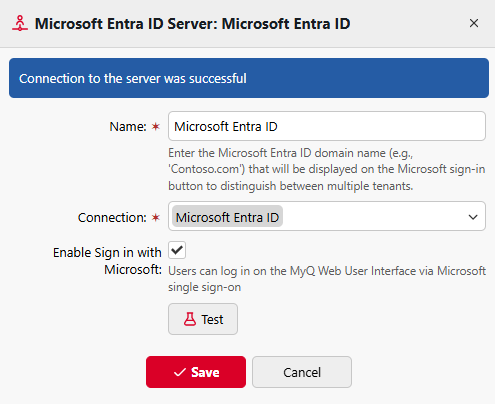
Go to MyQ > Settings > Authentication Servers.
-
Click Add and select Microsoft Entra ID Server.
-
Select the Microsoft Entra ID connection that should authenticate the users. If the required connection does not yet exist, select Add New and create it.
-
Enable Sign in with Microsoft if users should be able to authenticate through the Microsoft sign-in flow.
-
(Optional) Click Test to check that the connection to the server works.
-
Click Save.
Assign the Authentication Server to Users
Creating an authentication server does not automatically assign it to MyQ users. The Entra authentication server must also be assigned to the users who should authenticate against it.
You can assign it:
-
automatically during Microsoft Entra ID user synchronization, or
-
individually in a user's MyQ profile.
Assign During User Synchronization
When synchronizing users from Microsoft Entra ID, enable Use as authentication server in the synchronization source. MyQ assigns the associated Entra authentication server to the synchronized users. This determines that their external authentication is performed against Microsoft Entra ID.
This setting is independent of Sign in with Microsoft, which controls whether the Microsoft interactive sign-in method is available.
Use this approach when Entra ID is both the synchronization and authentication source for the same users.
Assign to an Individual User
To configure authentication for an individual user, open the user's properties and enable Use authentication server. Select the required Microsoft Entra ID authentication server.
Use individual assignment when only selected users should authenticate against Entra ID or when the users were created or imported from another source.
Choose How Users Authenticate
Users assigned to a Microsoft Entra ID authentication server can authenticate either by entering their Microsoft credentials or, on supported MyQ interfaces, through Sign in with Microsoft.
Microsoft Username and Password
When a user enters a username and password, MyQ authenticates the credentials against the assigned Microsoft Entra ID authentication server.
On Embedded Terminals using username and password authentication, MyQ first checks whether the entered value matches the user's MyQ PIN. If it does, the user is authenticated locally. Otherwise, the value is passed to the external authentication server as the user's password.
On the MyQ Web Interface, users assigned to an external authentication server cannot authenticate using their MyQ PIN.
Sign in with Microsoft
Sign in with Microsoft uses Microsoft's interactive authentication flow rather than requiring the user to enter Microsoft credentials directly into MyQ. It is available on:
-
MyQ Web Interface
-
MyQ Desktop Client
-
MyQ X Mobile Client
It is not available as an Embedded Terminal authentication method.
Because authentication takes place through Microsoft, authentication requirements configured for the user's account, such as multi-factor authentication, can be applied during sign-in.
Signing out of MyQ does not necessarily end the user's Microsoft session. If the user remains signed in to Microsoft, Microsoft may reuse that session the next time authentication is requested.
Multiple Microsoft Entra Tenants
MyQ can authenticate users against multiple Microsoft Entra tenants.
Create a separate Entra connection and authentication server for each tenant. Give each one a clear and unique name so that users can identify the appropriate Microsoft organization when signing in.
When Sign in with Microsoft is enabled for multiple authentication servers, the available tenant sign-in options are presented to users during login.
In Central Server and Site Server environments, Entra authentication servers configured on the Central Server are automatically distributed to connected Site Servers.
All configured Entra authentication servers are available on every Site Server. They cannot be restricted to selected Sites.
Single Sign-On with MyQ Desktop Client
MyQ Desktop Client can use Microsoft Entra ID to authenticate supported Windows users automatically without requiring them to interact with the Microsoft sign-in page.
Desktop Client attempts Entra authentication silently using the identity of the signed-in Windows user. If Entra authentication fails, MyQ Desktop Client can fall back to Integrated Windows Authentication, if configured, and then to manual sign-in.