
Integrated Windows Authentication (IWA) lets users authenticate to MyQ using their signed-in Windows identity. MyQ uses Kerberos where available and can fall back to NTLM unless Kerberos-only authentication is enforced.
Use IWA for users and workstations that are part of the same Active Directory domain as the MyQ server, or of a trusted domain. Users outside the domain environment need another authentication method.
Before You Begin
Before configuring IWA, confirm that:
-
Active Directory Domain Services (AD DS) is available.
-
The MyQ server and client computers are joined to the same domain or trusted domains.
-
DNS resolves the FQDN used to access the MyQ server.
-
Time is synchronized between domain controllers, the MyQ server, and client computers.
-
Users are synchronized to MyQ.
-
Active Directory is configured as the authentication server for the affected users.
-
You have the permissions required to register a Service Principal Name (SPN) in Active Directory.
Enable Windows Authentication in MyQ
-
Go to MyQ > Settings > Users > User Authentication.
-
Enable Sign in with Windows Authentication.
-
Save the settings.
Windows Authentication becomes available as an additional authentication method in the MyQ Web Interface.
Users who are not covered by IWA can continue to use other configured authentication methods.
Configure Kerberos
Kerberos is the preferred protocol for IWA.
MyQ uses the Windows HTTP Server API (http.sys) for Windows authentication. The HTTP Service Principal Name (SPN) must therefore be registered on the computer account of the MyQ server, not on a separate MyQ service account.
The SPN must correspond to the FQDN that users use to access MyQ.
Register the SPN
Open Command Prompt as a user with the required Active Directory permissions, on a domain controller or another computer with the appropriate Active Directory management tools.
Register the HTTP SPN:
setspn -S HTTP/myqserver.domain.com MYQSERVER
Replace:
-
myqserver.domain.comwith the FQDN used to access MyQ. -
MYQSERVERwith the computer account name of the MyQ server.
Verify the registered SPNs:
setspn -L MYQSERVER
Confirm that the required HTTP/<FQDN> entry is present.
If users access MyQ through a different hostname, alias, or FQDN, ensure that the corresponding SPN configuration matches the address actually used by clients.
Configure Browser Authentication
For IWA to work in the MyQ Web Interface, the browser must recognize the MyQ server as an integrated-authentication destination and be permitted to send the signed-in user's Windows credentials automatically.
In managed environments, distribute the required browser settings centrally using Group Policy, MDM, or the browser's enterprise policy mechanism.
Microsoft Edge Example
On a client computer:
-
Open Internet Options > Advanced > Security and enable Integrated Windows Authentication.
-
Go to Internet Options > Security > Local intranet > Sites > Advanced.
-
Add the FQDN of the MyQ server.
-
Go to Local intranet > Custom level > User Authentication > Logon.
-
Select Automatic logon only in Intranet zone.
Other supported browsers can require their own integrated-authentication policies. Use the browser vendor's enterprise documentation when deploying these settings centrally.
Enable Seamless Single Sign-On for MyQ Desktop Client
MyQ Desktop Client enables automatic user authentication through its configuration profile.
-
Go to MyQ > Settings > MyQ Desktop Client.
-
Open the required configuration profile.
-
On the General tab, under Authentication, enable Seamless Single Sign-On.
-
Save the profile.
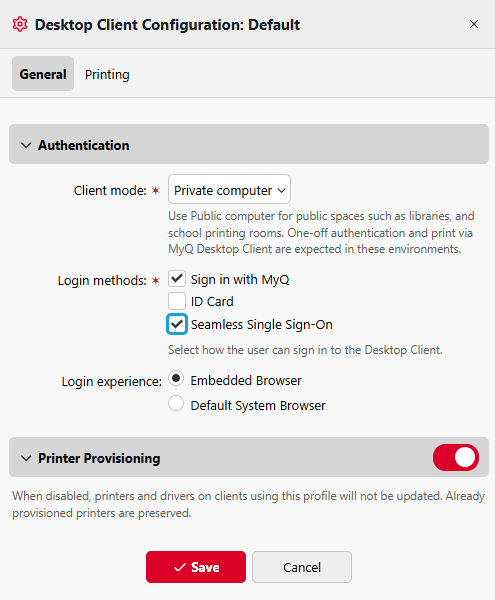
When Seamless Single Sign-On is enabled, Desktop Client attempts to authenticate the signed-in Windows user automatically. Depending on the authentication methods configured for the user and environment, MyQ can use Microsoft Entra ID SSO or Integrated Windows Authentication before falling back to manual sign-in.
Kerberos and NTLM
MyQ attempts Kerberos when the required conditions are available. NTLM can be used as a fallback when Kerberos cannot be applied. Kerberos is recommended for normal IWA deployments.
If NTLM is required for compatibility, use NTLMv2. If your organization restricts or disables NTLM through domain policy, verify that Kerberos is working correctly for MyQ before applying the restriction to affected clients.
Enforce Kerberos for MyQ
MyQ provides a server-level configuration option to prevent NTLM fallback. Add the following to config.ini on the MyQ server:
[Security]
KerberosOnly=true
This setting affects Windows authentication in MyQ. It does not disable NTLM for other applications or services in the Windows domain.
Restart the relevant MyQ services after changing advanced configuration settings where required.
Domain-Wide Policies
Windows Group Policy can also control Kerberos and NTLM behavior across domain-joined systems.
Common policy areas include:
|
Purpose |
Group Policy location |
|---|---|
|
Kerberos ticket settings |
Computer Configuration > Policies > Windows Settings > Security Settings > Account Policies > Kerberos Policy |
|
NTLM restrictions |
Computer Configuration > Policies > Windows Settings > Security Settings > Local Policies > Security Options |
Changes to domain-wide Kerberos or NTLM policies can affect services other than MyQ. Coordinate them with your Active Directory or security administrators.
Domain Mapping
Windows domain names can be presented in different formats during authentication.
For example:
-
NetBIOS name:
ACME -
DNS domain name:
acme.example.com
The domain received during authentication must correspond to the domain configured for the user's authentication server in MyQ.
If the client presents a NetBIOS domain name while MyQ is configured with the DNS domain name, authentication can fail. This is particularly relevant when NTLM is used.
MyQ provides the domainsMapping advanced configuration parameter for mapping domain-name variants.
For the parameter syntax and advanced configuration procedure, see Advanced Configuration.
Verify Integrated Windows Authentication
After configuration, test IWA from a representative domain-joined workstation.
For the Web Interface:
-
Sign in to Windows as a MyQ user configured to authenticate against Active Directory.
-
Open the MyQ Web Interface using the FQDN configured for Kerberos.
-
Select the Windows Authentication sign-in option.
-
Confirm that the user is authenticated without entering additional credentials.
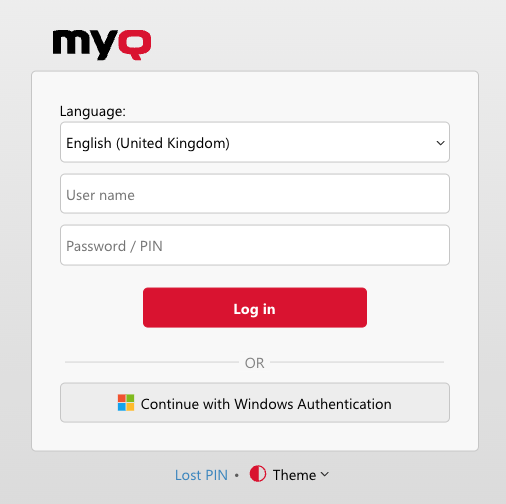
Also test MyQ Desktop Client if IWA is part of the Desktop Client configuration.
Verify Kerberos or NTLM Usage
Windows authentication is handled by Windows and Active Directory. MyQ logs therefore do not necessarily identify whether an individual IWA authentication used Kerberos or NTLM.
Use Windows and Active Directory security logs to verify the authentication protocol.
Relevant Kerberos events on domain controllers include:
-
4768: Ticket Granting Ticket request
-
4769: Kerberos service ticket request
-
4771: Kerberos pre-authentication failure
-
4775: Authentication failure
-
4624: Successful Windows logon
NTLM authentication attempts are also recorded in Windows security events.
These events can identify the authenticating user and originating computer, but they do not necessarily identify MyQ as the application that initiated the authentication.
Troubleshooting
If IWA does not work as expected, check the following.
Kerberos Falls Back to NTLM
Verify that:
-
the client accesses MyQ using the expected FQDN,
-
DNS resolves that FQDN correctly,
-
the corresponding HTTP SPN exists,
-
the SPN is registered on the MyQ server computer account,
-
there are no duplicate SPNs in Active Directory,
-
the client, server, and domain controllers have synchronized time.
Windows Authentication Does Not Start in the Browser
Verify that:
-
Integrated Windows Authentication is enabled in the browser,
-
the MyQ server is recognized as an intranet or integrated-authentication destination,
-
browser enterprise policies allow automatic Windows authentication for the MyQ FQDN.
Test the configuration on a domain-joined workstation before applying it to the wider environment.
Authentication Works for Some Domains but Not Others
Verify:
-
the trust relationship between the domains,
-
the authentication server assigned to the affected users,
-
the domain name presented by Windows during authentication,
-
whether NetBIOS and DNS domain names need to be mapped using
domainsMapping.
Authentication Fails After NTLM Is Disabled
Confirm that Kerberos authentication succeeds before enforcing Kerberos-only behavior or disabling NTLM through domain policy.
In particular, verify DNS, SPN registration, browser policy, and domain connectivity.