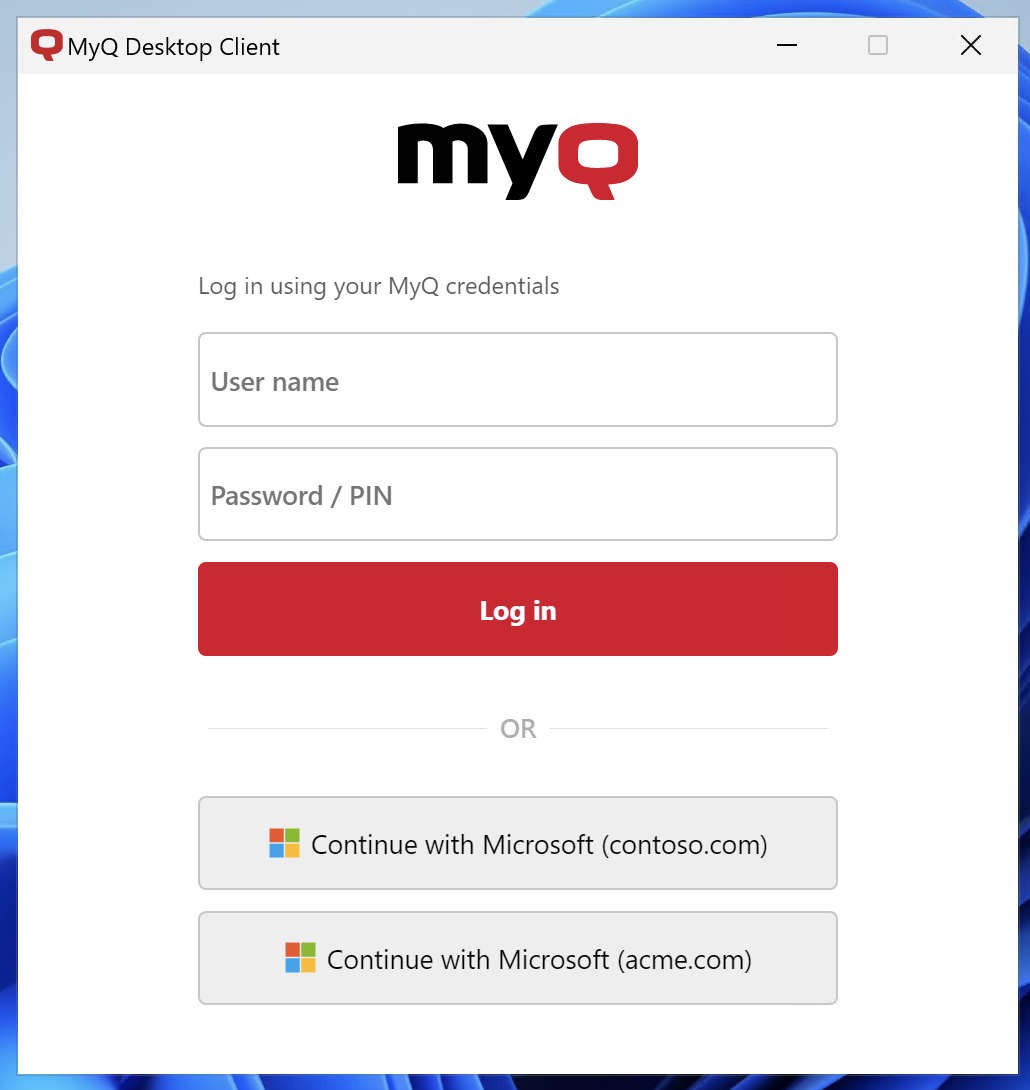
A single MyQ X environment can synchronize and authenticate users from multiple Microsoft Entra ID tenants.
This is useful in shared-service environments, mergers, subsidiaries with separate Microsoft tenants, or other deployments where users from several organizations share the same MyQ infrastructure.
Treat each Microsoft Entra tenant as a separate identity source in MyQ.
Plan the Tenant Configuration
For each tenant, create the MyQ components required by the services you use:
|
MyQ component |
When required |
|---|---|
|
Microsoft Entra ID connection |
Always |
|
User synchronization source |
When users are synchronized from the tenant |
|
Microsoft Entra ID authentication server |
When users authenticate against the tenant |
Give each connection, synchronization source, and authentication server a clear and unique name that identifies its tenant. For example:
-
Entra - Contoso -
Entra - Acme
The authentication-server name is particularly important when users must choose between multiple Microsoft sign-in options.
Connect Each Tenant
Create a separate Microsoft Entra ID connection for each tenant.
Application registration and authorization can be managed automatically by MyQ or manually according to your organization's Microsoft Entra administration model.
Synchronize Users from Multiple Tenants
Create a separate Microsoft Entra ID synchronization source for each tenant that supplies users to MyQ. Each source can have its own:
-
user scope
-
group selection
-
attribute mappings
-
lifecycle settings
-
authentication-server assignment
Microsoft Entra synchronization uses UPN-based usernames, which normally reduces the risk of username collisions because the tenant or domain suffix forms part of the identity. Still, review aliases and other identifiers when different tenants contain users with similar names or identities.
Authenticate Users from Multiple Tenants
Create a separate Microsoft Entra ID authentication server for each tenant whose users authenticate through Entra ID.
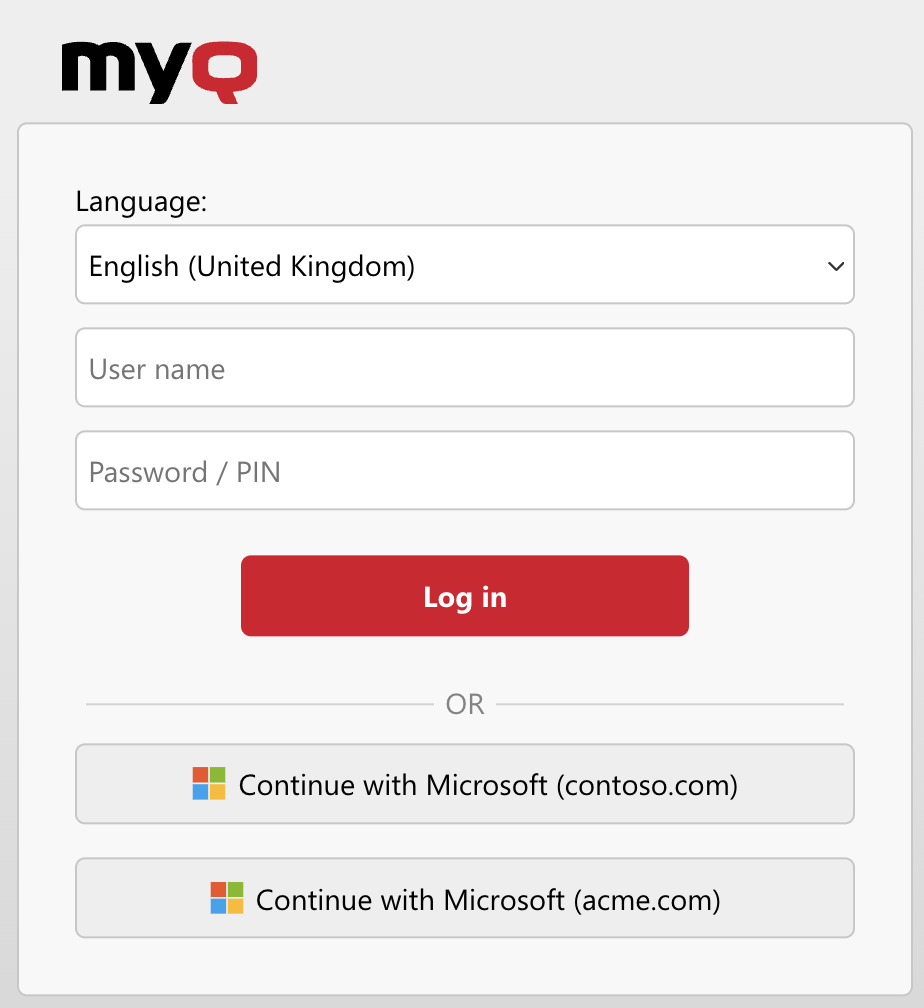
When Sign in with Microsoft is enabled for multiple authentication servers, users are presented with the available Microsoft tenant sign-in options.
Use descriptive authentication-server names so users can identify which organization they should use when signing in.
Central-Site Environments
In Central-Site deployments, configure Microsoft Entra authentication servers on the Central Server. The authentication servers are automatically distributed to connected Site Servers.
All Entra authentication servers configured on the Central Server are available on every Site Server. When Sign in with Microsoft is enabled, all corresponding tenant sign-in options are presented to users.
It is not currently possible to make a Microsoft Entra authentication server available only on selected Site Servers. Consider this limitation when planning shared environments containing many tenants or Sites.
Test the User Experience
Before rollout, test:
-
synchronization from each tenant
-
authentication for users from each tenant
-
the tenant choices presented during Sign in with Microsoft
-
username and alias uniqueness
-
job ownership for representative users and client devices
For deployments using Entra ID joined devices, also verify that the identity submitted with print jobs matches the username or alias stored for the synchronized user.
User Experience Preview
Users logging in to the Web UI see the following screen:
The login experience in the MyQ Desktop Client is similar.