
MyQ uses OCR Profiles to define the OCR processing method and output format of scanned scanned documents. When an OCR profile is selected as the scan format in an Easy Scan action, MyQ then processes it according to the profile, before forwarding the output to the configured scan destination.
The following methods are available:
-
OCR via MyQ Document Processor: use this option to process scans using the MyQ Document Processor.
-
OCR via Hot Folder: use this option to integrate with a third-party OCR application.
To create and manage OCR Profiles, go to MyQ > Settings > Scanning & OCR > OCR Profiles.
OCR via MyQ Document Processor
To use the MyQ Document Processor service for scan processing, define an OCR profile. Before you use this type of profile, first go to MyQ > Settings > Connections and create a connection to at least one MyQ Document Processor connection.
MyQ Document Processor Profile Settings
-
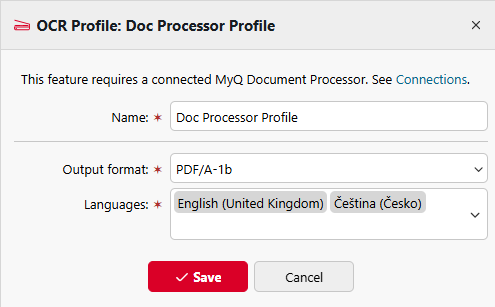
Name: A unique name for the profile. The name appears in the Easy Scan action parameters in the Format option.
-
Output Format: The format of the output document. The following output formats are supported:
-
pdf
-
PDF/A-1b
-
PDF/A-2b
-
PDF/A-3b
-
txt
-
docx
-
xlsx
-
pptx
-
-
Languages: Select only the languages expected in the input documents. Selecting unnecessary languages can significantly reduce recognition accuracy.
Notes:
-
If multiple MyQ Document Processor connections are configured, MyQ selects one
at random for each job. -
OCR processing time varies depending on the processing mode, the size of the
document, and the speed of the Document Processor service.
OCR via Hot Folder
The hot folder integrates MyQ with a third-party OCR application. The external application watches an input folder for documents to process, then writes the processed output to an output folder. MyQ monitors the output folder and delivers the processed document according to the configured Easy Scan destination.
The processed document must have the same filename as the input document. Only the file extension changes, based on the output format set by the external application.
Hot Folder Profile Settings
-
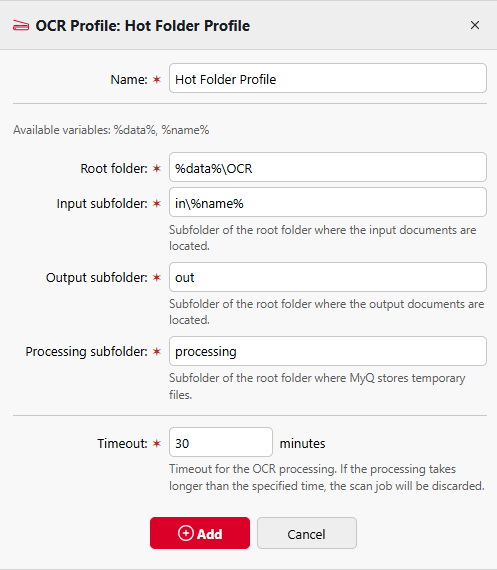
Name: A unique name for the profile. The name appears in the Easy Scan action parameters in the Format option.
-
Root folder: The root folder where the input, output, and processing subfolders are located.
-
Input subfolder: The subfolder where the external OCR application watches for incoming documents.
-
Output subfolder: The subfolder where the external OCR application writes the processed document.
-
Processing subfolder: A helper subfolder where MyQ stores intermediate files.
-
Timeout: The maximum time allowed for OCR processing. If processing exceeds this limit, the scan job is discarded.
Notes:
-
Scan jobs processed with OCR may be large files. Ensure sufficient storage is available in the system temporary folder, which is used for intermediate results.
-
If any processing error occurs, the scan job is discarded, an error is logged, the job owner is notified by email, and all associated job files are deleted.