
Go to MyQ > Settings > License to activate and manage your Installation Key.
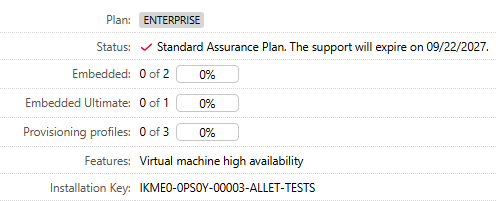
When you have an activated license, the License widget on the Home tab summarizes your license plan, software assurance status, and license usage.
Adding Your Installation Key
You can add the Installation Key from the Quick Start widget or the License settings tab.
-
Enter your company and contact information.
-
Enter the Installation Key and click Save.
-
Click Activate.
Activation and Hardware Binding
Activation binds your installation key to the server’s hardware configuration. If the hardware signature changes, reactivate the installation key within 10 days.
The Virtual Machine High Availability (VMHA) feature allows expected hardware-signature changes in virtual environments without requiring reactivation. VMHA is included with Enterprise licenses and is enabled by default.
VMHA requires the MyQ server to be a domain member, except in Microsoft Azure environments.
Updating Your License
After purchasing licenses or a Software Assurance plan extension or upgrade, click Update from License Server. Refresh the page if the changes are not displayed. For a server without internet access, use Manual Activation.
Expiration
The License settings tab displays the expiration or renewal date of your license plan. MyQ warns you before an expiring subscription impacts server operation.
Removing a License
Click Remove license on the License settings tab and confirm the action.