
Device Spooling sends print jobs directly from a user workstation to a supported printing device, where they are stored locally until release. The print job does not pass through the MyQ Print Server.
Device Spooling can reduce network traffic between remote sites and the Print Server and can help maintain printing during server or network outages. For guidance on when to use Device Spooling and how it combines with Client Spooling, Offline Login, and Fallback Printing, see Spooling Strategy in the MyQ Deployment guide.
Device Spooling is supported on Kyocera and Ricoh devices with supported MyQ embedded terminals.
Device Spooling Ports and Modes
The port used to submit a job determines how it is processed and released.
|
Port |
Mode |
Behavior |
|---|---|---|
|
10010 |
Direct print |
The job prints immediately after it is received by the device. |
|
10011 |
Secure hold print |
The job is stored on the receiving device until the user authenticates and releases it. The job can only be released from that device. |
|
10012 |
Pull print |
The job is stored on the receiving device and can be released from another supported Device Spooling device on the same subnet. |
|
10013 |
Delegated print |
Similar to Device Spooling Pull Print, but the job can also be released by a delegate of the sending user. |
Enable Device Spooling
-
In the MyQ Web Interface, go to MyQ > Settings > Printers & Terminals.
-
Expand Device Spooling.
-
Enable Device Spooling.
-
In Delete ready jobs older than, specify how long ready Device Spooling jobs remain stored on the device.
The default is 12 hours. The allowed range is 1–72 hours.
-
To allow jobs spooled on one device to be released from other supported devices, enable Pull Print.
-
Click Save.
-
If the Apply new settings dialog appears, keep Reset all terminals selected and confirm the change.
The settings are distributed to the connected embedded terminals.
Configure Device Spooling Pull Print
When Pull Print is enabled, jobs submitted to port 10012 can be released from other supported Device Spooling devices on the same subnet.
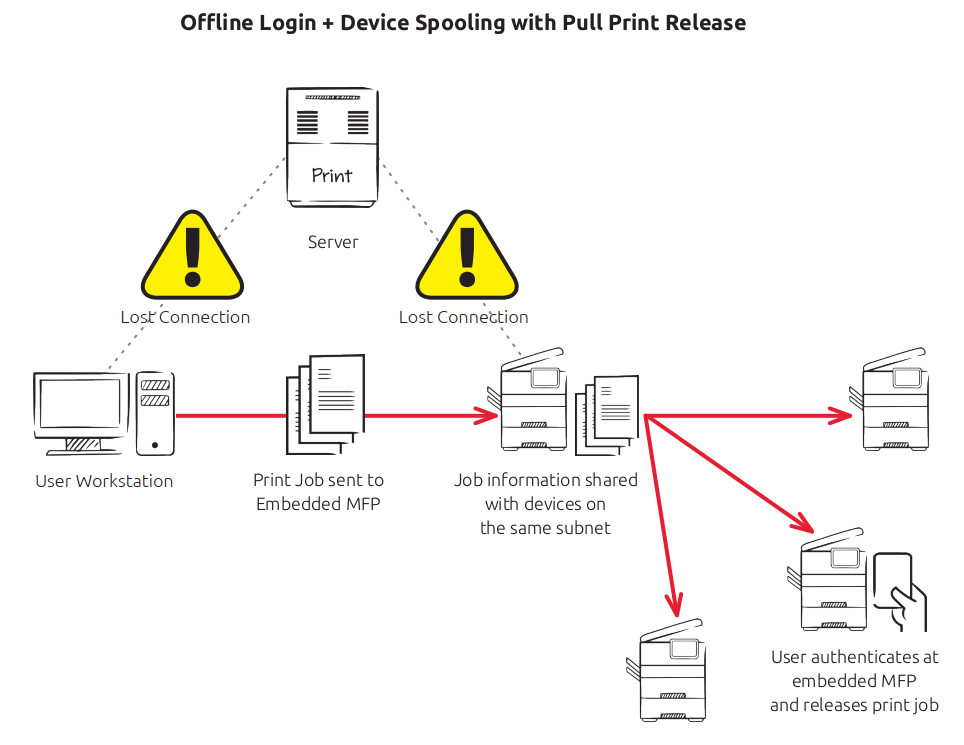
The job stays on the device that received it. When a user signs in at another participating device, that device discovers the user's jobs on the subnet. When the user releases a job, the device that holds it sends the job to the user's device.
For Device Spooling Pull Print:
-
All participating devices must be on the same subnet.
-
The network must allow UDP broadcast between participating devices. Devices use it to discover jobs.
-
Participating devices must be able to reach each other on the RAW printing port (TCP 9100). The device that holds a job uses this port to send the job to the release device.
-
All participating devices must have synchronized system time. Configure the devices to use the same reliable time source.
Device Spooling Pull Print does not operate across subnets.
Configure IP Filters
For Device Spooling Pull Print to work correctly, participating devices must be able to communicate with each other.
On the printing devices, either:
-
disable IP filtering; or
-
configure the IP filter to include the IP addresses of all devices that can store or release Device Spooling Pull Print jobs.
Apply this configuration to every participating device.
Configure Client Printers for Device Spooling
To send jobs to Device Spooling, configure the client printer to send print data directly to the target device using the RAW protocol.
You don't need MyQ Desktop Client for Device Spooling. The workstation's print queue sends jobs directly to the Device Spooling port. Desktop Client is needed only if you use Device Spooling ports as Fallback Printing destinations.
See also: Fallback Printing
Use:
-
the hostname or IP address of the target printing device;
-
the Device Spooling port for the required mode, as listed in Device Spooling Ports and Modes
The client printer must use a print driver and print language supported by the target device and Device Spooling.
Supported Print Languages
Device Spooling supports the following print languages:
-
PCL XL
-
PCL5c
-
KPDL
-
PDF
Confirm that the driver used by the client produces a supported print language.
Device Spooling Limitations
Consider the following limitations:
-
Device Spooling is supported on Kyocera and Ricoh embedded terminals only.
-
Device Spooling Pull Print is limited to devices on the same subnet.
-
Participating Pull Print devices must have synchronized time.
-
Project Accounting is not supported. Device Spooling jobs are recorded without a project assignment.
-
Favorite jobs are not supported.
-
Job Roaming is not supported.
-
Print Job Archiving is not supported.
-
Job Preview is not supported.
-
Device storage requirements are higher than with server-spooled printing because job files are stored on the printing device.
Use Device Spooling with Offline Login
Device Spooling can be combined with Offline Login to allow users to authenticate and release locally stored jobs when the Print Server is unavailable.
Offline Login caches user credentials on the embedded terminal. During an outage, users can authenticate using a cached PIN or ID card and access functions that do not require a live connection to the Print Server.
Offline Login provides authentication continuity; Device Spooling provides job storage and release. Offline Login does not spool print jobs by itself.
See also: Printers and Terminals Settings
Use Device Spooling with Fallback Printing
When MyQ Desktop Client is deployed, Device Spooling can also be used as a Fallback Printing destination.
Desktop Client can send fallback jobs directly to Device Spooling ports 10010–10013, allowing the required direct, hold, pull, or delegated release behavior while the Print Server is unavailable.
See also: Fallback Printing
Verify Device Spooling
Test the Device Spooling workflows you intend to use before production rollout.
-
Send a test job using each Device Spooling mode you intend to support.
-
Confirm that:
-
Direct print jobs print immediately.
-
Secure hold jobs remain on the receiving device until the user authenticates.
-
Pull print jobs can be released from another participating device on the same subnet.
-
Delegated print jobs can be released by an authorized delegate.
-
-
If Offline Login is part of the deployment, make the Print Server temporarily unavailable.
-
Authenticate at the device using a cached PIN or ID card and confirm that the Device Spooling job can still be released.
-
Restore the Print Server connection.
-
Confirm that job accounting is reported correctly after connectivity is restored.