
Fallback Printing allows MyQ Desktop Client to route print jobs to an alternative network printer when the MyQ server is unreachable. When the server connection is restored, Desktop Client reports the fallback job accounting data to MyQ.
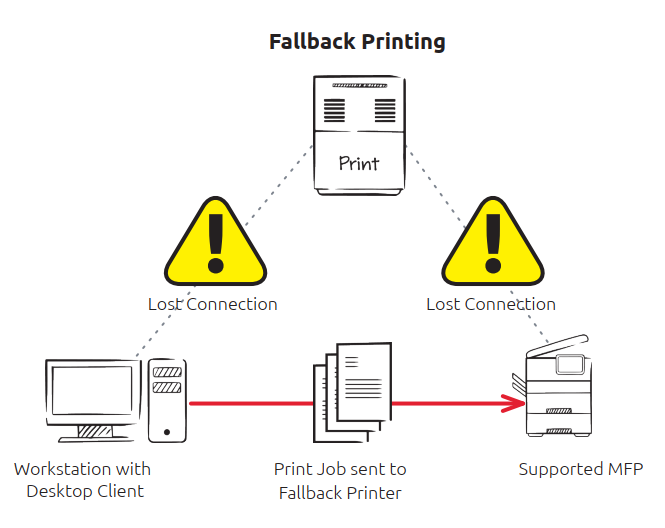
Fallback Printing is configured through Desktop Client configuration profiles, so different fallback printers or printer groups can be assigned to different workstation populations or locations.
Fallback compatibility depends on the printer vendor and model. Some devices reject jobs that do not originate from their configured accounting server. Where supported, the device may provide an option to accept unauthorized jobs or jobs from unknown sources. Always test the intended fallback devices before production rollout.
Before You Begin
The client printer must send jobs through MyQ Desktop Client rather than directly to the MyQ server.
For the required workstation printer and port configuration, see Configure Printers and Job Processing.
Before configuring Fallback Printing:
-
install and connect MyQ Desktop Client on the target workstations;
-
identify the fallback printer or printer group for each configuration profile;
-
confirm that the target printers accept jobs sent by Desktop Client.
Enable Fallback Printing
-
In the MyQ Web Interface, go to MyQ > Settings > MyQ Desktop Client.
-
Open the configuration profile for the clients you want to configure.
-
On the Printing tab, expand Fallback Printing and enable it.
-
In Printers or group, select the printer or printer group to use for fallback.
-
Set Release conditions:
-
Always release the job
-
Only if the user has enough credit/quota
-
-
Under Device port, configure the connection used to send the fallback job:
-
Protocol
-
Port
-
Queue
-
-
Save the configuration profile.
Fallback to Device Spooling Ports
On supported devices, Fallback Printing can send jobs directly to a Device Spooling port during a server outage. Depending on the selected port, the job can be printed immediately or held on the device for authenticated release.
This configuration requires Device Spooling and Offline Login to be configured for the target devices. Device Spooling is supported on Kyocera and Ricoh embedded terminals only.
Configure Fallback Printing as described above and set:
-
Protocol: RAW
-
Port: select the Device Spooling port that matches the required release behavior.
|
Port |
Behavior |
|---|---|
|
10010 |
Direct print – the job prints immediately on delivery. |
|
10011 |
Secure hold print – the job is held until the user authenticates. |
|
10012 |
Pull print – the job is held and can be released at a Device Spooling device on the subnet. |
|
10013 |
Delegate print – the job is held and can be released by delegate users. |
For most branch-office deployments, port 10011 or 10012 provides authenticated release. Use port 10010 only where immediate output is appropriate.
When the MyQ server connection is restored, Desktop Client reports the fallback job accounting data to MyQ.
Printing During a Server Outage
When Desktop Client cannot reach the MyQ server and Fallback Printing is enabled:
-
If only one suitable fallback printer is available, the job is sent to that printer automatically and the user receives a notification.
-
If multiple fallback printers are available, the user is prompted to select one. The list can be filtered by printer characteristics such as large format, color, or black and white.
If Fallback Printing is disabled, the job cannot use a fallback printer and Desktop Client displays an error.
Verify Fallback Printing
Test the fallback path before deploying it to production.
-
Confirm that normal printing works while the MyQ server is available.
-
Make the MyQ server temporarily unavailable.
-
Send a test job from a workstation using the configured Desktop Client profile.
-
Confirm that Desktop Client routes the job to the expected fallback printer.
-
If Device Spooling is used, authenticate at the device and confirm that the job is available and releases according to the configured Device Spooling port.
-
Restore the MyQ server connection.
-
Confirm that the fallback job accounting data is reported to MyQ.
Repeat the test for representative printer models and configuration profiles used in your environment.
Kyocera-Specific Limitations
The following apply when fallback printing on a Kyocera device:
-
Fallback printing to Device Spooling ports is recommended.
-
Fallback printing to a port other than a Device Spooling port is supported but may cause print jobs to be accounted twice.
-
If KX Driver Net Manager is being used as an integration with Desktop Client, only Device Spooling ports are supported for fallback printing. Attempting to use other ports will cause authentication errors.