
To add multiple projects to MyQ at once, import a CSV file. You can import projects manually and as a scheduled task.
See the sample Projects_example in ProgramData\MyQ\Data\Import. Use this file as a template to prepare data for import.
You can import projects with a hierarchy.
Within the CSV import, new projects are added and existing projects are updated. Projects already present in MyQ that are not listed in the CSV file are left untouched. Each project is recognized by the value of its code and updated only if the CSV file contains a row with the same code.
Import Projects Manually
On the Projects main tab, click Tools, and select Import. The Import dialog box appears. Click Choose File and select the CSV file, and then click OK. After the import is done, imported projects are listed on the Projects main tab. An information message appears at the top of the tab. By clicking log for details, you can display the import log.
Any errors occurring during the import can be related to incorrect syntax or non-existing users or group of users listed in the CSV file.
Import Projects with a Scheduled Task
-
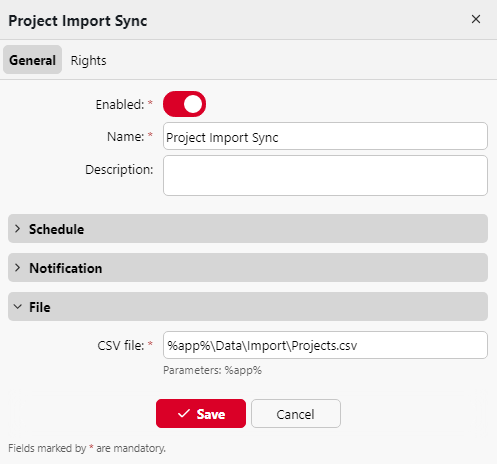
Go to MyQ > Settings > Task Scheduler, click +Add, and then Import projects from CSV. The properties panel of the new schedule opens on the right side of the screen.
-
On the panel, set up the schedule.
-
In the File section, add the path to the CSV file (the file should be stored on the MyQ server).
-
Click Save.
See also: Task Scheduler Settings
CSV file Syntax
Each row must consist of six columns, separated by the delimiter set on the General settings tab, under Column delimiter in CSV. The file must contain a header row, otherwise an error occurs and the projects will not be imported. The order of the columns is irrelevant; each column is identified by its name in the header, which must always be in English, regardless of the language setting in MyQ.
Values:
-
active:
-
1=project is added to MyQ
-
0 =project is added to MyQ as deleted.
-
-
code: unique code of the project
-
name: name of the project
-
groups: the path of the project in the hierarchy. Levels must be separated by the pipe character (|). If the column is empty, the project is created in or moved to the root of the hierarchy.
-
description: internal description of the project
-
users the users or groups of users allowed to use the project. Multiple entries should be separated by commas (,).