
Since January 2026, Microsoft no longer signs most new printer drivers, so manufacturers sign many new driver versions with their own code-signing certificate. Windows installs such a driver silently only if the manufacturer's certificate is in the workstation's Local Computer > Trusted Publishers store.
If the certificate is not there, MyQ Desktop Client cannot provision the driver, and the MDC service log shows:
Error=The publisher of an Authenticode(tm) signed catalog has not yet been established as trusted. (0x800F0242)
To fix this, extract the certificate from the driver package and publish it to Trusted Publishers on the target workstations before MDC provisions the driver.
This applies only to workstations with Windows Protected Print (WPP) off. Under WPP, Windows blocks third-party drivers whether or not they are signed. Use IPPS printers instead.
Extract the Certificate
-
In the driver package, find the security catalog (
.cat) files. A package that bundles several architectures can contain several catalogs. They are usually signed with the same certificate, but check each one you deploy. Double-click the catalog file.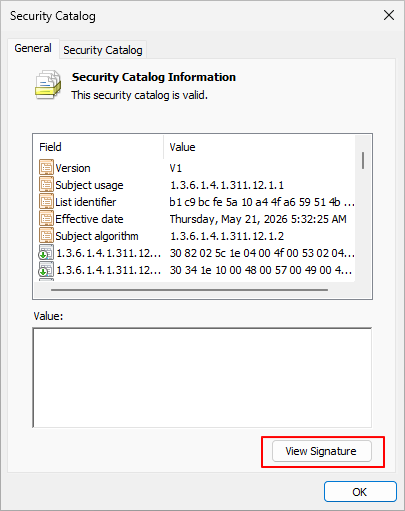
-
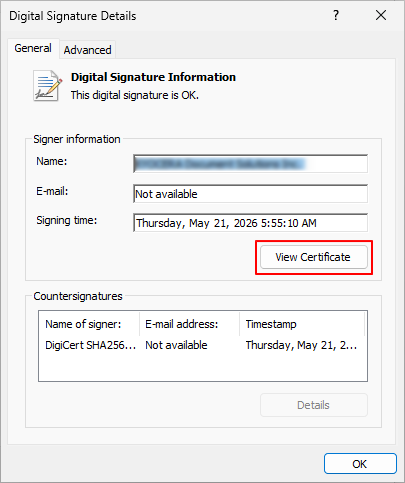
On the General tab, select View Signature, then View Certificate.
-
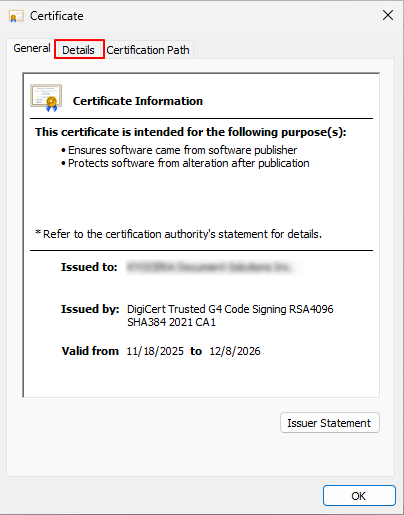
On the Details tab, note the Valid to date. You must publish the renewed certificate before it expires.
-
Select Copy to File and export the certificate as DER encoded binary X.509 (.CER). Name the file after the manufacturer and driver version, for example
HP-UPD-8.2.0.26819.cer.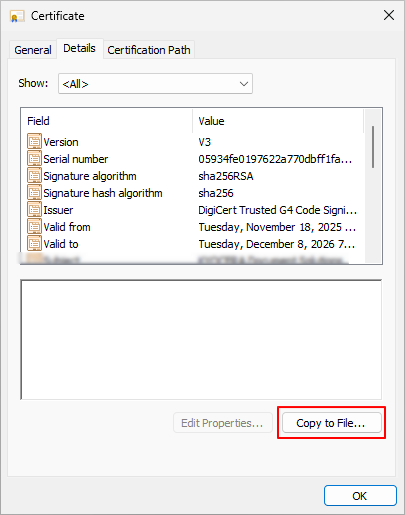
Alternatively, use PowerShell:
$cert = (Get-AuthenticodeSignature 'C:\Drivers\Vendor\driver.cat').SignerCertificate
$cert | Format-List Subject, NotAfter
Export-Certificate -Cert $cert -FilePath 'C:\Drivers\Vendor-driver.cer' -Type CERT
Publish the Certificate
-
Group Policy: In a GPO linked to the target computers, go to Computer Configuration > Policies > Windows Settings > Security Settings > Public Key Policies > Trusted Publishers, and import the
.cerfile. -
Single workstation: In an elevated Command Prompt, run
certutil -addstore TrustedPublisher "C:\Drivers\HP-UPD-8.2.0.26819.cer". Alternatively, double-click the.cerfile and install it to Local Machine > Trusted Publishers.
MyQ Desktop Client then provisions the driver at the next refresh, or when the user selects Update my printers.
Limitations
-
ARM64 workstations: According to Microsoft, Windows on ARM does not support deploying certificates to Trusted Publishers. Use IPPS printers.
-
Unmanaged devices: You cannot distribute the certificate centrally to unmanaged devices. Use IPPS printers.