
The information on this page is relevant for accounts using the new Printer Profile Provisioning. If your account is using legacy Printer Provisioning, see Legacy Print Driver Capture.
Installing printers and print drivers manually can be tedious, especially if you are setting up printing for a whole department or an entire company. You need to not only prepare the correct drivers for the devices that you have in your environment, but then you must install system-compatible printers on each computer, then install print drivers, and test if everything works as intended.
Printer driver capture, when combined with Printer Provisioning Profiles, allows you to:
-
Capture print drivers on a template computer.
-
Combine selected drivers with assigned queues and client printer names, creating a profile.
-
Assign this profile where appropriate, using IP addresses/ranges and users/user groups.
Terminology Change
The term for a group of print drivers and their settings, as it is stored in the MyQ driver store, is now known as a print driver set (previously, we used the term print driver configuration profile). This terminology change is in progress, but until all components have released their relevant updates, inconsistency of these terms may appear in the documentation and product user interface.
Prepare and Capture Template Printers
Install Print Drivers
The first step for this deployment is to collect the print drivers you will want to install and create printers as if you were doing it on a user’s machine. Get these drivers from the manufacturers' download pages.
Recommendations
-
Use official vendor drivers for each device.
-
Use device-specific or universal drivers in a traditional mode configured on a physical device.
Universal drivers in dynamic mode might display prompts to the user to search devices on the network. Also, some drivers, e.g. HP Universal Print Driver may not allow for print in color when not configured on a specific model. -
In a mixed fleet environment, use drivers published for your target devices to achieve the best compatibility. You might be able to print successfully to a device even through a driver of a different manufacturer thanks to MyQ’s cross-vendor printing support, but you will not get all the functionalities of the device.
Create Printers and Assign Print Drivers
Perform these steps on a template Windows machine:
-
Add your printers as normal. Go to Control Panel/Settings > Devices & Printers > Add manually.
-
Select the required driver in the printer’s settings. Go to Control Panel/Settings > Devices & Printers > Open a printer > Printer properties > Driver. Alternatively, in the Start menu, search for and go to Print Management > Print servers > Printers.
-
Configure the desired driver capabilities and settings, such as finishing options. Go to Printer Properties > General > Preferences or Printer Properties > Advanced > Printing Defaults.
-
To test your configuration, print a document and verify that the configured printer options work as expected.
Capture Driver and Settings
-
Run the Desktop Client on the template computer.
-
Sign in to the Desktop Client as a user with
AdministratororManage settingsrights. -
Right-click on the Desktop Client icon and then select Admin Options > Capture drivers.
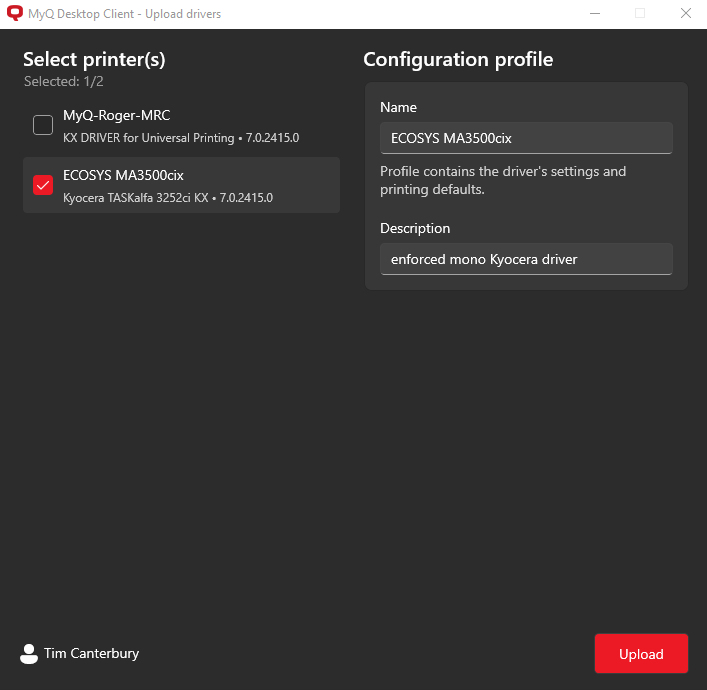
A dialogue opens with a list of printers. -
Select printers that are using drivers you want to capture.
-
Under Name, specify the name of the print driver set; if it does not exist in MyQ already, a new set with this driver will be created. If you specify an existing driver set, the driver will be added to it.
If a driver for the same OS already exists in the set, it is replaced by the new one from capture. If you are capturing a driver for a different OS to those already in the set, this driver will be added and not replace anything (for example, there is already a Windows ARM driver in the set, if capturing a Windows x64 driver, the set will contain both).
By clicking the printer once, you select it for capture and open the Driver details for this printer. By clicking it again, you deselect this printer. If you select another printer (and select it), clicking another printer once opens its details, click again to deselect it.
-
Once you select all required printers and specify the print driver sets, they should be uploaded in, click Upload. Drivers will be compressed into ZIP files and uploaded to the MyQ Print Server.
Using Captured Drivers
Once driver sets have been captured, they can be used in combination with assigned queues and client printer names to create Printer Provisioning Profiles. These profiles can then be assigned to Desktop Clients based on IP address/range and user/user group. Read more in Getting Started with Printer Profile Provisioning.
Disable Printer Provisioning
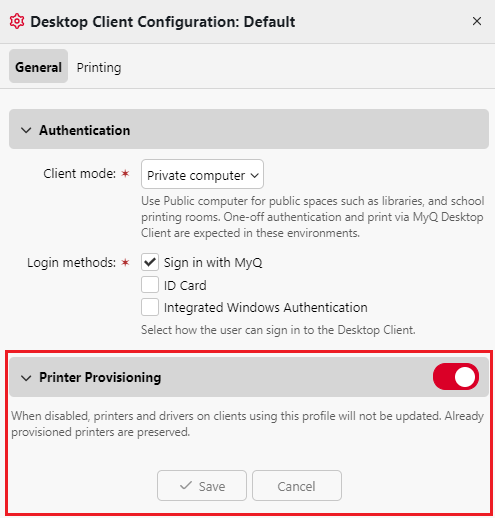
On any selected Desktop Client configuration profile, Printer Provisioning can be disabled. When disabled, printers and drivers on clients using this profile will not be updated. Already provisioned printers are preserved.
This option can be configured in the MyQ Web Interface in Settings, MyQ Desktop Client, by selecting the relevant configuration profile and enabling/disabling Printer Provisioning.
Limitations
-
Capture fails to save custom paper format, as this is a Windows setting rather than that of a printer or driver.