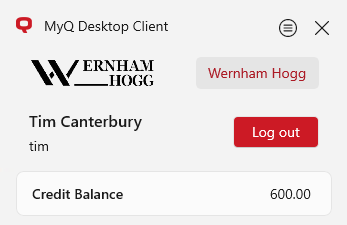
Once the user signs in, they can click MyQ Desktop Client icon on the system tray to open it. In this window, they can see their username and full name. If personalization settings on the server have been edited, they may also see their company logo and a link specified by their administrator.
If a user’s rights are edited in the Web UI while they are logged into Desktop Client, these changes are not reflected in the Desktop Client even after a restart. The user must log out and log back in to the Desktop Client for rights changes to take effect.
For more information, see Rights in the Print Server guide.
Credit and Quota Information
If credit accounting is enabled on the MyQ server and applied to the user, they can also see the current state of their credit.
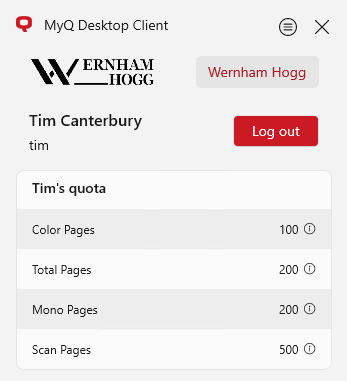
If quota is enabled on the MyQ server and applied to the user, they can also see the current state of their quota.
Generate New PIN
If this option is enabled on the MyQ server and applied to the user, they can generate a new PIN for themselves. To do so:
-
Log in to Desktop Client, click the options button and then select Generate PIN.
-
The new PIN is generated and displayed.
About
Clicking About in the context menu opens a pop-up which displays:
-
The current Client Version.
-
The Connected server.
-
The Configuration profile assigned on the server.
This information can be copied and relayed to an administrator when a user experiences issues with their Desktop Client.
Additional Options
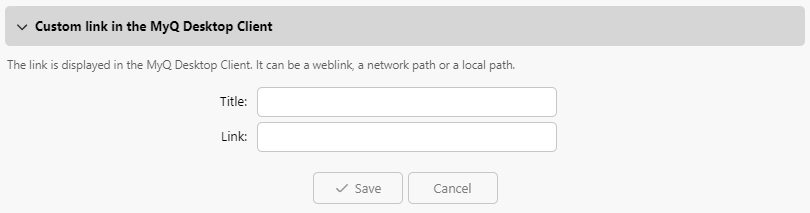
The Log out button logs the user out of the account. If selected in the Personalization tab of MyQ settings, a custom link may be shown in the Desktop Client tab.