
You can upgrade from previous versions of MyQ Smart Job Manager and MyQ Desktop Client.
Server Requirements
The maximum recommended number of concurrent Desktop Clients connected to one MyQ server is estimated to 10,000.
-
MyQ Print Server 10.2 (Patch 3+; Patch 27+ for authenticated IPP printing and automatic IPP port updates)
-
MyQ Central Server 10.2.
MDC requires at least one standalone Print Server. The maximum recommended number of concurrent Desktop Clients connected to one MyQ Print Server is estimated to 10,000.
In a Central-Site deployment, you can assign clients to Sites using IP ranges. MyQ Central Server supports up to 50,000 MDC client logins within a one-hour window, with each site server able to handle up to 10,000 connections.
-
MyQ Print Server 10.2 (Patch 3+; Patch 27+ for authenticated IPP printing and automatic IPP port updates)
-
MyQ Central Server 10.2 (Patch 25+ recommended for large MDC deployments)
Client Requirements
-
OS
Windows 11 (64-bit, ARM 64-bit) / Windows 10 (64-bit, version 1809 and higher)
Windows Server 2019 and later.
In an outdated version of Windows 11, a bug occurs after a system reboot in which the user cannot be detected and the job is discarded. If this bug occurs, the service log will display a warning that the Desktop Client agent could not be found, containing HOSTNAME$ rather than USERNAME. To resolve this issue in the short-term restart the print spooler service, for a long-term solution keep Windows 11 updated.
-
Memory
2GB minimal requirement, client consumes 256 MB dependent on the print job load. -
Hard Disk
350 MB for installation, with additional requirements in cases where jobs are spooled or if queue deploy is used. -
Microsoft .NET is bundled inside the Desktop Client and does not need to be installed.
-
The Windows App SDK runtime is bundled inside the Desktop Client and does not need to be installed.
-
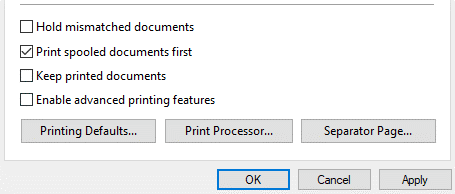
To make sure that Desktop Client works properly, deselect the Keep printed documents option, and the Enable advanced printing features option on the Advanced tab of the print driver. They are used for sending jobs to MyQ.
Built-in IPP Driver is supported only on the following Windows versions:
-
Windows 10 22H2 and higher.
-
Windows 11 22H2 and higher.
-
Windows Server 2022 20348.2849 and higher.
Certificate Management
Before you install Desktop Client, you should install a trusted certificate on the client computer. This will establish a secure connection to the MyQ Server.
It may only be necessary to generate certificates when using Strict security mode, follow the instructions below or use your own preferred method for certificate generation.
To achieve that, export a CA certificate on the MyQ Server.
Export a CA Certificate on the Server
-
Log in to the MyQ Web Interface as an administrator and go to MyQ > Settings > Network.
-
In the General section, ensure that the value in This server hostname matches the hostname of the computer running MyQ.
-
In the Certificates section, click Export CA Certificate.
-
Save the exported certificate to the client computer where Desktop Client will be installed.
If you're using an IP address or a hostname alias to access the server, make sure those values are included in the Server Alternative Names field under the Certificates section.
Install the Certificate on Windows
-
On the client computer, double-click on the certificate .crt file and select Install Certificate...
-
Set the Store Location to Local Machine and click Next. Click Yes on the UAC confirmation that appears.
-
For the certificate store, select Place all the certificates in the following store
-
Click Browse, then select Trusted Root Certification Authorities and click OK.
-
Click Next and then Finish.
You have installed the server certificate on the Windows client system.
You are now ready to move on to the Desktop Client installation, described in Install and Configure.
Upgrading the Client
You can simply run the installer, and it will perform the upgrade automatically if an older version of the client is detected on the system.
Troubleshooting
The logs can either be accessed via the action menu or can be found in the following locations:
C:\ProgramData\MyQ\Desktop Client\Logs
C:\Users\[Windows User]\AppData\Local\MyQ\Desktop Client\Logs
If you are running MyQ X Desktop Client and MyQ Roger Desktop Client, we recommend you run them on separate machines to avoid port conflicts.