
Scanning with a single touch. After the user taps this action, the page is immediately scanned to a predefined destination. You can define multiple destinations where the scanned document is sent to and set scan parameters in MyQ.
For information on how to configure the Easy Scan action and define its destinations and parameters, check Easy Scan settings in the MyQ Print Server guide.
If enabled on the server, users can change their scan settings from the terminal screen.
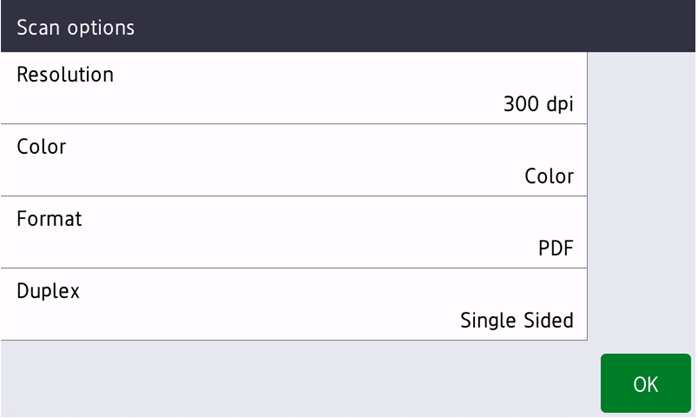
OCR (Optical Character Recognition) can be used with Easy Scan, by creating OCR profiles and enabling users to select them on the embedded terminal. You can find further details in OCR on the MyQ Print Server guide.
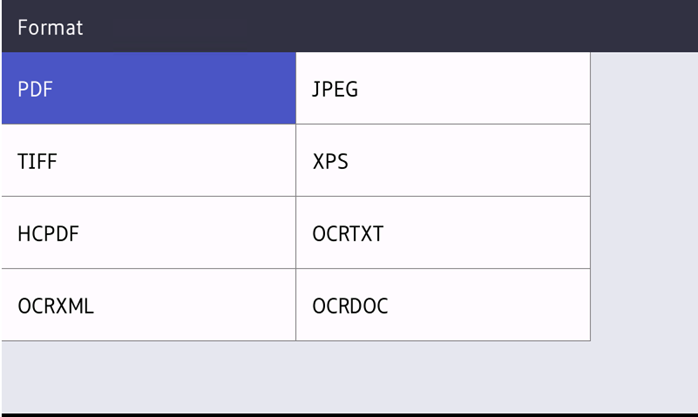
Easy Scan Parameters
Resolution - The outgoing file's resolution. You can select from the following options:
-
100 dpi
-
200 dpi
-
300 dpi
-
400 dpi
-
600 dpi
Color - The outgoing file's color scale. You can select from the following options:
-
Color
-
Grayscale
-
B&W (two tones)
-
Automatic
Format - The outgoing file's format. You can select from the following options:
-
PDF
-
JPEG
-
TIFF
-
XPS
-
HCPDF
Duplex - Simplex and Duplex scanning options. You can select from the following:
-
Single Sided
-
Duplex - Binding on top
-
Duplex - Binding on side
Scan separation - If a document with multiple pages is scanned, scanned pages can be stored either separately (each page in a separate file) or all together in one file. You can select from the following options:
-
All pages together
-
Separate each page
Density - The density setting enables you to adjust the lightness/darkness of scanned originals, you can choose from the following options:
-
Lowest
-
Lower
-
Normal
-
Higher
-
Highest
Size - The size of the document being scanned, choose from the following options:
-
Automatic
-
A3
-
A4
-
A5
-
A6
-
B4
-
B5
-
B6
-
Folio
-
Ledger
-
Letter
-
Legal
-
Oficio II
Skip blank pages - With this parameter, you can select to skip blank pages in the scanned document. You can select from the following options:
-
Yes
-
No
Background Suppression - Enabling this parameter will help to clear a scan or copy background when the original paper is tinted (this is common in eco friendly paper). You can select from the following options:
-
Enabled
-
Disabled
Limitations
-
Continuous scan is always enabled during scans from the glass and always disabled during scans from ADF.
-
Folder browsing and Custom parameters including codebooks are not supported.
-
Some combinations of the parameters are not possible (ie. JPEG and B&W).