Terminal Features
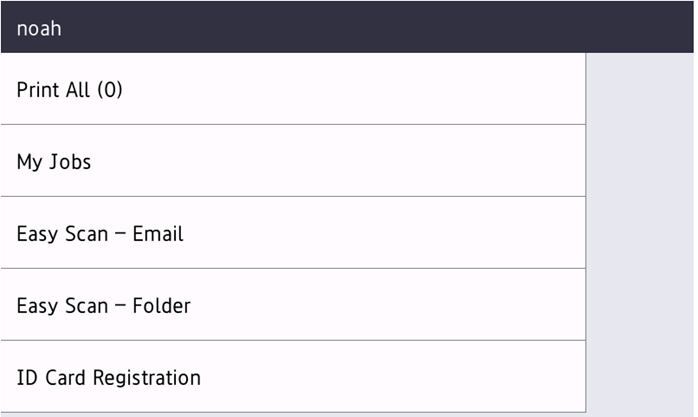
Currently there is only one Terminal action available on Brother Terminals, the Print All button.
Print All
This action prints all jobs that are waiting in queue in the Ready and Paused states, including jobs delegated by other users.
Both Credit and Quota must be disabled on the server for this action to function.
If a new job becomes ready while user is logged into the terminal, the page won’t update automatically. However, if there are no ready jobs, tapping the Print All (0) button will refresh the page.

Once the jobs are released the following message is displayed.

You can configure the device to display Print All immediately after login (Administrator > Solutions > Screen displayed after Login should be set to Solutions Menu).
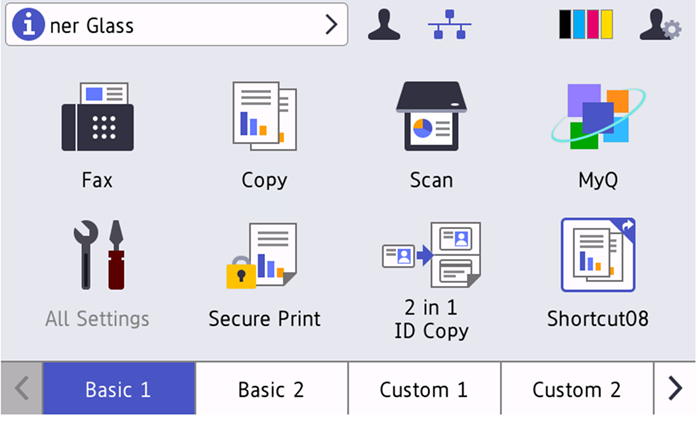
Alternatively, it can be displayed after the pressing the Solution button (Administrator > Solutions > Screen displayed after Login should be set to Home Screen).

Panel Scan
To use Panel Scan it is required to configure the SMTP settings directly in the device web UI.
Go to the printer’s web UI by accessing
http://*IP address of the printer*/.
Select Open Secure Login.
Provide the device administrator password and click Login.
Go to Scan > Scan to E-mail Server.
Set the Server Address to the IP Address/hostname of SMTP server. Do not use the IP address/hostname of MyQ server. Panel Scan must be sent directly to the SMTP server.
Set the Port of the SMTP server.
Set the Server Authentication method, SMTP-AUTH Account Name, SMTP-AUTH Account Password and SSL/TLS if required by the SMTP server.
Set the Device E-mail Address.