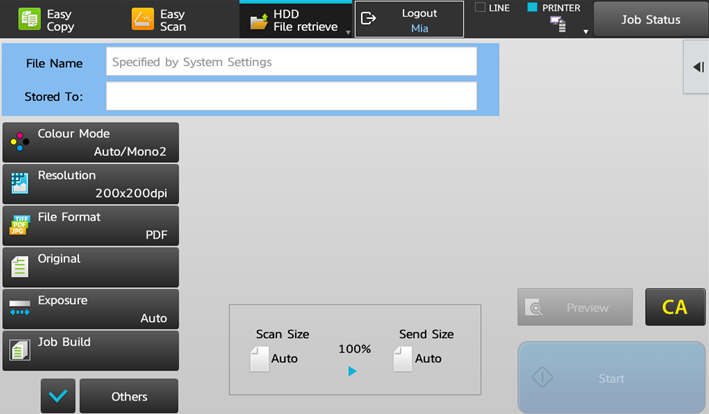
Printing from a USB is not available as a terminal action, but it can be achieved by using the USB Scan terminal action.
The USB Scan terminal action must be added to the Terminal Actions settings tab on the MyQ Web administrator interface.
To print a file from a USB:
-
Tap the USB Scan terminal action on the terminal.
-
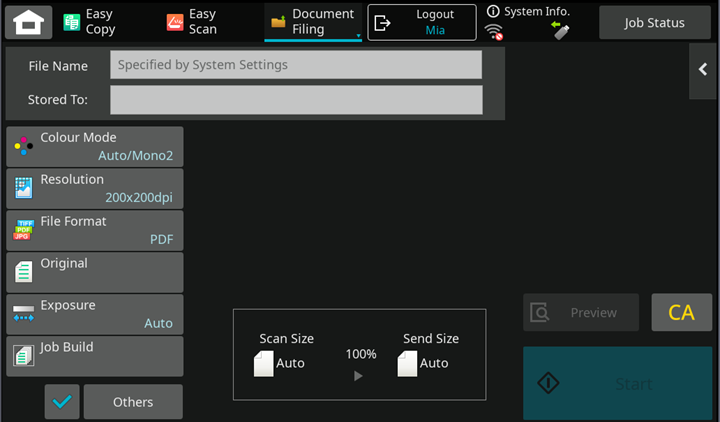
Tap on the Arrow in the upper right corner
-
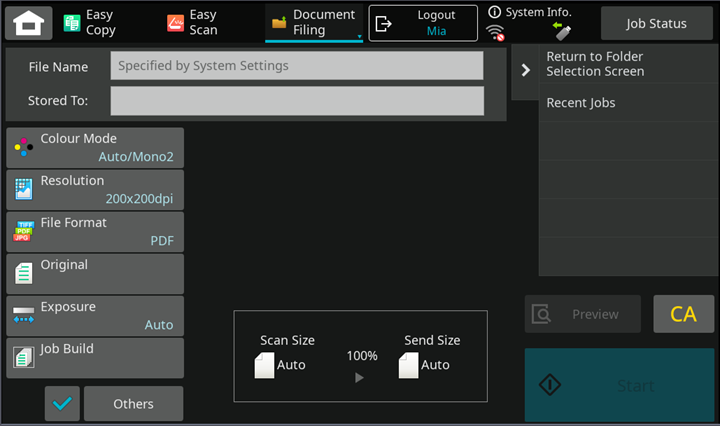
Select Return to Folder Selection Screen.
-
On the right-side menu, tap Select File from USB Memory to Print.
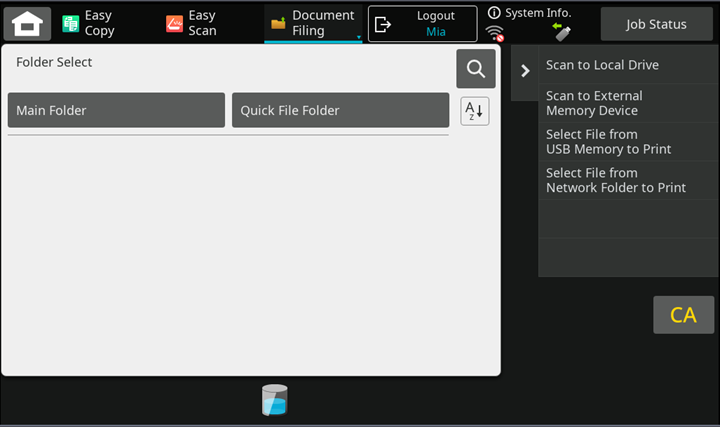
-
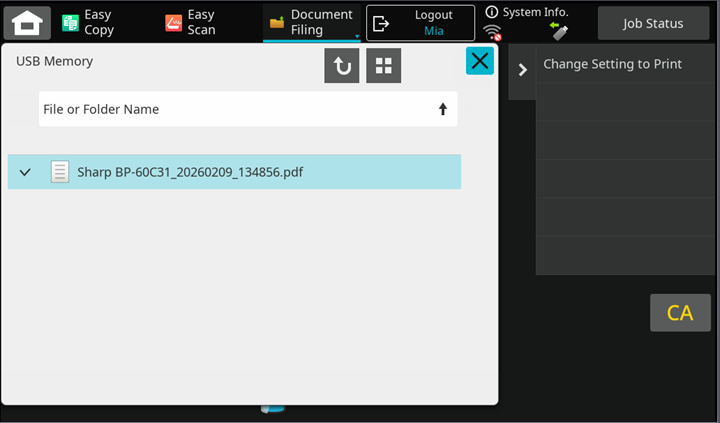
Select the file that you want to print, and on the right-side menu tap Change Setting to Print.
-
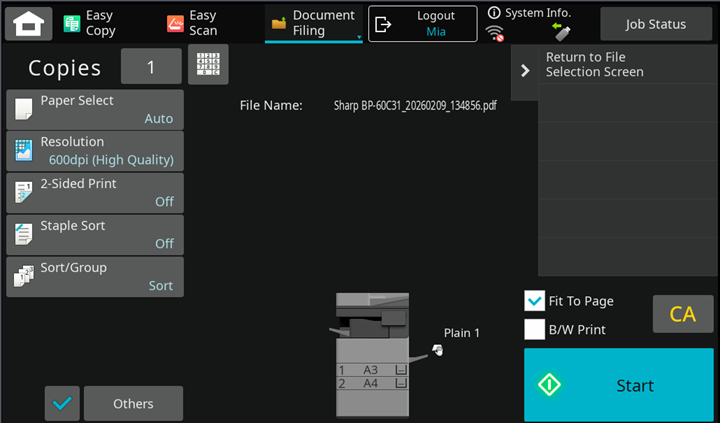
Configure the print settings, and tap Start to print the file.
Another way of printing from a USB is to tap the Home button on the terminal, then tap Scan to Ext. Memory, and then follow the above process from step 2.
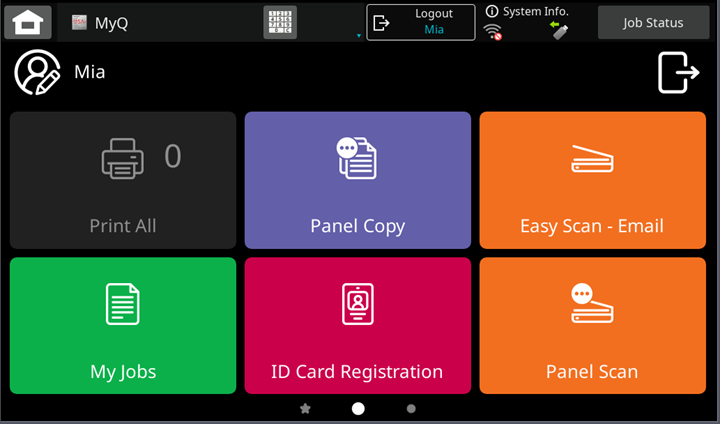
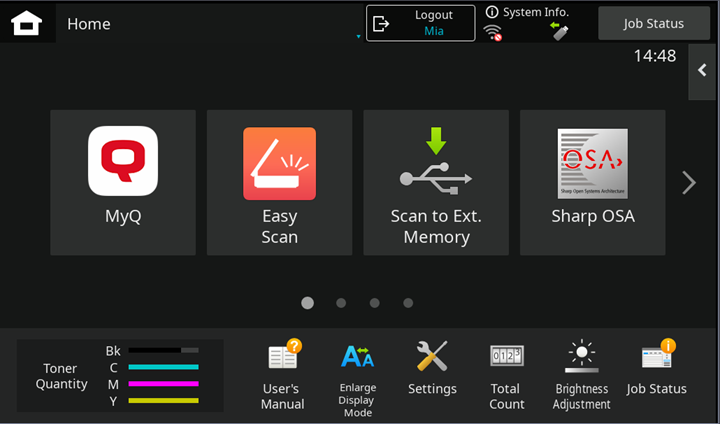
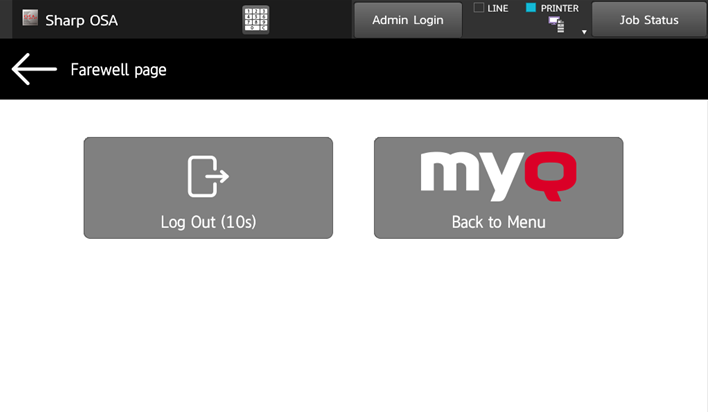
To leave the panel and return to the MyQ menu, tap the Home button, and then tap MyQ.
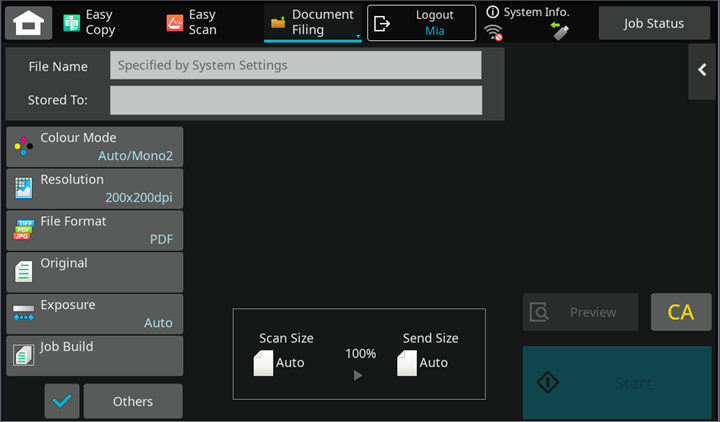
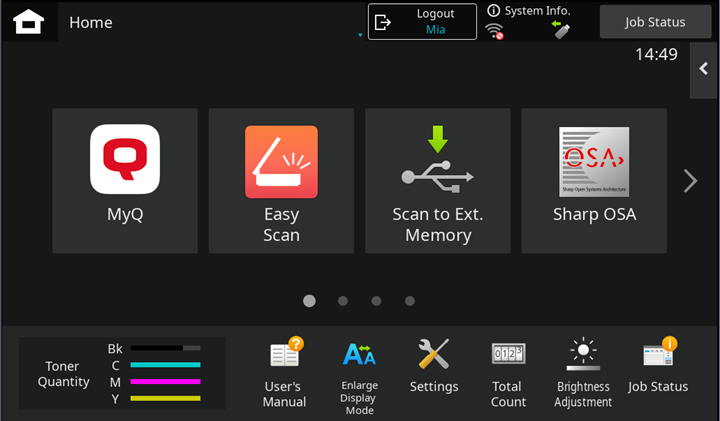
On devices with MX-AMX3 External Accounting Module (EAM) only it is required to use the Logout button.