
The Panel Scan action opens the printing device's scan screen.
To enable scanning on the terminal, make sure that your MyQ server is set as the SMTP server on the printing device Web User Interface.
To leave the panel and return to the MyQ menu, tap the Home button, and then tap MyQ.
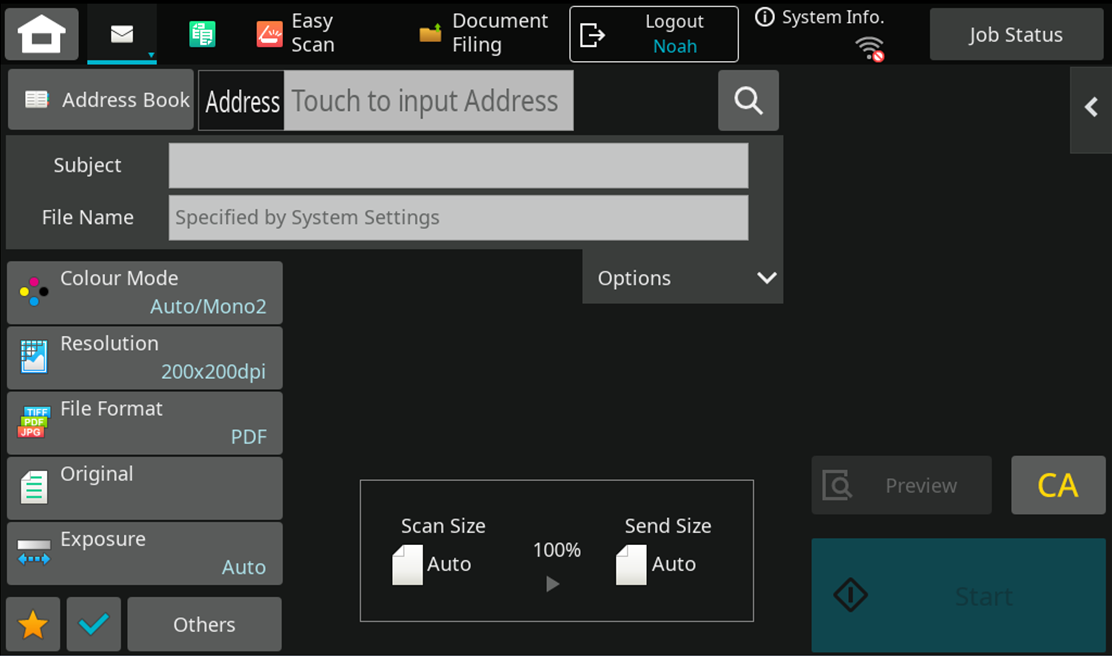
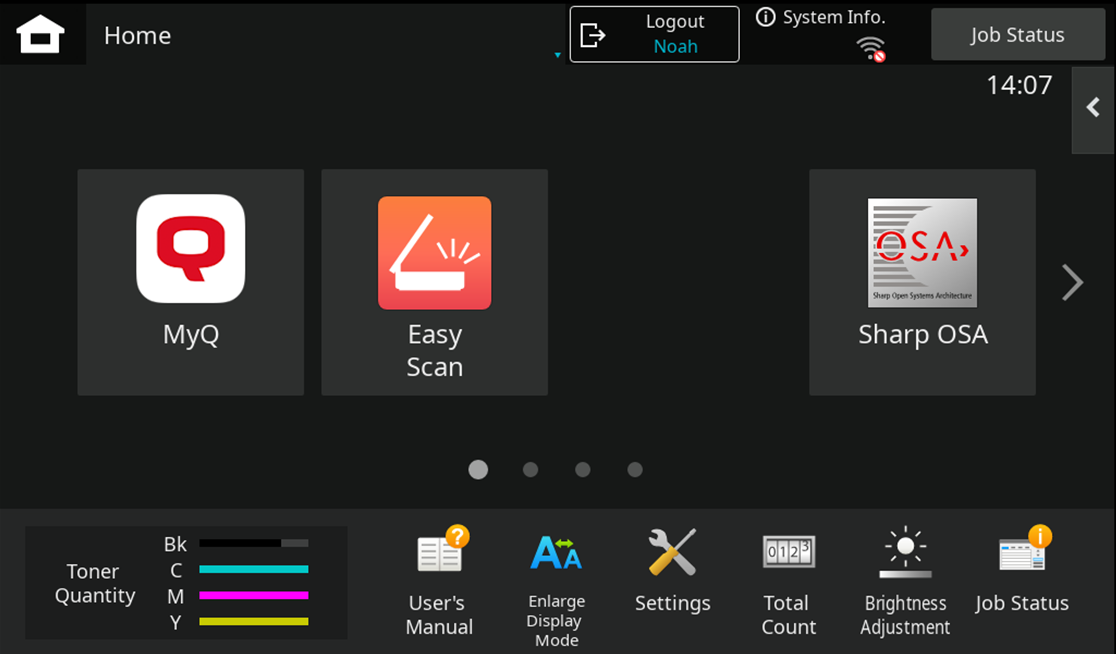
On devices with MX-AMX3 External Accounting Module (EAM) only it is required to use the Logout button.
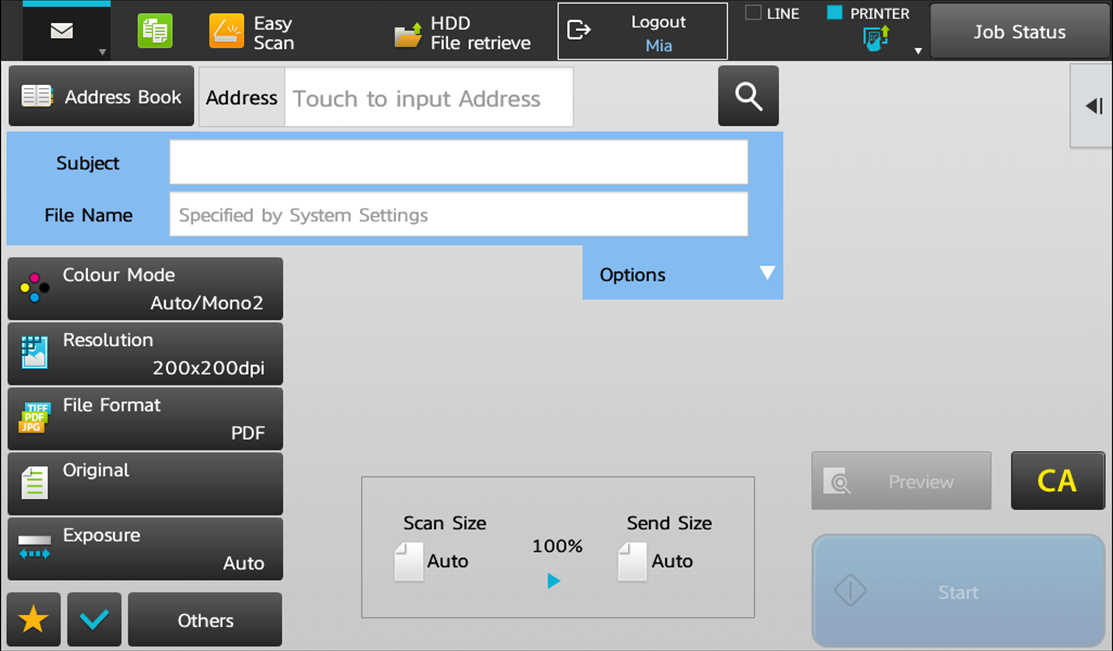
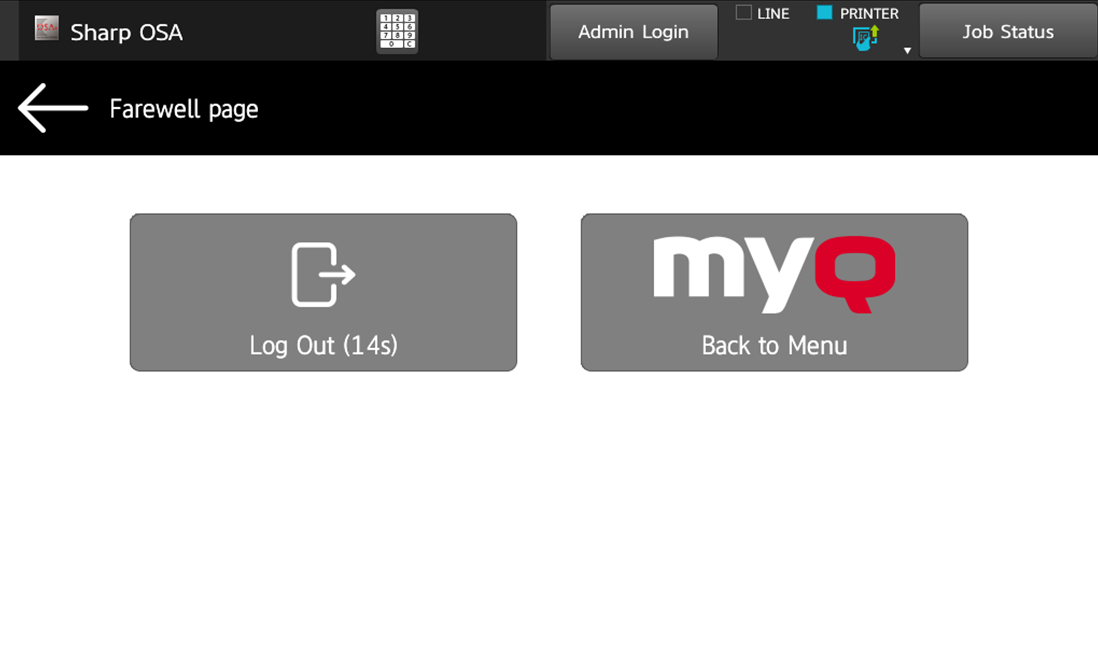
If you have installed a fax kit on the terminal, it can cause the Panel Scan action to open the Fax display screen by default. To correct this, go to System Settings > Image Send Settings > Common Settings > Default Display Settings. There you will be able to adjust the default screen shown for Panel Scan.