
One tap copying. After the user taps this action, the page is immediately copied.
You can define the copy parameters in the MyQ web administrator interface, described in Easy Copy settings in the MyQ Print Server guide.
If a user’s Credit or Quota is depleted during copying, the action stops. However, depending on the device speed, there may be an overflow of several pages.
If enabled on the server, users can change their copy settings on the terminal screen.
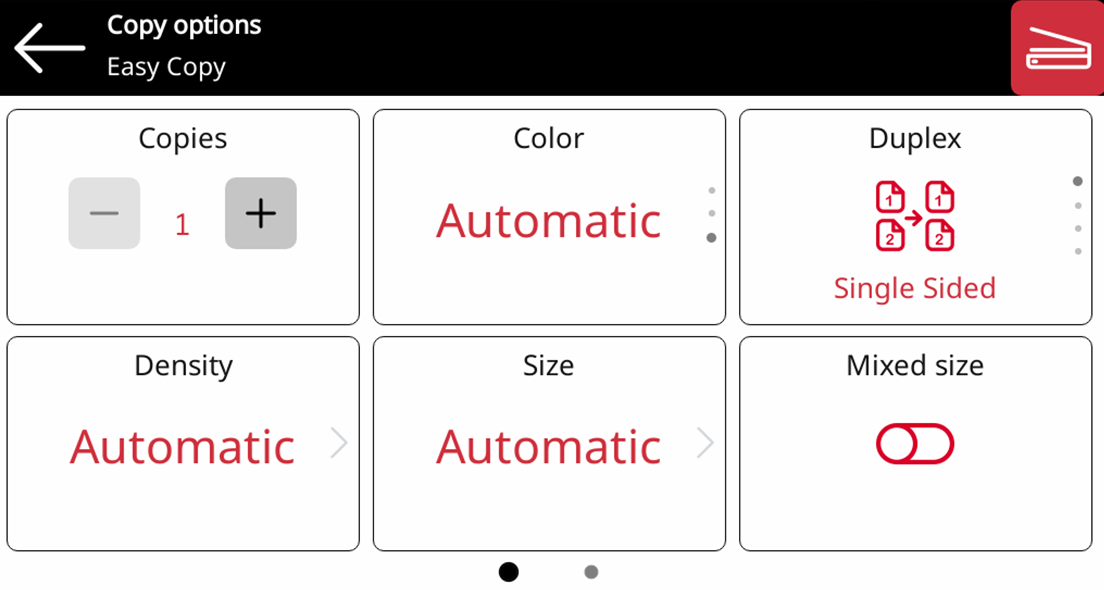
Easy Copy Parameters
-
Copies - Predefine the number of copies to be available 1-99.
-
Color - Color scale of the outgoing file. You can select from the following options:
-
Color
-
Monochrome
-
Automatic
-
-
Duplex - Simplex and Duplex scanning options. You can select from the following options:
-
Single Sided
-
Duplex
-
1-sided to 2-sided
-
2-sided to 1-sided
-
-
Density - Density of the picture in the outgoing file. The higher it is, the darker the resulting picture is. You can select from the following options:
-
Automatic
-
Lowest
-
Lower
-
Low
-
Normal
-
High
-
Higher
-
Highest
-
-
Size - Size of the scanned input. It determines the size of the scanning area; therefore, it should correspond to the actual size of the scanned paper. You can select from the following options:
-
Automatic
-
A3
-
A4
-
A5
-
A6
-
B4
-
B5
-
Folio
-
Ledger
-
Letter
-
Legal
-
Oficio II
-
-
Magnification - With this parameter, you can determine the size of the copy. This way, you can make it smaller or larger than the original file. You can select from the following options:
-
Automatic
-
A3
-
A4
-
A5
-
A6
-
B4
-
B5
-
Folio
-
Ledger
-
Letter
-
Legal
-
-
Mixed size
-
On
-
Off
-
Limitations
-
Magnification - This setting applies to ISO 216 paper sizes only.
-
Quota - If a user has insufficient quota for color copy and the default value is selected, monochrome value is used instead.