
Unlocks the printing device's panel and opens the native device screen. Here it is possible to use panel operations like Panel Copy, Panel Scan or USB operations.
The Unlock Panel action is only available when Projects are enabled. Without Projects, the action is not shown, because the device's Home button already gives users the same access to the native panel.
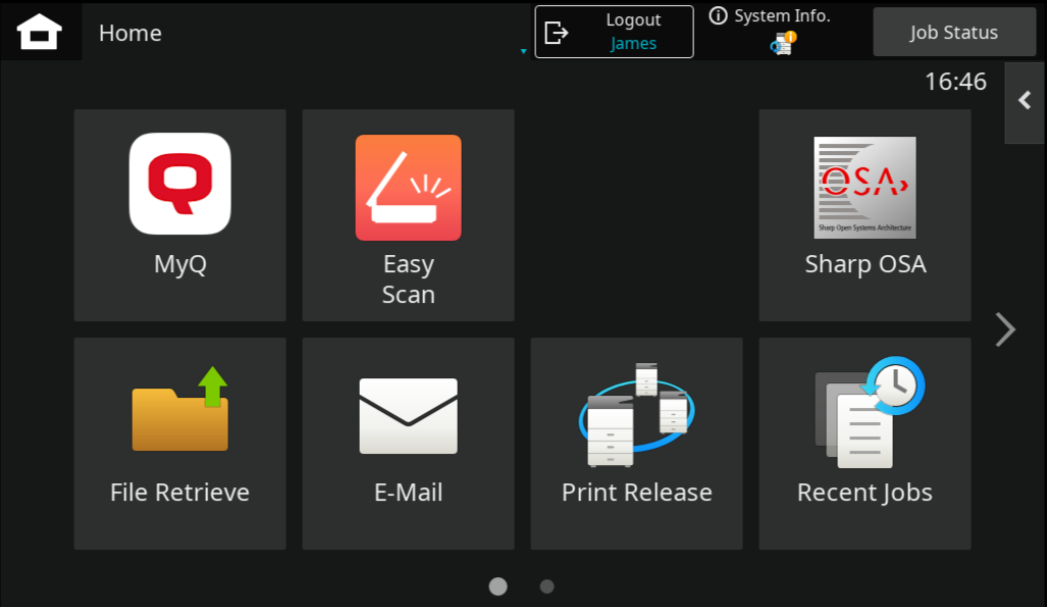
To return to the Top menu, user can tap the MyQ icon on the device panel. To log out from the native panel, the user taps their username in the top-right corner.
Limitations
-
Native panel access - After login, the native panel is always available via the Home button. This cannot be disabled.
-
Projects and the Home button - When Projects are enabled, users should open the native panel with the Unlock Panel action rather than the Home button. Unlock Panel shows the project selection screen, and the selected project is assigned to all jobs the user runs from the native panel. If the user opens the native panel with the Home button, project selection is not shown and jobs run from the panel are not assigned to any project.