
All features of the MyQ X Mobile Client can be accessed either from the Home screen, and from the navigation bar. You can also print directly from other mobile apps and from mobile Web browsers.
Navigation Bar
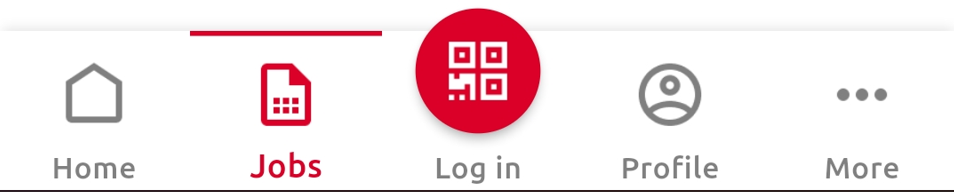
The app’s navigation bar, accessible at the bottom of the screen, contains the following shortcuts:
-
Home
-
Jobs
-
Log in
-
Profile
-
More
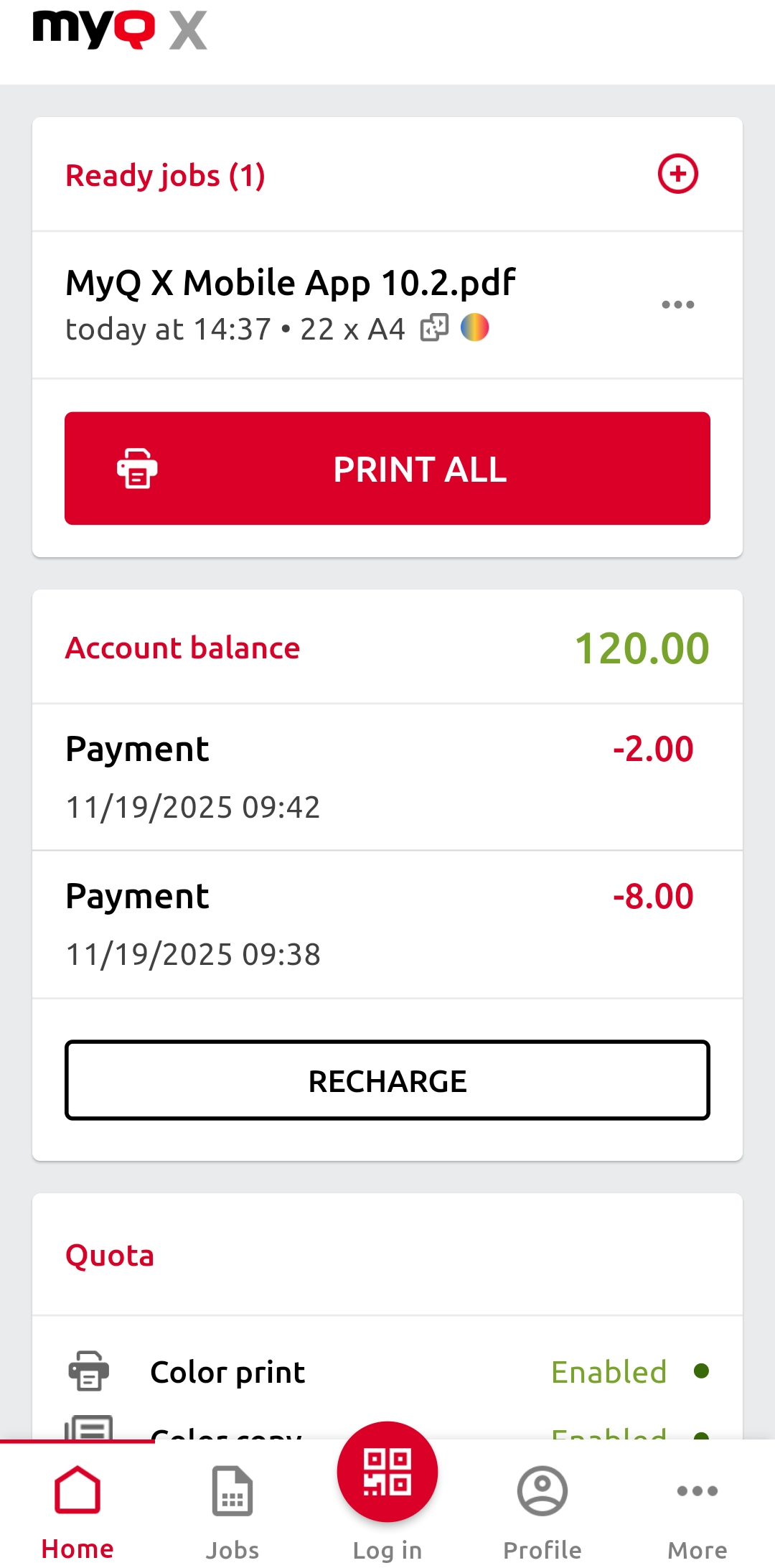
Home
On the Home screen, you can see your ready print jobs and release them by tapping PRINT ALL.
From the Home screen, you can also:
-
Create new print jobs.
Tap the + (plus) icon next to Ready jobs, select a file and print. -
View your account balance.
Available if the Credit feature is activated on the MyQ server. -
Recharge your credit. Tap RECHARGE and choose from these options:
-
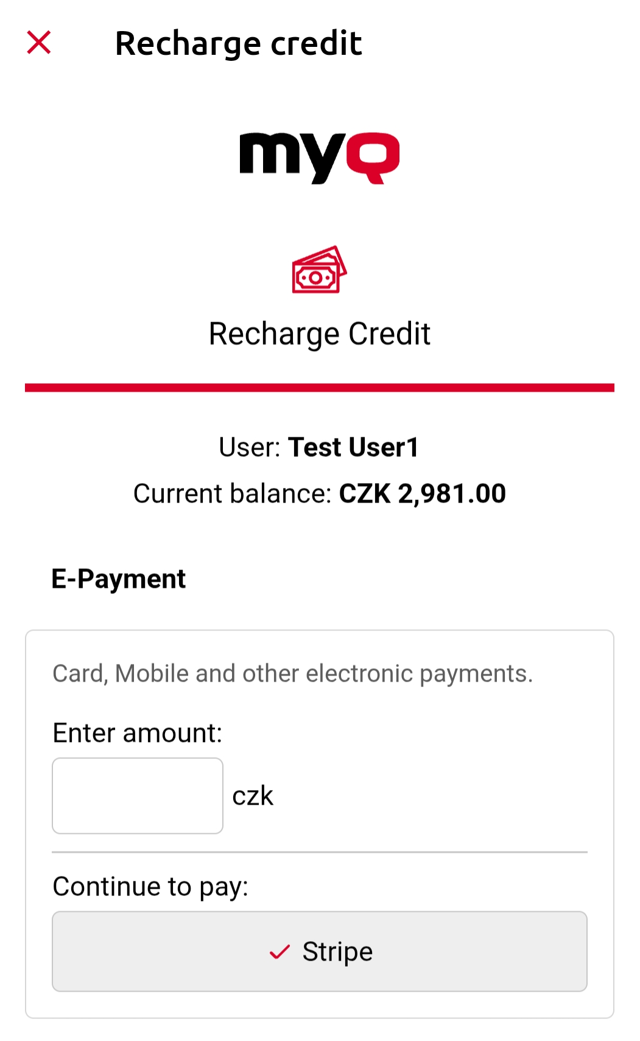
Recharge using an E-Payment. Enter the amount to recharge and select a payment provider. All payment providers enabled in your MyQ instance are available. You will be redirected to a new page to complete the payment.
-
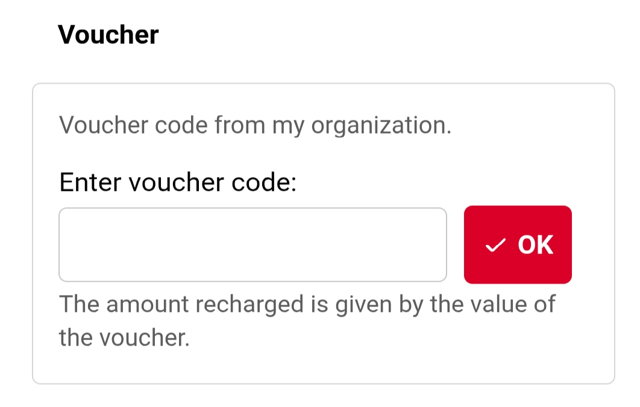
Recharge using a voucher. Enter the voucher code provided by your organization and click OK.
-
-
View your quotas and their current status.
Available if the Quota feature is activated on the MyQ Server.