
The MyQ X Mobile Client brings you contactless print operations within the MyQ solution printing environment. It helps you manage your print jobs, with a range of printing options and MyQ features.
The MyQ X Mobile Client support these operations, among others:
-
Unlock printing devices by scanning a QR code.
-
Securely print files, documents, and photos directly from your mobile device.
-
Manage print jobs, re-print already printed jobs, and charge jobs to accounting projects.
-
Use biometrics for user authentication.
-
View your quotas or recharge your credit.
-
Edit your profile and generate a new PIN.
Supported File Formats
The following file formats are supported:
-
pdf, bmp, png, tif, tiff, txt, jfif, jpe, jpeg, jpg, mime.
The following formats are supported when LibreOffice or Microsoft Office is installed on the server:
-
odp, ods, odt, doc, docx, ppsx, ppt, pptx, xls, xlsx.
Communication Ports
The MyQ X Mobile Client connects with the MyQ Print Server over these ports:
-
TCP 8632 (default)
AirPrint/MOPRIA protocol for print job transmission to the MyQ server. -
TCP 443 (default)
HTTP protocol for accessing MyQ web interface.
For more details, see Main Communication Ports in the MyQ Print Server guide.
Enable Jobs via Mobile Devices
To enable printing with MyQ X Mobile Client, first enable jobs via mobile devices for the Default queue in the MyQ Web Interface.
-
Log in to the MyQ Web Interface as an administrator.
-
Go to MyQ > Queues, select the Default queue, and go to Actions > Edit.
-
On to the Job receiving tab, set Jobs via mobile devices to Enabled.
-
Click Save.
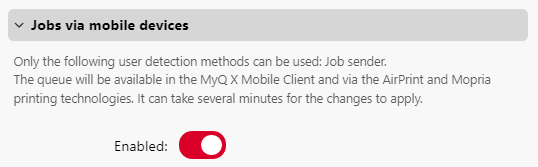
Only the Job Sender user detection method can be used with this queue.