The following options are available on the More screen:
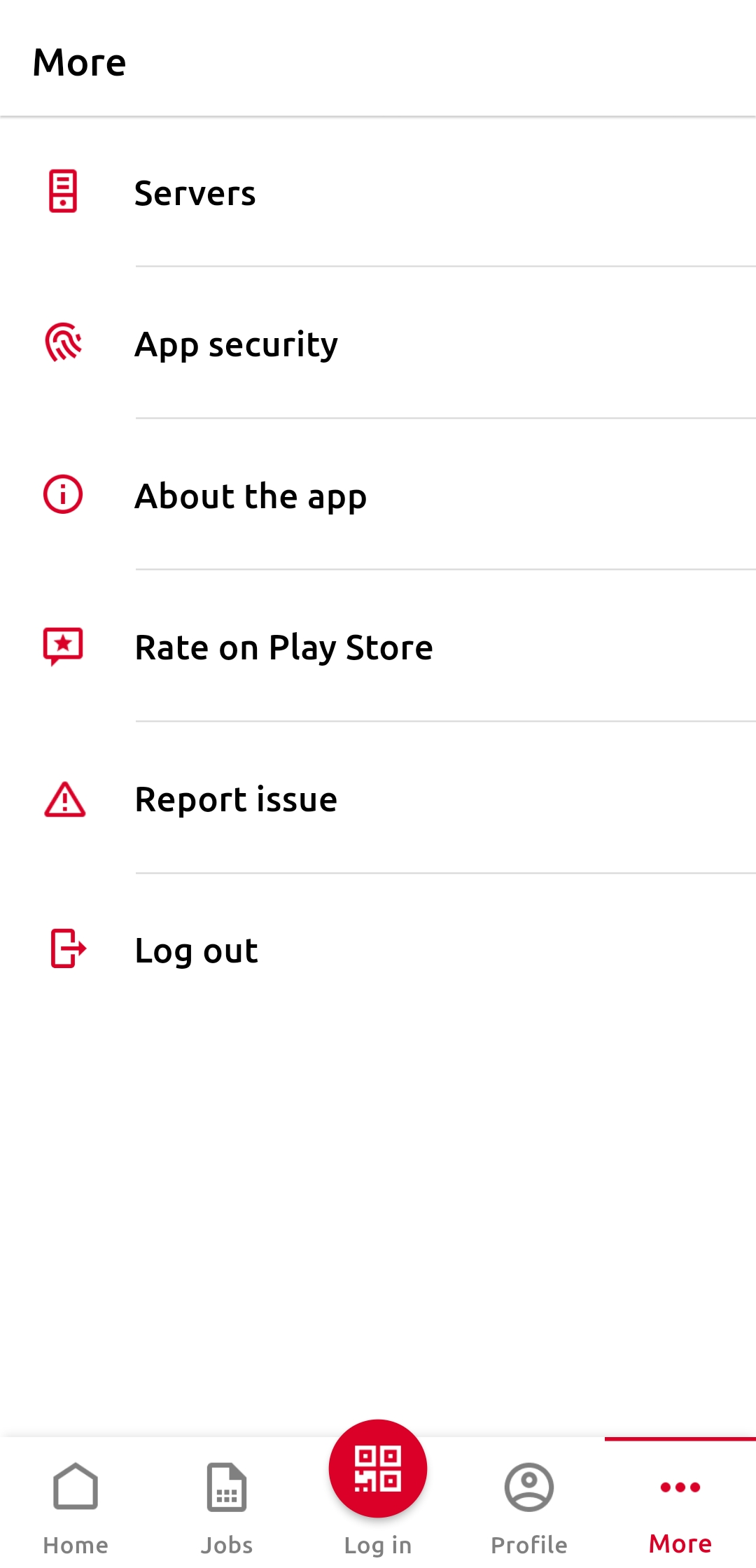
-
Servers
View and manage your servers. -
App security
Enable or disable Biometrics – face and fingerprint recognition. -
About the app
-
Rate on AppStore/Play Store
Send us your feedback, leave a rating, or get in touch directly. -
Report issue
If you think something is not working as it should, we’d love for you to let us know.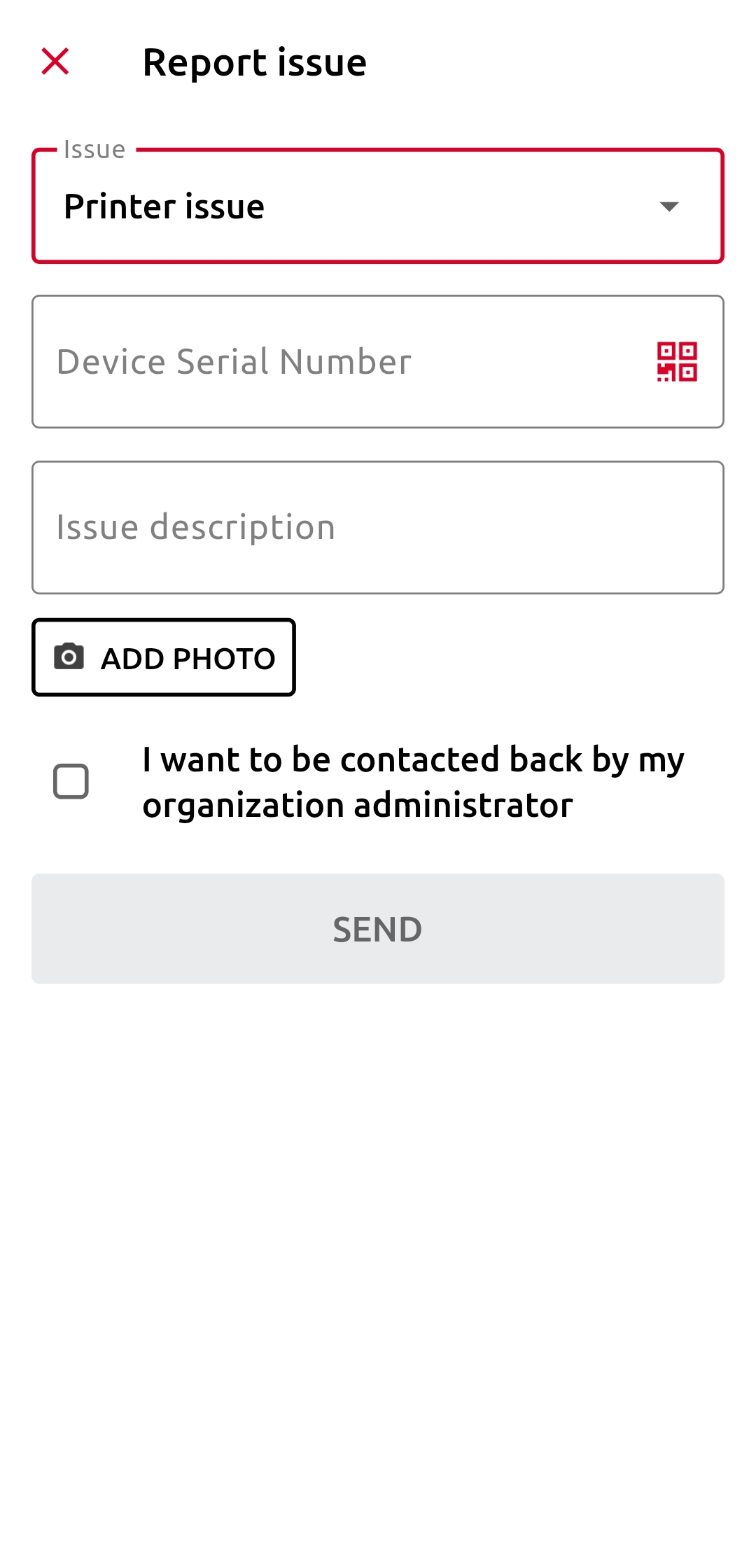
-
Log out
Log out of the MyQ Mobile App.
Manage Servers
In Servers, you can view and manage MyQ servers.
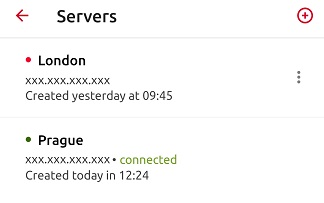
The currently used server is marked as connected. Other servers used in the past (or currently unreachable) are listed with a small red dot next to the server's name.
Tap the three-dots button at the right side of the server to display the following options:
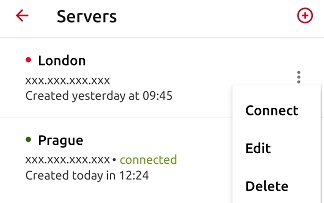
-
Connect
Connect to the server. -
Edit
Change a server name, hostname/IP address, and port. -
Delete
Delete the server (available only for servers that are not in use).
Add a Server
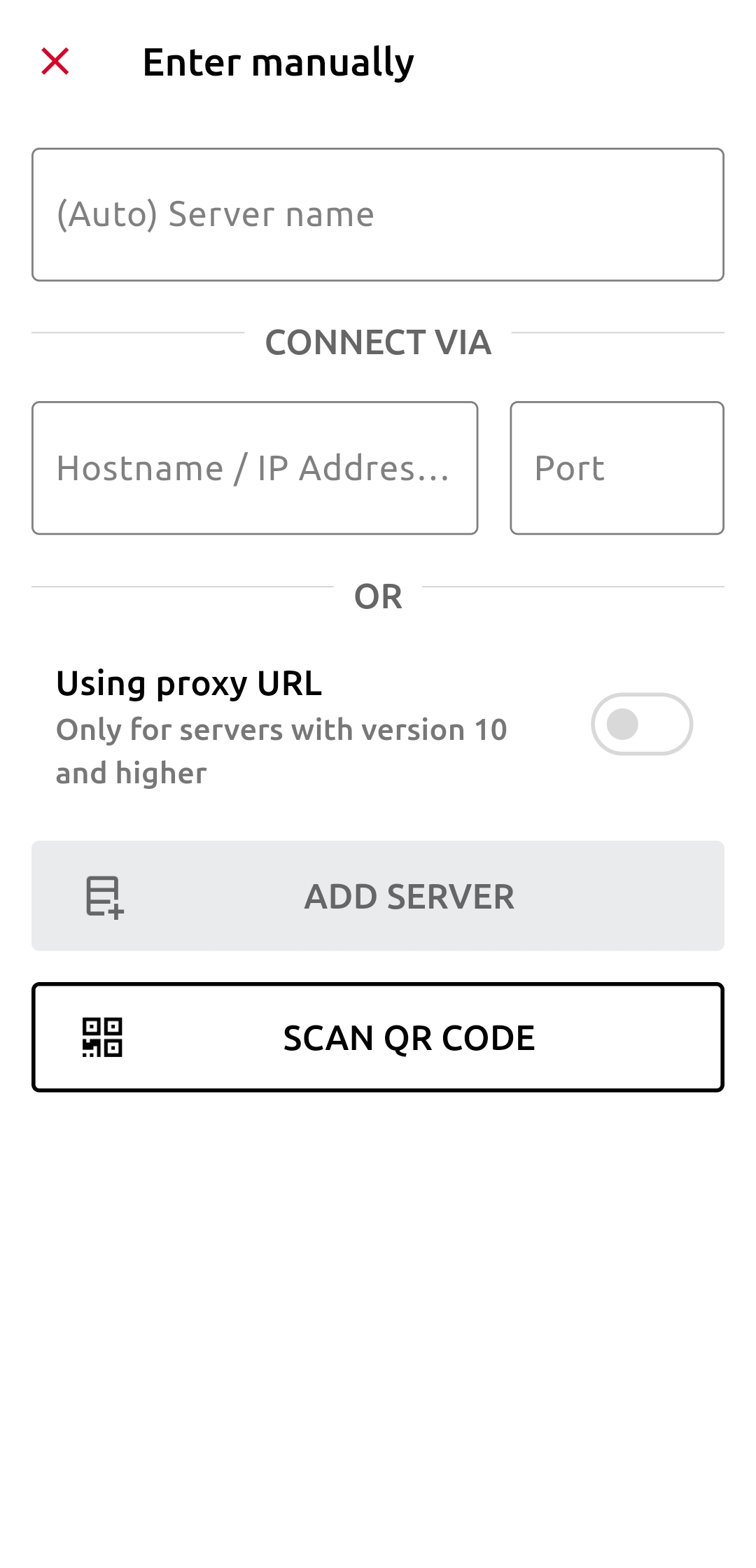
To add a new server, your can either scan a QR Code (provided by your administrator), or enter the server details manually.
To add a new server, tap the + (plus) icon at the top.
Enter the new server’s information (add a Server name, the IP Address, and Port) and tap ADD SERVER.