
If you want to change login methods after the installation, you need to edit the configuration profile and reactivate your printer(s).
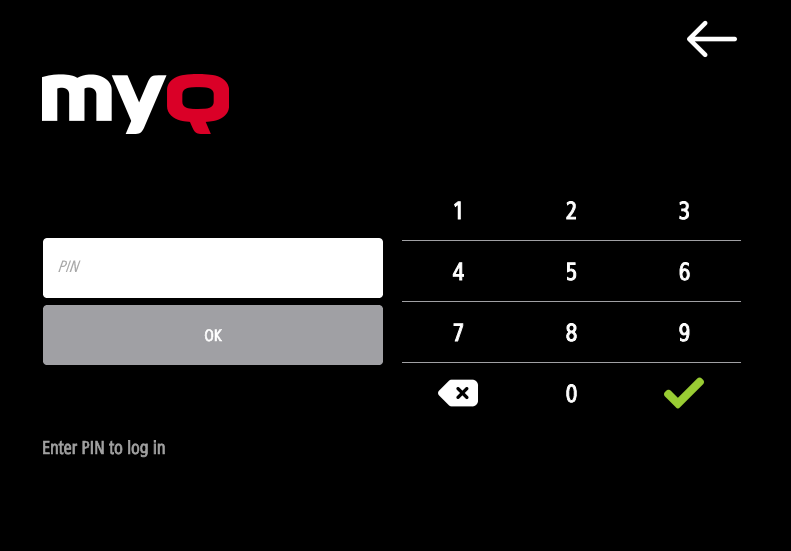
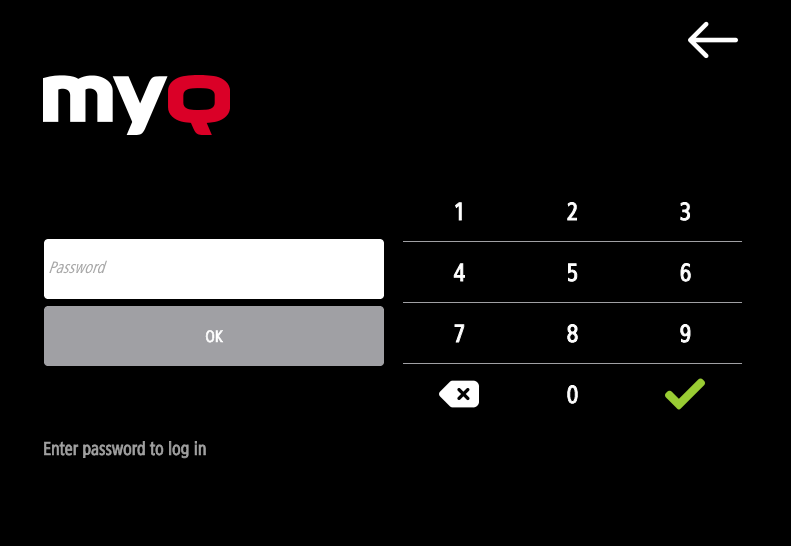
You can choose between two types of login: simple login and two-step authentication.
With the simple login option, you can select up to three methods of login.
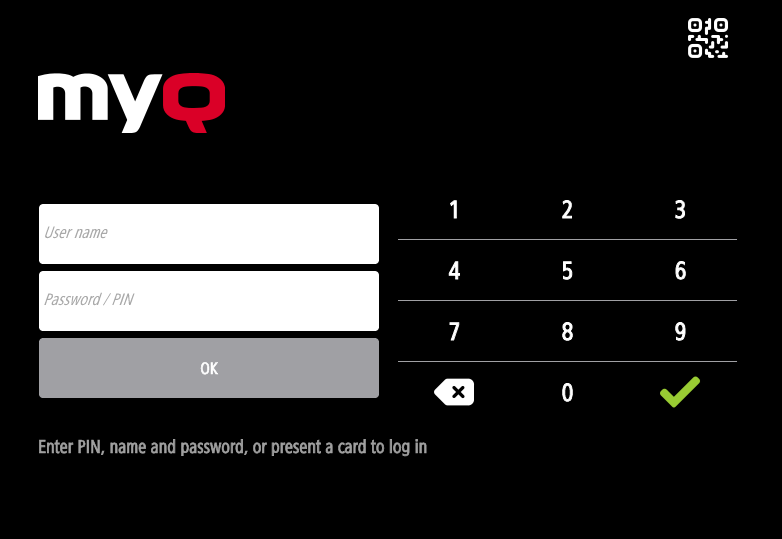
With two-step authentication, you can select a combination of the login methods.
To change the login type:
-
In the MyQ Web administrator interface, go to MyQ, Settings, Configuration Profiles.
-
Select the profile you want to change and click Edit on the main ribbon (or right-click and Edit, or double-click). Choose the login method in the pane to the right.
-
Click Save. A pop-up window tells you that you need to activate the printers again.
-
Click OK if you want to re-activate all the printers connected to this profile, or click Skip if you only want to change the settings for specific printers.
-
If you chose to skip, go to MyQ, Printers to open the Printers overview. Select the printer(s) to change, right-click and select Activate.
-
Restart the printing device(s).
Login via QR code
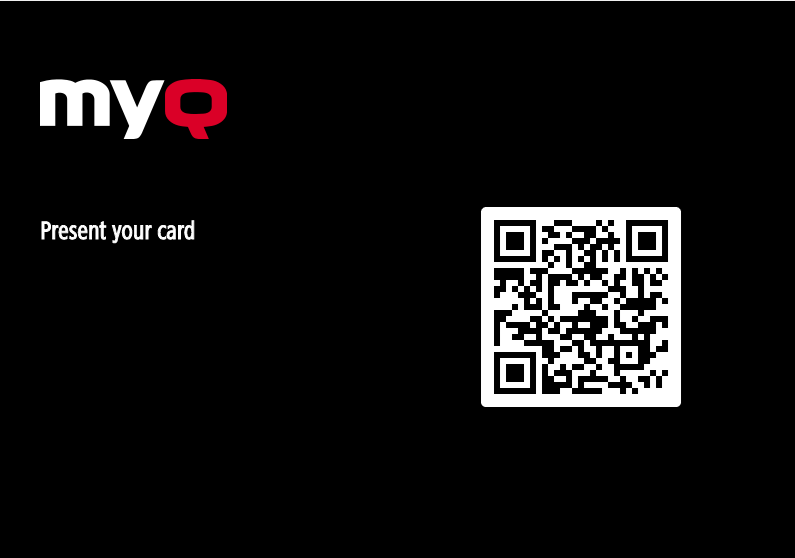
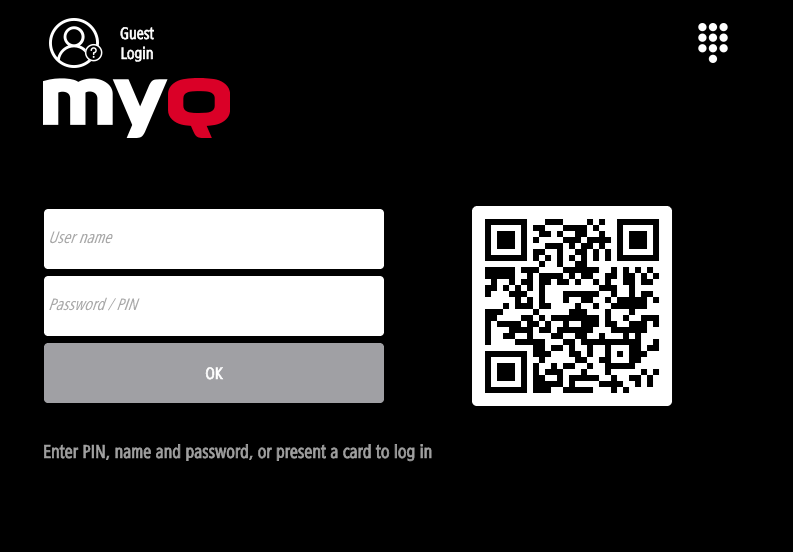
In MyQ, Settings, Printers & Terminals, in the MyQ X Mobile Client section, you can Enable login by QR code on terminal login screen.
It is also possible to configure displaying a QR code on the terminal, instead of the numeric keyboard, by default. Mark the checkbox next to Set QR code as default login method and click Save.

After the confirmation, a QR code is displayed as the default login option on the terminal.
For more information, check Printing via the MyQ X Mobile Client app in the MyQ Print Server guide and check the MyQ X Mobile Client App guide.