
To set up a guest account, you need to edit your configuration profile.
-
In the MyQ Web administrator interface, go to MyQ, Settings, Configuration Profiles.
-
Select the profile you want to change and click Edit on the main ribbon (or right-click and Edit or double-click).
-
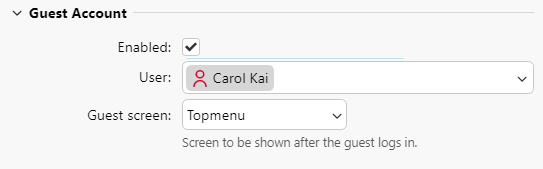
Go to the Terminal tab, in the Guest Account section, and set up the guest account’s options:
-
Check the Enabled checkbox to be able to use a guest account.
-
In the User drop-down, select the user you want to associate with the guest account.
-
In the Guest screen list, select Topmenu.
-
-
Click Save (and reactivate your printers if needed).
The Guest Login button is now displayed on the terminal login screen. After a guest logs in, they are always taken to the Top Menu.
Limitations
-
Guest screen - Canon devices only support the Topmenu option. If any other option is selected, the guest is still taken to the Top Menu.