
Connect MyQ X to Microsoft Entra ID via Microsoft Graph API to synchronize users and groups and to authenticate MyQ users with their Microsoft identity. The connection can be used for:
-
synchronizing users and groups from Microsoft Entra ID
-
authenticating users against Microsoft Entra ID
-
Sign in with Microsoft
-
Seamless SSO with MyQ Desktop Client
You can create the required Microsoft application automatically from MyQ, or connect MyQ to an application registration that you manage manually.
Microsoft Entra ID, OneDrive for Business, and SharePoint Online can use the same manually registered application. If you plan to use these integrations together, configure the application with the combined permissions required by them.
Create a Microsoft Entra ID Connection
-
Go to MyQ > Settings > Connections.
-
Click Add and select Microsoft Entra ID from the list.
-
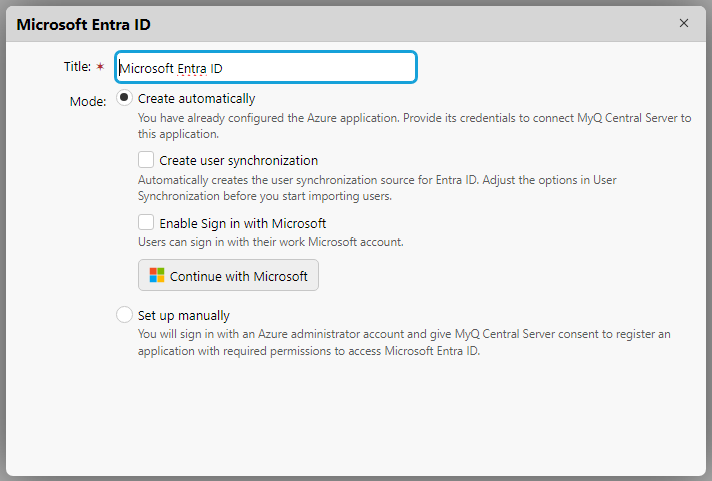
Enter a Title for your connection and select your preferred Mode:
-
Create automatically: MyQ X configures the Entra application required for accessing Entra ID user information.
-
Set up manually: Configure the Entra application manually. Select this option if you want to manage all aspects of the integration setup.
-
-
Proceed to the corresponding section below.
Create Automatically
During setup, sign in with a Microsoft account that can grant the permissions required to create and configure the connector application.
Automatic setup applies the following temporary permissions:
|
Permission |
API |
Type |
Purpose |
|---|---|---|---|
|
|
Microsoft Graph |
Delegated |
Create or update the connector application credential. |
|
|
Microsoft Graph |
Delegated |
Read tenant information, including the default domain name. |
MyQ creates the connector application and configures it with the runtime permissions required for the selected integration. Complete the Microsoft authorization process and save the connection.
You can also create the corresponding user synchronization source and enable Sign in with Microsoft during setup.
See also: Automatic Microsoft Entra App Registration
Set Up Manually
Select Set up manually if your organization manages Microsoft Entra application registrations directly. You can use the same application registration for Microsoft Entra ID, OneDrive for Business, and SharePoint Online, or a dedicated application for each service. The shared application must contain the permissions required by all integrations that use it.
See Manual Microsoft Entra App Registration
Microsoft Entra ID requires the following runtime permissions:
|
Permission |
API |
Type |
Purpose |
|---|---|---|---|
|
|
Microsoft Graph |
Application |
Read groups and group membership. |
|
|
Microsoft Graph |
Application |
Read users. |
|
|
Microsoft Graph |
Delegated |
Sign in and read the signed-in user's profile. |
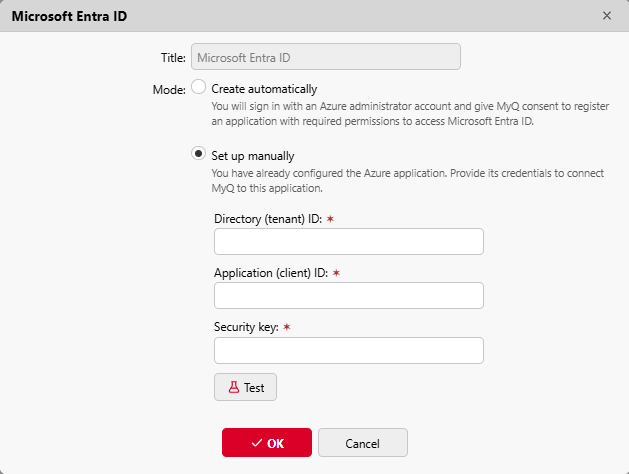
Then enter your Microsoft Entra app information into MyQ and save the connection.
-
Title: a title for the connection.
-
Directory (tenant) ID: the directory ID of your Entra app.
-
Application (client) ID: the application ID of your Entra app.
-
Security key: the Entra app client secret.
Configure User Synchronization
Creating the Entra ID connection does not itself import users.
To synchronize users and groups, create a Microsoft Entra ID synchronization source in MyQ > Settings > User Synchronization and select the connection you created.
See also: Synchronize Users from Microsoft Entra ID
Configure Authentication
To authenticate users with Microsoft Entra ID, configure the corresponding authentication server and associate it with the Entra ID connection.
Depending on your environment, you can also use:
-
Sign in with Microsoft
-
Seamless SSO for MyQ Desktop Client
The required authentication scopes and redirect URIs are listed separately.
See also: Microsoft Entra App Reference
Re-authorizing the Entra ID Connection
Use the Re-authorize option to repeat the Microsoft authorization process for an existing connection.
Reauthorization can:
-
complete administrator consent that was not granted during the initial setup
-
create a new client secret
-
recreate a deleted enterprise application
-
change the connection between automatic and manual configuration
Reauthorization updates the existing enterprise application when it is still present. It does not create a duplicate.
To re-authorize, right-click on the connection. This opens the create connection dialog. You can repeat all the steps to create a new secret for the existing connection.
Multiple Microsoft Entra Tenants
MyQ can connect to multiple Microsoft Entra tenants. Create a separate connection for each tenant and assign the appropriate synchronization source and authentication configuration to each connection.
Next Steps
You are now ready to configure synchronization and authentication through Microsoft Entra ID with Microsoft Graph.