
To submit documents to Scan Review for approval, users scan with an Easy Scan terminal action that has Scan Review as its destination. You set up the terminal action in the MyQ X web administrator interface.
Prerequisites
-
Scan Review is paired with MyQ X Print Server. See Pairing with Print Server.
-
An Embedded Ultimate license assigned to participating devices.
Terminals with a lower license tier (Embedded, Embedded Lite) do not show an Easy Scan action with the Scan Review destination. If a terminal's license is downgraded from Ultimate, the action is hidden after the next user login. The terminal may need to be reactivated.
Create and set the Scan Review destination
-
Open an Easy Scan terminal action, or create one in MyQ > Settings > Terminal Actions (Add Action > Scan > Easy Scan).
On the General tab, use a Title that tells users where their documents go, for example, the review queue or the target location.
-
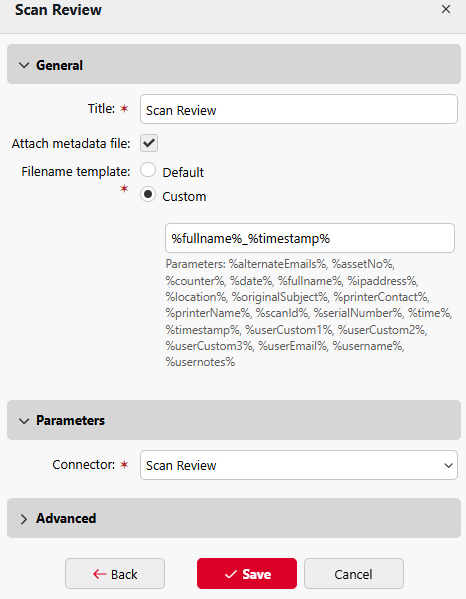
On the Destinations tab, select Scan Review in the +Add dropdown.
-
In the General section:
-
(Optional) Change the Title, for example, to tell several Scan Review destinations apart.
-
Attach metadata file is always selected for this destination.
-
Filename template: keep Default to use the template from the General tab of the terminal action, or select Custom to build one from the action's parameters, including custom parameters. See (10.3 RTM) Easy Scan Destinations.
-
-
In the Parameters section, in Connector, select the Scan Review connection.
Set the Scan Review parameters
On the Parameters tab of the terminal action, open each parameter's settings:
-
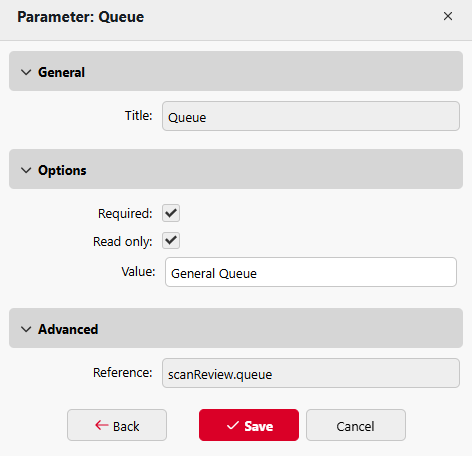
Document Queue: in Value, enter the exact name of the Scan Review document queue that receives the documents. Required and Read only cannot be cleared.
-
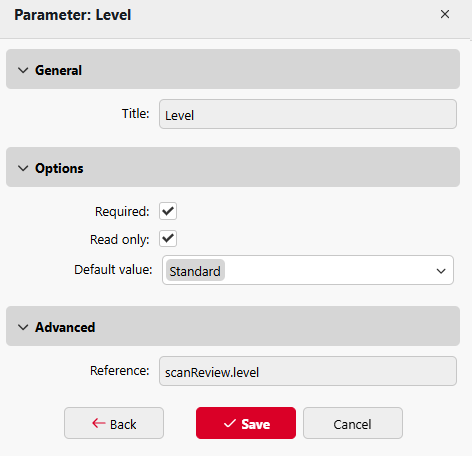
Protection Level: the protection level of the submitted documents.
-
To use a fixed level, select Read only and set a Default Value.
-
To let users choose the level at the terminal, clear Read only and leave Default Value empty.
-
-
Brand, Model, and Serial Number: filled in automatically.
-
(Optional) Resolution: we recommend at least 300 dpi for Scan Review.
Additional Parameters
You can add custom parameters, such as a document ID, to help reviewers match paper originals with the scanned documents in the document queue. See Archiving Process.