
Scans are sent to the specified destination folder. If that folder does not exist, it is created automatically.
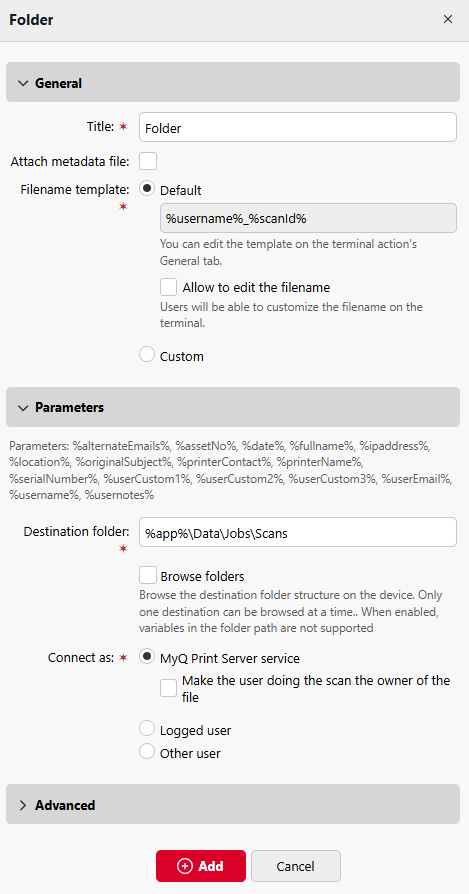
In the Destination folder field, type or browse and select the destination folder.
You can use the following parameters: %alternateEmails%, %assetNo%, %date%, %fullname%, %ipaddress%, %location%, %originalSubject%, %printerContact%, %printerName%, %serialNumber%, %userCustom1%, %userCustom2%, %userCustom3%, %userEmail%, %username%, %usernotes%.
Select the Browse folders option to allow users to browse one of their cloud destinations folder on the device.
The Connect as parameter determines which account is used to access the destination folder and which account is recorded as the owner of the scanned file.
|
Option |
Access |
File owner |
Description |
When to use |
|---|---|---|---|---|
|
MyQ Print Server service |
MyQ service account |
MyQ service account |
MyQ accesses the destination folder using the account running the MyQ service. |
Central or shared scan folders |
|
Make the user doing the scan the owner of the file |
Destination configuration |
Scanning user |
Changes only the owner of the scanned file. Folder access remains unchanged. |
When the scanning user should be recorded as the file owner |
|
Logged user |
Scanning user account |
Scanning user |
MyQ accesses a shared folder using the domain account of the scanning user. |
Personal user scan folders |
|
Other user |
Specified user account |
Specified user |
MyQ accesses a shared folder using the configured username and password. |
Shared service or department accounts |
Notes
-
MyQ cannot change the owner of scanned files that are stored under the Users folder or any of its subfolders. If you want to use the Make the user doing the scan the owner of the file option, use a different folder than Users (or its subfolders) as the scan destination.
-
When the scan is done by a hybrid Entra ID user (that is, the user has On-premises username and On-premises domain populated), MyQ uses
NETBIOS\usernamefor filesystem authentication instead of the Entra ID UPN.