
MyQ supports both personal Google Drive and Google Drive for Workspace as scan destinations. If you want to use both, we recommend that you create a separate terminal action for each. If both destinations are used in the same action, folder browsing can be enabled for only one destination.
Set Google Drive as a Scan Destination
To configure Google Drive or Google Drive for Workspace as a cloud storage scan destination, follow these steps.
-
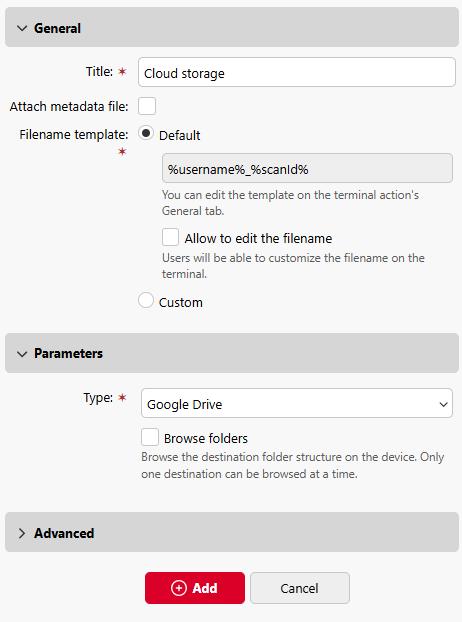
Go to MyQ > Settings > Terminal Actions, and open an Easy Scan action.
-
On the Destinations tab, and click Add, and select Cloud Storage.
-
In the Parameters section under Type, select one of these options.
-
Google Drive
-
Google Drive for Workspace
-
-
Select Browse folders if you want users to be able to browse their My Drive and Shared Drives locations before scanning. If folder browsing is disabled, the scan is delivered to the root of the user's My Drive.
-
(Optional) With Google Drive for Workspace you can restrict browsing to a specific Shared Drive or folder:
-
Drive name
Enter the display name (case-insensitive) of the Shared Drive as it appears in Google Drive for Workspace. When empty, the location defined by Root folder is resolved within My Drive instead.
When Browse folders is enabled, terminal browsing is restricted to the specified Shared Drive. My Drive and other Shared Drives are hidden.
When both Drive name and Root folder are empty, users can browse all accessible Shared Drives, or My Drive if none are available.When Browse folders is disabled, the Drive name field specifies the drive where scans are delivered.
-
Root folder
Enter the path to a subfolder within the drive specified by Drive name, or within My Drive if Drive name is empty.When Browse folders is enabled, browsing starts from this folder. When Browse folders is disabled, Root folder specifies the exact delivery folder. When empty, the root of the target drive is used.
-
-
Click Save.
User Action: Connect Cloud Storage
If the following conditions are met, the cloud storage widget is displayed on the Home screen when the user logs in to the MyQ web interface:
-
There is at least one Easy Scan terminal action with this destination.
-
The user has rights to see the Easy Scan button or is connected to cloud drive.
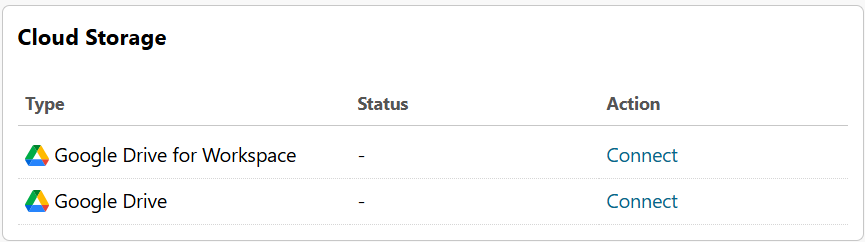
To be able to store an outgoing scan file on Google Drive or Google Drive for Workspace, the user must connect their cloud storage to their MyQ account. This is a one-time action that the user must do separately for Google Drive and Google Drive for Workspace.
This can be performed in the Web UI, or by clicking the button in the Welcome email.
Connect in Web UI
To connect to a Google storage destination, the user must perform the following actions:
-
Log in to the MyQ Web user interface.
-
On the Cloud storage widget, click Connect. The Cloud storage dialog box appears.
-
Click Continue with Google.
-
Sign-in to the Google account and confirm permissions. (When asked about the permissions, click Allow).
-
The connection status changes to Connected.
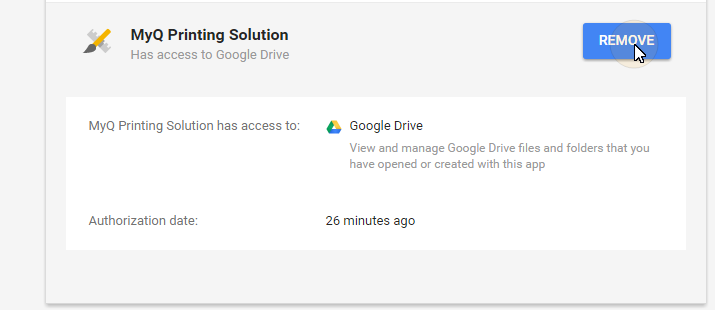
A single Google user account can be connected to only one server at a time. If the user wants to connect the account to another server, they need to remove MyQ Printing Solution from the connected applications. This can be done on the Apps with access to your account tab under My Account/Sign in & security/Apps with account access/MANAGE APPS.
Connect in Welcome Email
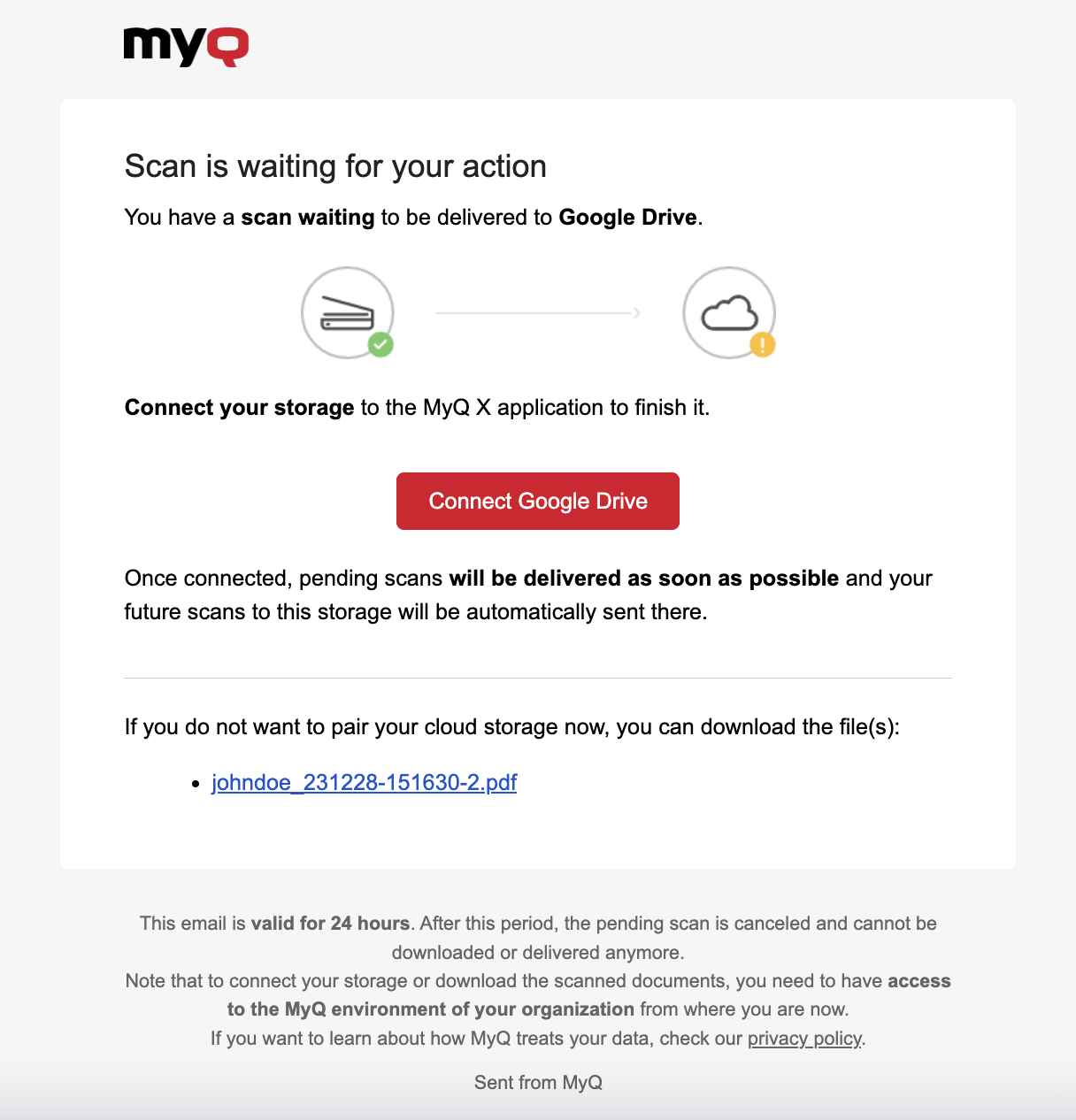
If an admin has connected Google Drive to Easy Scan, but the user has not yet connected their Google account, they can still use Easy Scan with Google Drive set as the destination.
An email will be sent to the user's email address allowing them to connect to Google Drive or Google Drive for Workspace, after which their scanned document/s will be delivered there. This email is valid for 24 hours after the scan has taken place.
This email also contains a secure link to directly download the scanned document/s.
If a user attempts to use Easy Scan to send a file to Google Drive, but they are not connected, and there is no email address associated with that user, the user will receive an on-screen prompt to connect their cloud storage via the web interface and try again.