
Microsoft Entra ID (formerly Azure AD) integration uses Microsoft Graph to synchronize users with MyQ. Before synchronization can be configured, the service must be enabled and properly set up in the Microsoft Azure portal.
Prerequisite
Add Microsoft Entra ID as a Source
Once the Microsoft Entra ID connection is established, go to MyQ > Settings > User Synchronization. Click Add, and then click Add Microsoft Entra ID source.
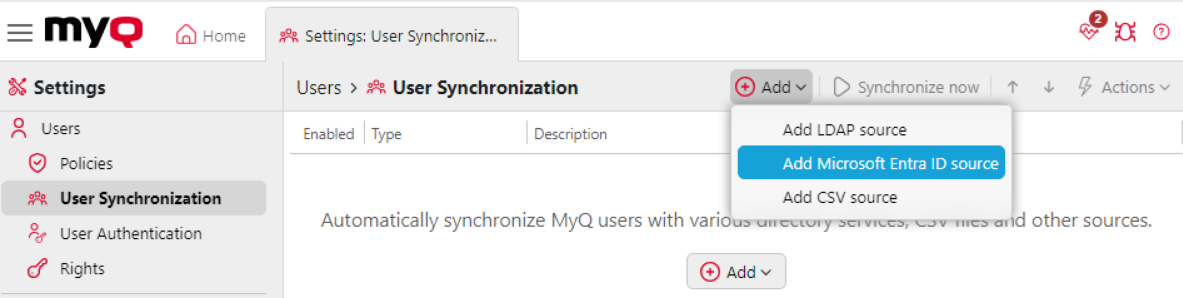
Once the source is established, configuration options allow you to edit how users are imported.
-
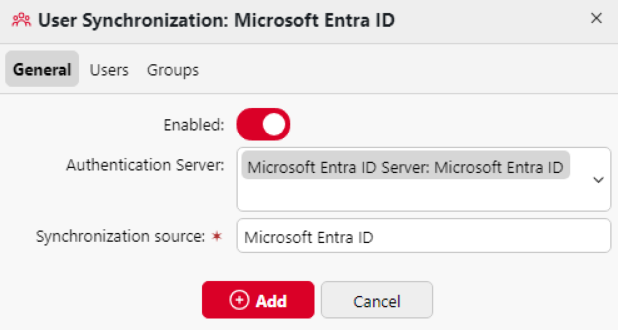
On the General tab, you configure the Authentication Server and Synchronization Source, and enable or disable synchronization.
-
On the Users tab, you define which users are imported into MyQ, configure their properties, and set related options.
-
On the Groups tab, you define how groups from the source are imported and created in MyQ. When groups are imported, MyQ creates corresponding group definitions, and users are assigned to these groups based on their memberships in Entra ID.
General Tab
This tab opens by default when you select Add Microsoft Entra ID source. The following options are available:
-
Enable: use this toggle to enable or disable the user synchronization.
-
Authentication Server: Select the authentication server to use. If multiple connections are established, you can select which to use for this user synchronization.
-
Synchronization Source: assign a name to easily identify the synchronization source. This is useful to distinguish between multiple Entra ID tenants.
Users Tab
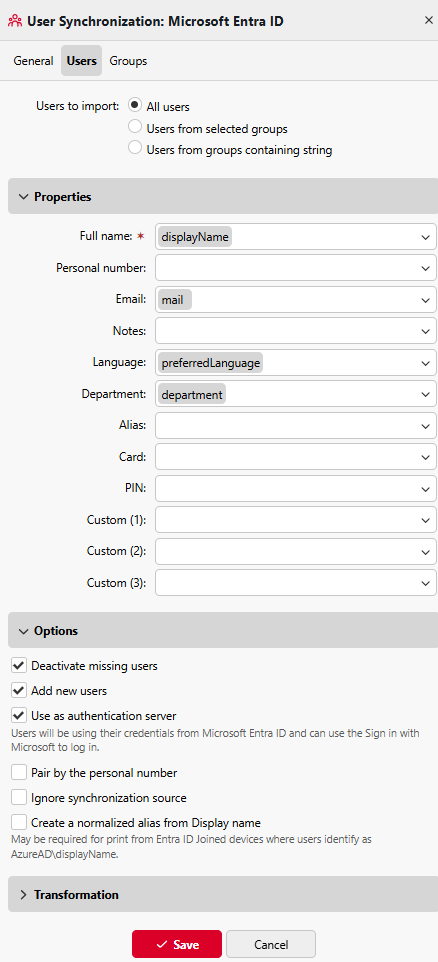
This tab allows you to select which Users to import, their Properties, and various Options for user synchronization.
Users to Import
This is where you can select which users you want to import from your Entra ID Tenant into MyQ.
Available options:
-
All users
-
Users from selected groups: Specify the groups to import users from. This option imports a user if they are a member of at least one selected group.
-
Users from groups containing a string: Specify one or more strings, and import only members of groups whose name contains at least one string. Place each string on a new line. Matching is case insensitive.
Warning!
The Users from groups containing a string feature can slow down the synchronization.
Properties
In the Properties section, you can map user information from Microsoft Entra ID to the credentials in MyQ. A predefined selection of recommended values is provided. If the predefined value is not used, a manually typed custom attribute can replace it and synchronize a different user attribute from Entra ID.
|
Property Name |
Description |
Predefined Attribute/s |
|---|---|---|
|
Full name |
Users' full name. |
|
|
Personal number |
User identification number. |
|
|
|
Users' email. |
|
|
Notes |
Relevant notes. |
|
|
Language |
Users preferred language. |
|
|
Department |
Users' department. |
|
|
Alias |
An alternative name or username. |
|
|
Card |
The users' ID card number. |
|
|
PIN |
The users' PIN. |
|
|
Custom (1) |
Custom attribute to assign to other relevant information. |
|
|
Custom (2) |
Custom attribute to assign to other relevant information. |
|
|
Custom (3) |
Custom attribute to assign to other relevant information. |
|
For the Alias property, if the attribute onPremisesSamAccountName@onPremisesDomainName is used, the user's Alias after synchronization will be a combination of the user's Microsoft Entra ID attributes onPremisesSamAccountName and onPremisesDomainName in the format, for example, user@myq.cz.
Options
-
Deactivate Missing Users: this option allows the system to automatically deactivate users in MyQ X who are no longer present in the Microsoft Entra ID source.
-
Add New Users: when enabled, this feature automatically adds new users found in the Microsoft Entra ID source to MyQ X.
-
Use as authentication server: if you plan to authenticate users towards Azure using Active Directory credentials and use the Microsoft single-sign-on option, select the Use as authentication server option and click Save.
-
Pair by the personal number: check this box if you wish to update users based on their personal number. If the personal number option is checked, during re-synchronization, the system will look for the user by their personal number. If a match is found, the user details will be updated, otherwise, a new user will be created.
Since MyQ Print Server 10.2 RC 4, the Pair by the personal number option is checked by default for all newly created synchronization sources and cannot be changed. Sources created in 10.1 after migration to 10.2 allow editing this option. Pairing Users by personal number is strongly recommended.
-
Ignore Synchronization Source: this option provides the ability to selectively ignore certain aspects or data from the Microsoft Entra ID source during synchronization.
-
Create normalized alias from Display name: this option means an additional alias is added to the user on top of those configured in the user attributes section, this alias takes the form of
AzureAD\concatedDisplayName. It allows proper recognition of users who print from Entra ID Joined devices.
If two or more users have the same Full Name synced from Entra ID, a normalized Alias will be created only for the first user. There is no way to distinguish Job owners for this case in the ADD environment since the printer’s driver provides only a concatenated user’s Name and Surname.
Groups Tab
The Groups tab does not specify which user groups to import, but how they should be organized within MyQ. Which user groups are imported is controlled in Users > Users to import.
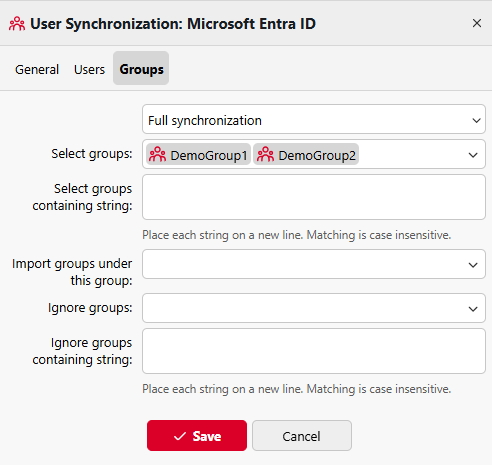
The following options are available:
-
Synchronization type: adjust the level of synchronization on the Groups tab. Select from:
-
Full synchronization: synchronize groups 1:1 as they are in the source, meaning users are both added to and removed from groups as in the source.
-
Synchronize if not empty: leave a user in at least one group even after they lose all memberships in the directory.
-
Add new: ensure that once a user is assigned to a group in MyQ, they do not lose this membership even after they are removed from a group in the source directory.
-
-
Select groups: this allows you to select the groups that exist in your instance of Entra ID which you want to include as groups within MyQ.
-
Select groups containing string: this allows you to select Entra ID groups based on a string filter, and those groups will be created in MyQ. If this option is combined with Select groups, only groups that meet both conditions will be created.
-
Import groups under this group: allows you to select an existing user group in MyQ to use as a parent group for any groups synchronized from this source.
-
Ignore groups: select what Active Directory groups you do not want to use in this synchronization.
-
Ignore groups containing string: fulfills the same function as Ignore groups allowing you to specify groups to be ignored according to a string they contain.
Group Synchronization - Example Scenario
Administrators have enhanced control over group memberships during Entra ID user synchronization. With the Select groups filter option in the Entra ID User Sync source settings, you can specify which group memberships are imported into MyQ without affecting the overall user synchronization process.
Example:
The Entra ID group structure is as follows:
-
All students: 1,500 users
-
Class1A: 1,000 users
-
Class1B: 500 users
MyQ Settings:
-
In the Users tab under Users to import select Users from selected groups and specify the All students group to synchronize all 1,500 users.
-
In the Groups tab under Select groups, select Class1B only.
Result:
-
All 1,500 users are synchronized to MyQ.
-
Only the 500 users in Class1B have their group membership applied in MyQ.
-
The remaining 1,000 users are imported without any group membership.
-
Users who are also members of Class1A do not have this membership applied in MyQ.
Synchronize Now
Users can be now synchronized by selecting your Microsoft Entra ID source from the list and clicking Synchronize now. You can also schedule user synchronization using the task scheduler.
To view details of a synchronization run, check the synchronization log.

Multi-Tenant Synchronization and Authentication
You can now use multiple Entra ID tenants in MyQ environments to synchronize and authenticate users. This is particularly useful in shared print infrastructure settings, such as those found in the public sector, where multiple organizations manage printers from a single location, while each uses its own Entra ID.
Follow the process as described below but repeat it to set up multiple instances. Ensure that clear and unique naming is given to each tenant, which will allow users to identify which is relevant for their use.
On-Premises Identity for Hybrid Entra ID Users
In hybrid Entra ID environments, where users are managed with Entra ID Connect and have corresponding Active Directory accounts, MyQ automatically imports two additional attributes during user synchronization:
-
onPremisesSamAccountName→ stored as On-premises username -
onPremisesDomainName→ stored as On-premises domain
These attributes are synchronized automatically whenever they are present in Entra ID. No additional configuration of the synchronization source is required. The synchronization log records, per user, whether each attribute was found and imported; if an attribute is absent in Entra ID for a given user, a warning is logged.
These attributes are distributed to connected Site Servers as part of user synchronization, enabling hybrid Entra ID users to access on-premises file system destinations from any site.
The On-premises username and On-premises domain fields are visible in the user's profile under the Advanced section. Both fields can be edited manually, for example, for testing purposes, but any manual value is overwritten on the next Entra ID synchronization.
NETBIOS domain derivation
When MyQ constructs the on-premises identity for filesystem operations, the NETBIOS domain name is derived from the On-premises domain value by taking its first DNS label:
|
On-premises domain |
Derived NETBIOS identity |
|---|---|
|
|
|
|
|
|
Use during filesystem operations
For hybrid Entra ID users with both on-premises attributes populated, MyQ uses the NETBIOS\username identity rather than the Entra ID UPN when authenticating to on-premises file system destinations.
MyQ uses the NETBIOS\username identity for Easy Scan to Folder, Easy Scan to User Storage, and Easy Print from User Storage when Connect as: Logged-in user is configured, or when Connect as: MyQ service is used together with Make the user who scanned the owner of the file.
Fallback behavior
If the on-premises attributes cannot be used to construct the identity, MyQ falls back as follows:
-
On-premises domain absent: MyQ falls back to authentication server domain resolution; a warning is written to the log.
-
On-premises username absent: MyQ falls back to the user's MyQ username; a warning is written to the log.
Users without on-premises attributes in Entra ID are unaffected by this feature.