
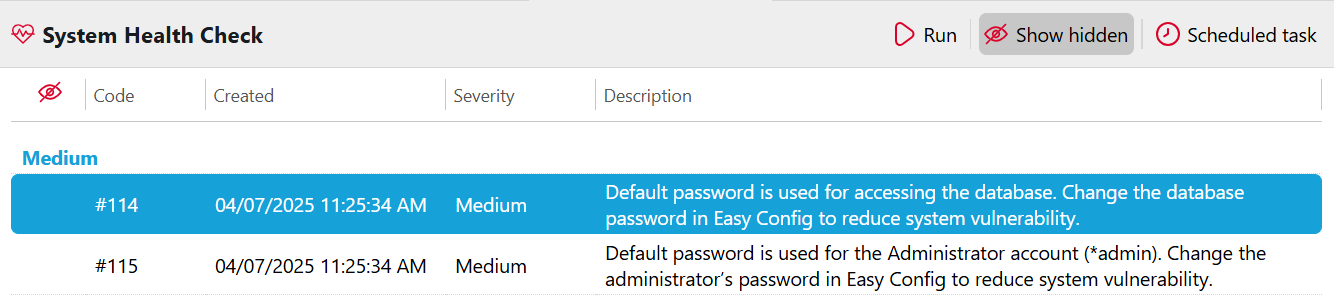
MyQ performs registered checks which can return error messages and their level of severity, these can be viewed in System Health Check. The errors concern database health, disk space availability, PIN length settings, time zone configuration, etc.
Every error message is logged in the MyQ main log.
When the error message has a Critical severity, the related MyQ service is stopped, and the administrator gets an email notification about it.
To access the system health check overview, log in as admin to MyQ and go to MyQ > System Health Check or click on the system health check button on the top-right side of the window.

Click Run to trigger the System health check Task schedule to perform a check.
Click Show hidden to view any hidden checks on the list.
Click Scheduled task to open the System Health Check task in Task Scheduler, where you can view and modify it.
Error Codes
When the error message has a Critical severity, the administrator gets an email. Every error message with a Low severity is logged in the MyQ main log.
Error codes and their severity are listed in the table below.
|
Code |
Severity |
Description |
|---|---|---|
|
101 |
High |
Main database health is not good; multiple messages can appear in the log |
|
102 |
High |
Log database health is not good; multiple messages can appear in the log |
|
103 |
Medium |
PIN length needs to be increased |
|
104 |
High |
Disk space is on warning level |
|
105 |
Critical |
Disk space is on critical level |
|
106 |
High |
Time zones misconfiguration |
|
109 |
High |
License subscription is going to expire |
|
110 |
High |
License Subscription expired |
|
111 |
High |
Contacting license server failed |
|
112 |
High |
HW code mismatch |
|
113 |
High |
License activation required |
|
114 |
High |
License expires soon |