
MyQ integrates with SharePoint Online to let users scan to and print from SharePoint Online cloud storage.
A single connection can support SharePoint Online in two modes:
Single-site mode: Admin sets a specific Site URL in the destination, and optionally a root folder. The terminal does not show a site list. When folder browsing is enabled users can browse only within that site.
Multi-site mode: Site URL is left empty. The terminal shows a list of all sites or followed sites only; users select a site at the terminal, and when folder browsing is enabled, they can browse document libraries and folders across SharePoint Online sites.
To set up a connection between MyQ X and SharePoint Online, follow these steps.
-
Go to MyQ > Settings > Connections.
-
Click Add and select SharePoint Online.
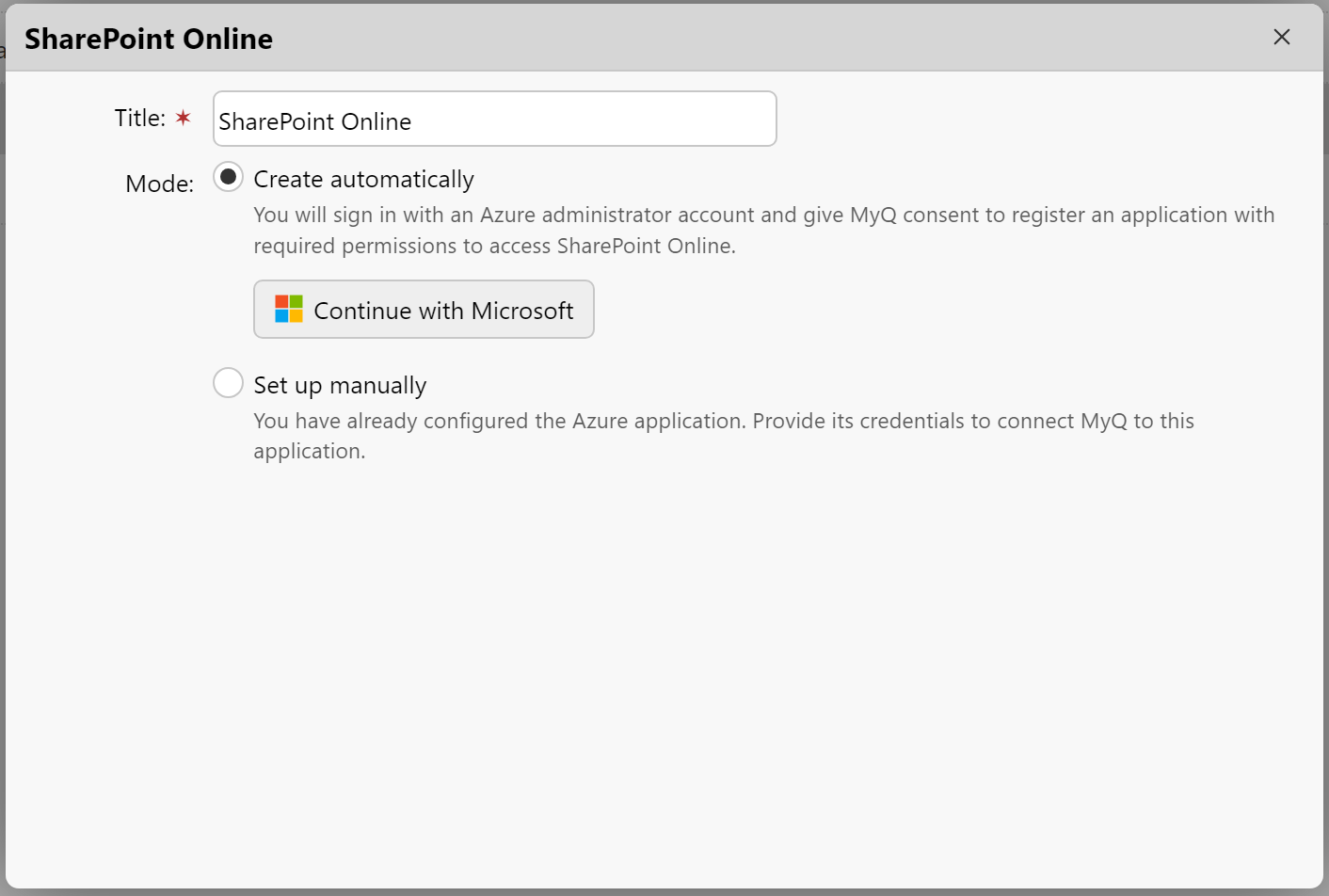
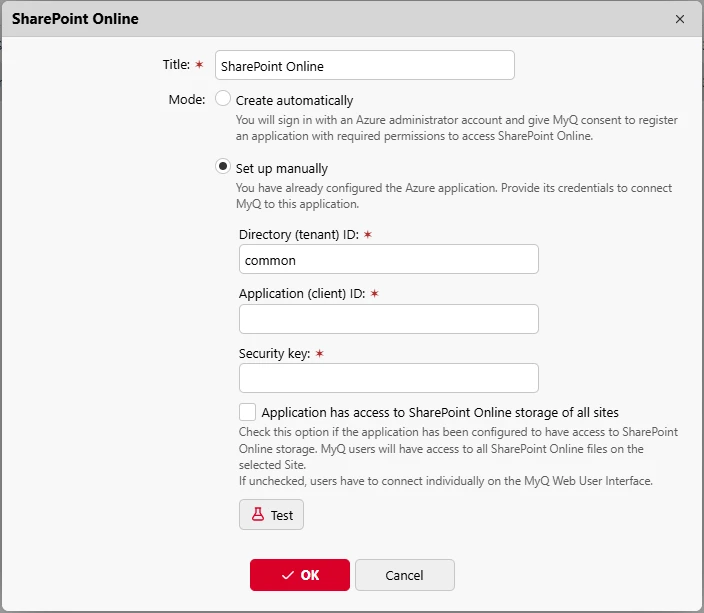
In the pop-up window, add a Title for your connection and then select from:-
Create automatically
-
Set up manually
-
Create Automatically
This mode allows the administrator to have MyQ create the Enterprise Application (Service Principal) on their tenant and grant this application permissions to access SharePoint Online folders and files.
Considerations
If you are hesitant to grant even temporary administrative access for the creation of a client secret, the automatic connection procedure to SharePoint Online will not be available for use. In such cases, it's advisable to manually create an application within your organization's Azure environment and configure the connection to MyQ by yourself (mode Set up manually). This approach ensures that you maintain full control over the application's permissions and the security aspects of the connection, aligning with your organization's specific security policies and compliance requirements.
Prerequisites
-
For creating the service principal on the customer’s tenant, Application Administrator or Cloud Application Administrator roles are required.
-
For granting admin consent to the service principal, the Global Administrator role is required.
-
To finish all steps in the automatic setup, the Global Administrator role is required.
Steps to automatically set up the SharePoint Online Application
-
The administrator signs in with their Azure Administrator account. MyQ SharePoint Online Connector service principal is created on the tenant.
-
The administrator grants the delegated permission to manage Azure applications.
-
Permissions requested in this step:
Application.ReadWrite.All(to create client secret)Directory.Read.All(to read default domain name in connected tenant)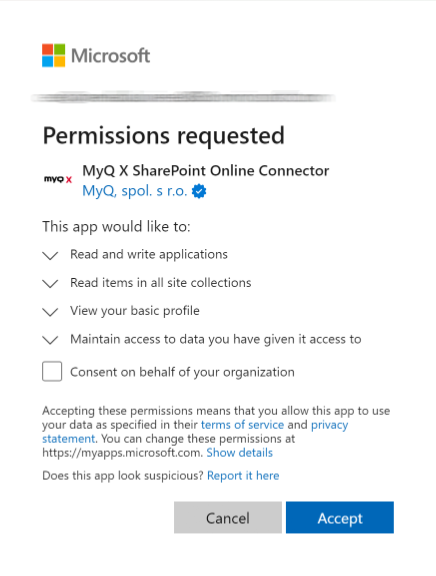
-
-
The administrator grants the application permissions to read and write files and grants admin consent (individual users do not have to consent subsequently)
-
Permissions requested in this step:
Sites.ReadWrite.All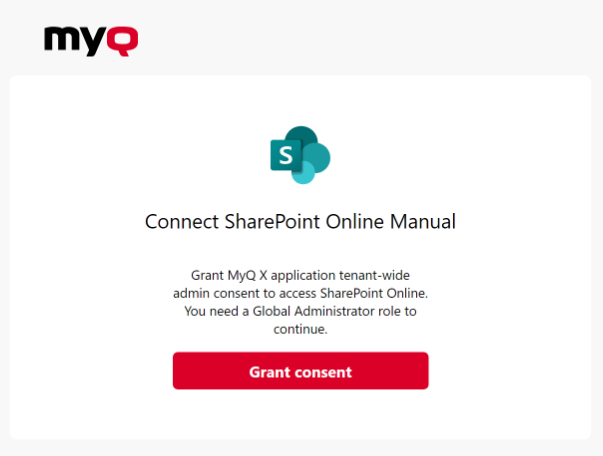
-
-
Once the process is completed, the SharePoint Online connector is saved, and the connection details are securely saved in MyQ.
Re-Authorizing the SharePoint Online Connection
The automatic connection to SharePoint Online can be changed after it has been created. The Re-authorize option will be available in the context menu by right-clicking on the connection.
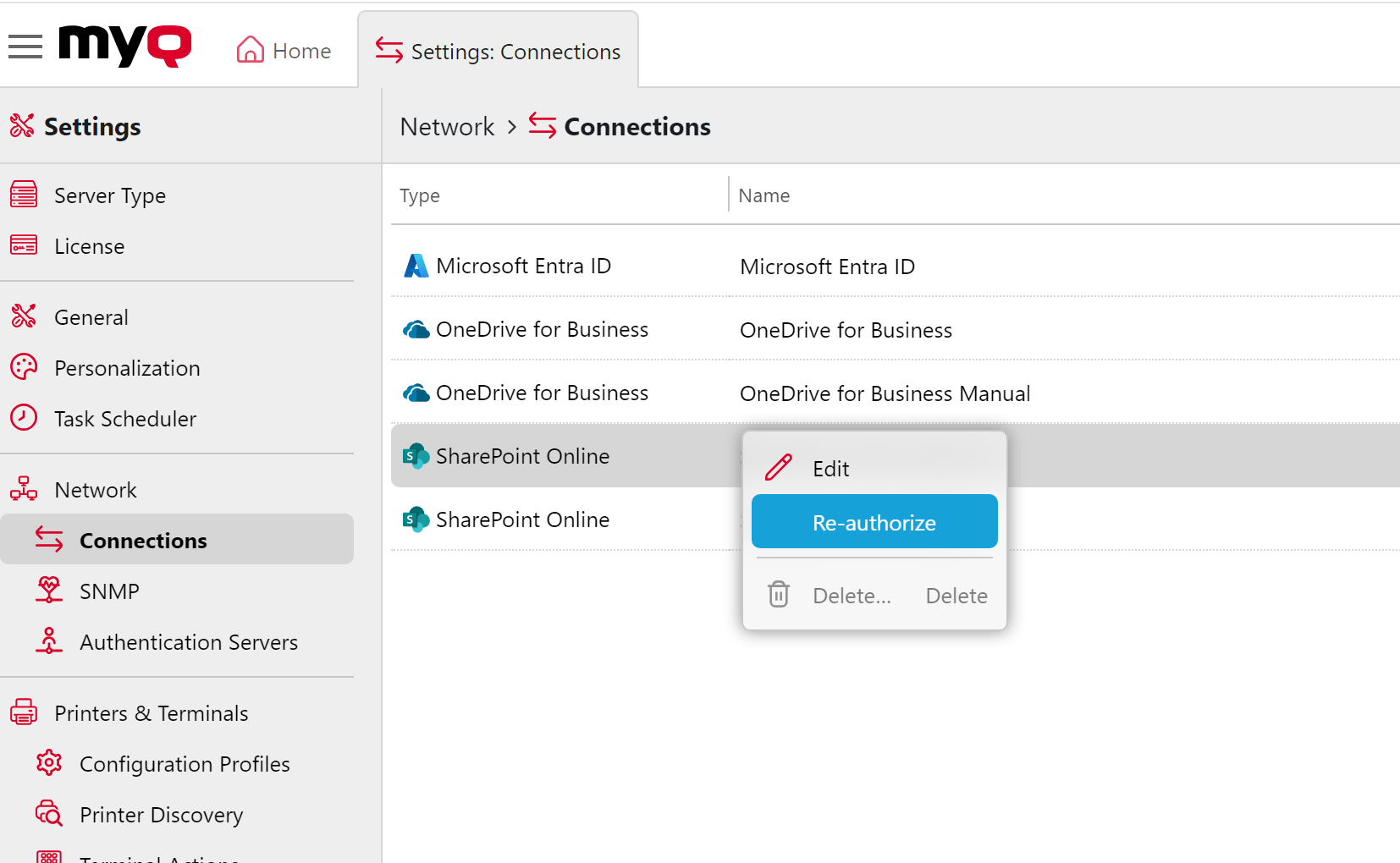
The user will be shown the same dialogue as when the connection was created. The user can repeat all the steps to create a new secret for the existing SharePoint Online connection. Or they can perform step 3 - Administrator’s consent, if it was not completed when the connection was created for any reason, for example, due to insufficient rights of the Azure administrator.
Also, the Re-authorize option allows you to change the type of connection created from automatic to manual, and vice versa.
Application management
-
The validity of the Secret is 2 years. Be sure to rotate the key when its expiration is due. You can do this with the Re-authorize option in MyQ. When the secret is within 30 days of expiry, MyQ will send a Health Check warning.
-
Credentials for service principals are not visible in the Azure portal. They can be managed via PowerShell or Microsoft Graph API.
-
In case you need to revoke the app’s access or currently used Secret, you can simply delete the entire MyQ SharePoint Online Connector enterprise application in Azure, and create a new one with the Re-authorize option in MyQ.
Additional information
-
If the automatic setup is completed again, it does not create a new instance of the application on the tenant, but the current application is updated (e.g. new secret on the service principal on the tenant created). If the MyQ SharePoint Online Connector application has been removed from Azure, it is created again.
-
Service principal (enterprise application) is created on the tenant after Step 1 (without necessary permissions which are granted in Step 2). Step 2 can be finished later (by right-clicking the MyQ SharePoint Online Connector and selecting Re-authorize).
-
To better understand what MyQ is doing in this mode, Microsoft explains this method in their Developer documentation – Understand user and admin consent from the perspective of the application developer
MyQ users can interact with SharePoint Online files without having individual Microsoft accounts or being synchronized with users from Microsoft Azure AD. The application acts on behalf of the users, based on the permissions assigned to it by the organization's administrator in Azure.
All MyQ users gain uniform full rights to access files on the SharePoint Online site, regardless of whether they have a Microsoft account within the organization or any individual permissions.
Set Up Manually
If you are manually creating an Azure Application to link more than one of these services: Entra ID, OneDrive for Business, SharePoint Online, we recommend you create one single application to link them all to, rather than one for each.
More information
It is expected that the administrator has configured the Azure application manually. They can directly provide credentials to their application - Application ID (client ID) and Security key (secret key).
In most cases, it’s enough to leave a prefilled Directory (tenant) ID as common. It should contain a specific tenant ID if Application has access to SharePoint Online storage of all sites is enabled.
If you are upgrading from a version prior to 10.2 patch 22, the Site URL has moved from the connector to each terminal action destination. Existing destinations are updated automatically see the release notes for details.
Enabling Application-Wide Access
When the option Application has access to SharePoint Online storage of all sites is enabled in the connection settings, it grants MyQ users application-wide access to read and write files on any selected SharePoint Online site. This is achieved by configuring the application in Azure to have the necessary permissions to access SharePoint Online storage across all sites.
To implement this functionality, the application must be registered in Azure Entra ID with the appropriate permissions to access SharePoint Online. The required permission is Sites.ReadWrite.All, which allows the application to read and write files in all site collections without requiring individual user logins. This permission is granted via consent from an administrator in the Azure portal.
Configuration Steps
-
Register MyQ as an application in Microsoft Entra ID (Azure).
-
Assign the
Sites.ReadWrite.Allpermission to the application in Azure AD. -
Admin consent is required to enable these permissions for the application.
-
In MyQ connection settings, specify the SharePoint Online site by its URL.
-
Enable the "Application has access to SharePoint Online storage of all sites" option.
With this option enabled, MyQ users can interact with SharePoint Online files without having individual Microsoft accounts or being synchronized with users from Microsoft Azure AD. The application acts on behalf of the users, based on the permissions assigned to it by the organization's administrator in Azure.
All MyQ users gain uniform full rights to access files on the SharePoint Online site, regardless of whether they have a Microsoft account within the organization or any individual permissions.
Disabling Application-Wide Access
If the option is disabled, users must individually connect their SharePoint Online storage through the MyQ Web UI. They are required to log in using a connect link, which necessitates having a Microsoft account within their organization. Upon connecting, an access token for SharePoint Online is stored in MyQ.
To let users browse only SharePoint sites that they follow, disable application-wide access and use the Only followed sites option when you configure the cloud storage parameters of the scan or print terminal action.
User Token Authentication
When application-wide access is disabled, any action performed on files within the SharePoint Online site is executed under the individual user's account. The user's access token is unique and subject to the specific permissions of that user's Microsoft account. This ensures that file interactions are securely managed and adhere to the organization's access control policies.
Security Considerations
-
When enabling application-wide access, it is crucial to understand the security implications of granting the application extensive permissions to SharePoint Online. Administrators should carefully consider the necessity of these permissions relative to their organizational security policies.
-
Individual user token authentication offers a more granular level of access control, applying the specific permissions of each user's Microsoft account to their interactions with SharePoint Online files.
Learn how to use your SharePoint Online as a destination for Easy Scans here.