In the MyQ Audit Log, you can view all changes to MyQ settings, along with information about who made the changes, the time when they were made, and which subsystem of MyQ was affected by them.
Opening the MyQ Audit Log
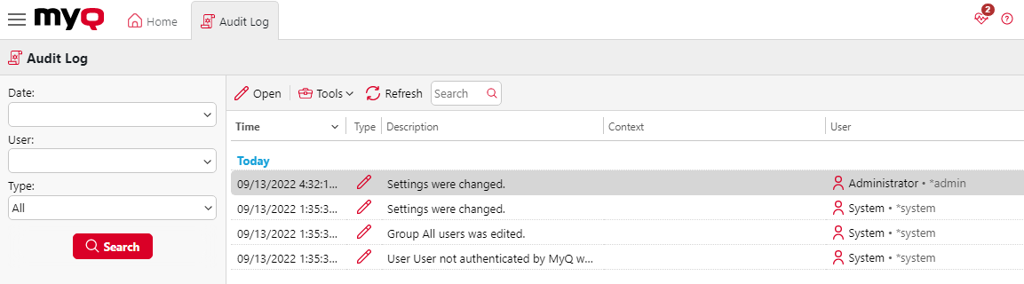
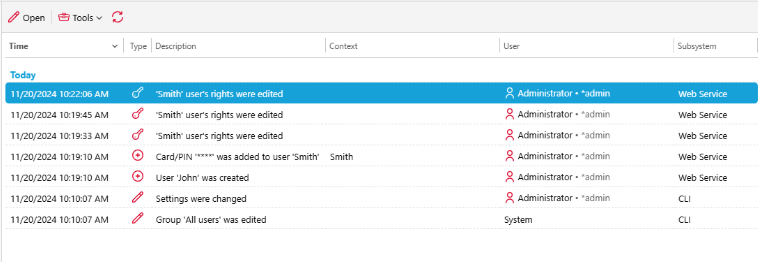
On the MyQ Web User Interface, click MyQ, and then click Audit Log. Example of the types of actions you can see in the Audit Log:
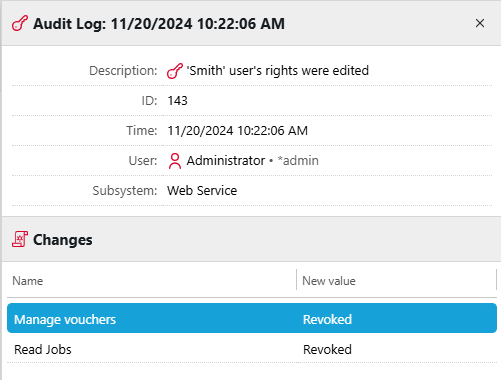
For actions related to user rights, you can open the log entry to see the details of the change.
Filtering the Audit Log: selecting time period, user and type of event
The displayed data can be filtered by a time period, the user who made the changes and the type of the event.
To display additional information about a particular change, double-click the change. A panel with the detailed information opens on the right side of the Audit Log tab.
Exporting the Audit Log
You can export the Audit Log by clicking Tools and then Export. The log is instantly generated and downloaded.
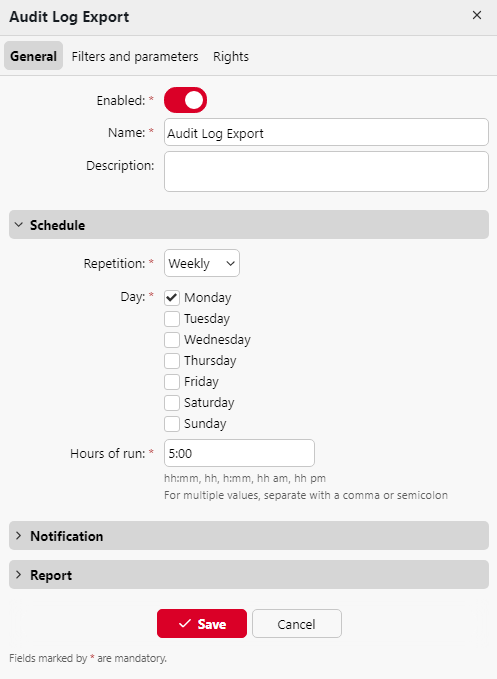
You can also click Schedule Export to have the log regularly exported as scheduled task. The schedule properties panel opens to the right, where you can set the parameters of the task.