
On the Home dashboard, you can perform the initial MyQ setup. After the setup, you can use the dashboard to directly access MyQ key features, display statistics, and generate support data.
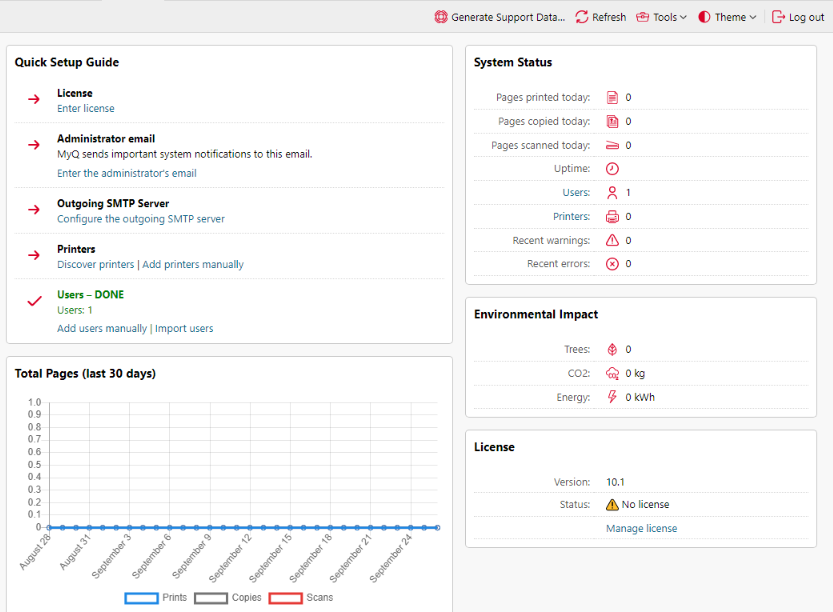
The dashboard is customizable. It consists of adjustable building blocks (widgets) that can be added and removed from the screen. You can use the blocks to customize both the layout and functionality of the dashboard.
The following widgets are supported. Widgets with an asterisk are displayed in the default layout.
-
Environmental impact *
-
Total Pages: Last 30 day(s) *
-
License *
-
Updates *
-
Quick Links
-
Printers with Issue
-
System Status *
-
Top Active: Groups
-
Top Active: Printers
-
Top Active: Users
-
Quick Setup Guide *
System Status
In System Status, you can see the following system status information:
|
Name |
Description |
|---|---|
|
Pages printed today |
Number of printed pages over the last 24 hours. Cached every 60 seconds. |
|
Pages copied today |
Number of copied pages over the last 24 hours. Cached every 60 seconds. |
|
Pages scanned today |
Number of scanned pages over the last 24 hours. Cached every 60 seconds. |
|
Uptime |
MyQ system uptime, in hours. |
|
Users |
Number of active users. Clicking opens the Users page overview. |
|
Printers |
Number of printers where the status is not: Local, replicated or deleted. Cached every 15 seconds. Clicking opens the Printers page. |
|
Recent warnings |
Number of warning log messages over the last 24 hours. Cached every 30 seconds. |
|
Recent errors |
Number of error and critical log messages over the last 24 hours. Cached every 30 seconds. |
Total Pages: Last 30 day(s)
In Total Pages (last 30 days), you can view a graph of the prints, copies, and scans in the last 30 days.
Environmental Impact
Environmental Impact shows estimates of your environmental impact in Trees, CO2, and Energy. The calculations are use these assumptions:
-
1 tree = 8333 pages
-
1 page = 12.7g of CO2
-
1 page = 48Wh of energy
-
1 recycled page = 32Wh of energy
Updates
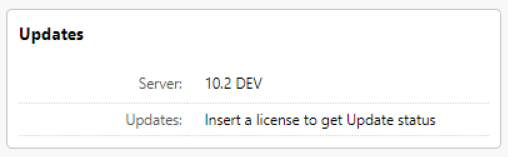
Updates shows available updates for the MyQ installation and its components (terminal packages). To get the updates status, a valid license needs to be added to MyQ. Once a license is added, the MyQ administrator (or a user with the Manage settings rights) may see the following:
-
LATEST - the currently installed version is the latest one
-
UPDATE AVAILABLE - there is a newer version in this branch
-
e.g. MyQ 10.1 patch 1 will show that MyQ 10.1 patch 2 is available
-
e.g. 10.2 BETA will show that 10.2 BETA 2 is available
-
e.g. Terminal 8.2 patch 23 will show the latest patch released for that 8.2 Terminal
-
-
DEPRECATED - this version is not being updated anymore, an upgrade path is recommended
-
Shown currently only for Server components - Print and Central Server, not Terminal Packages.
-
In the event that a license has been installed, the update information may not be immediately downloaded and displayed in the widget. If there is no information about updates, the "Check now" button is displayed in the widget. The administrator can manually initiate the retrieval of update information using this button.
The "Check now" button is only displayed if a license is installed. Without a license, the widget displays the message "Insert a license to get Update status".
If the server is offline or there are any errors, a warning is displayed on the widget.
License
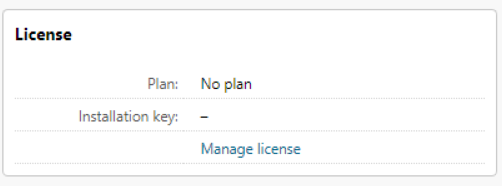
License shows license information and can redirect you to the License settings tab.
Printers with Issue
Printers with Issue shows unreachable active printers and active printers with unresolved alerts. You can also see these issues in the Issues column, in the Printers overview (MyQ, Printers).

Quick Setup Guide
The Quick Setup Guide walks you through the initial MyQ setup.
Customize the Dashboard
To add a new widget:
-
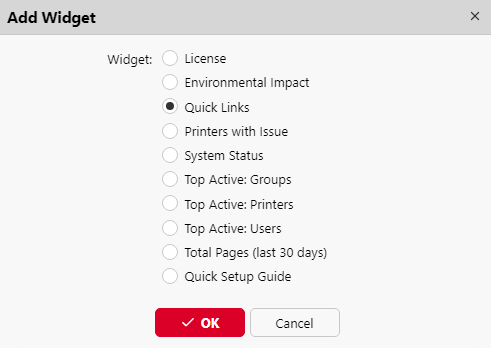
Click Tools at the top-right corner of the dashboard, and then click Add Widget. The Add Widget pop-up window appears.

-
In the pop-up, select the widget, and then click OK. The new widget is displayed on the board.
To move widgets, drag and drop them on the board.
To delete widgets, click on the three dots at the top-right corner of the widget, and click Remove.
Select Default layout in the Tools menu, to restore the dashboard to its default layout.
Change the Theme
To change the MyQ Web UI theme, click on Theme at the top-right corner of the dashboard. The available options are:
-
Synchronize with the operating system
-
Blue
-
Red (default)
-
Dark
-
High Contrast