
To connect Google Drive or Google Drive for Workspace as a cloud storage for use with the Easy Print terminal action, follow these steps.
-
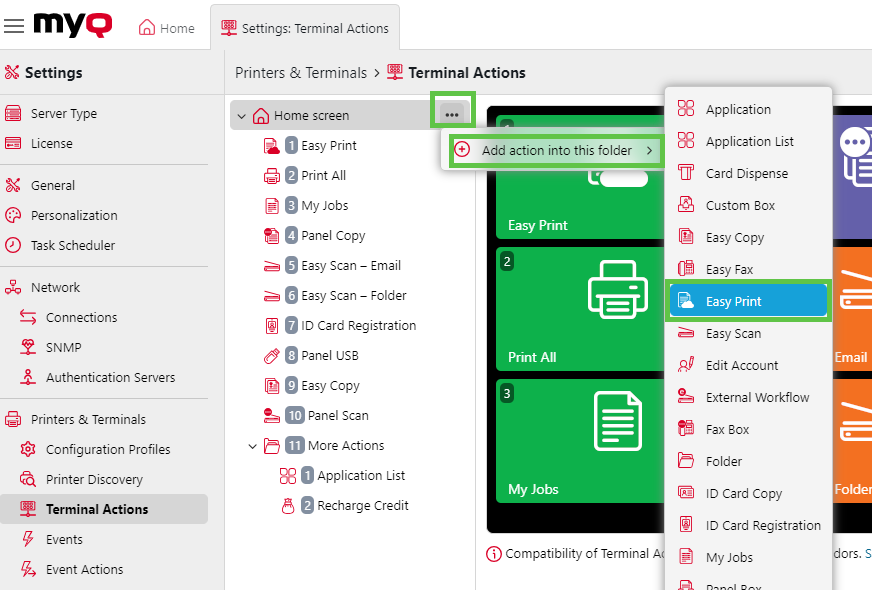
Go to MyQ > Settings > Terminal Actions.
-
If there is an Easy Print action already added, you can configure it by double-clicking it or create a new one by clicking on the actions menu then Add action into this folder and selecting Easy Print from the list.
-
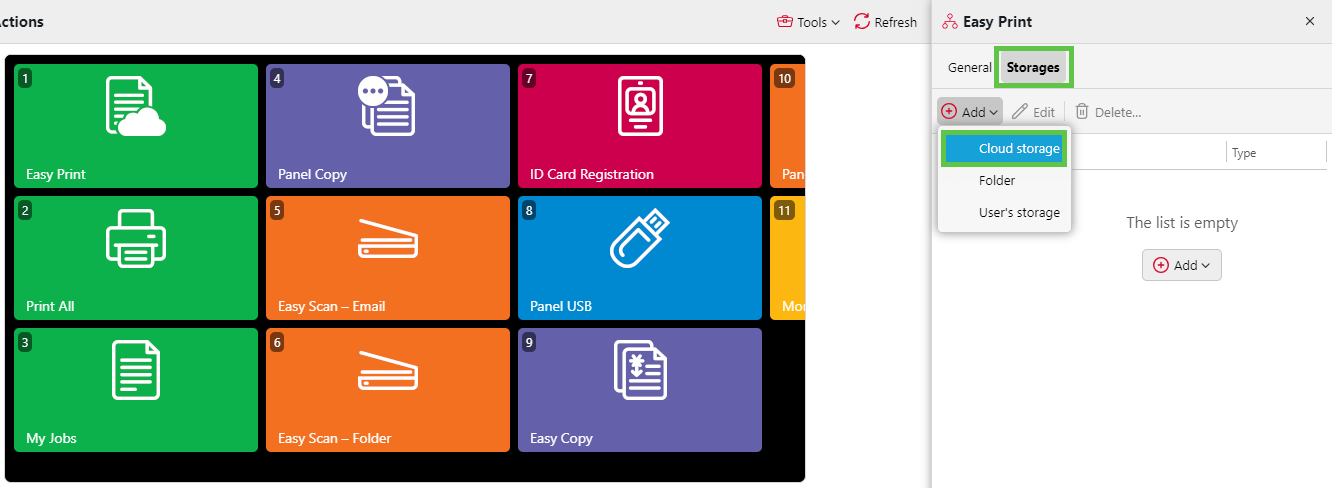
In the options menu, go to Storages > Add > Cloud Storage.
-
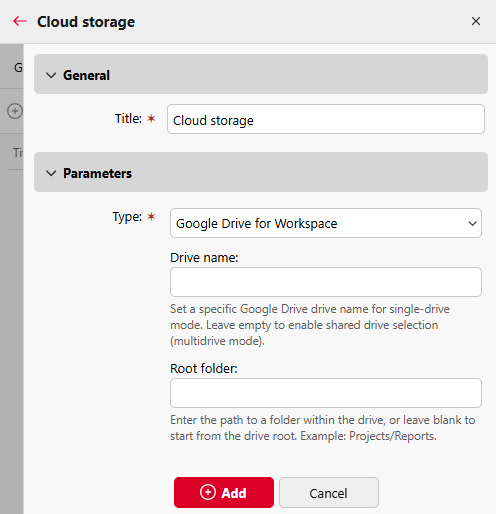
Under General, you can rename your cloud storage, and under Parameters, set Type to Google Drive or Google Drive for Workspace. For Google Drive for Workspace, you can optionally set:
-
Drive name
Enter the display name (case-insensitive) of the Shared Drive as it appears in Google Drive for Workspace. When empty, the location defined by Root folder is resolved within My Drive instead. -
Root folder
Enter the path to a subfolder within the drive specified by Drive name, or within My Drive if Drive name is empty.
-
-
Click Add.
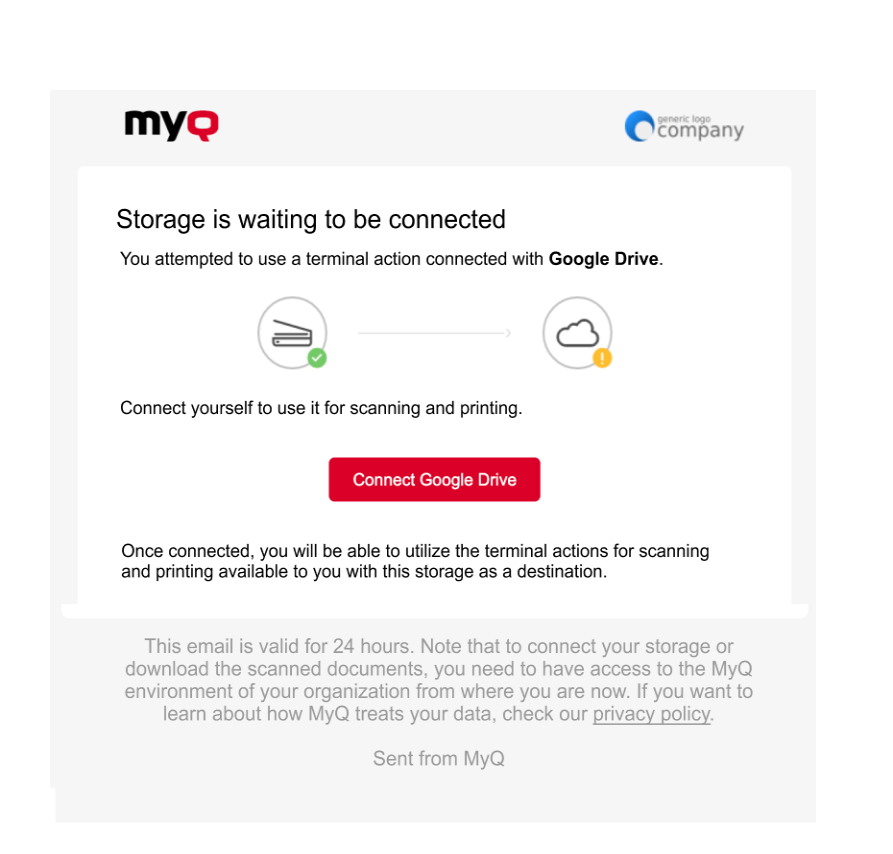
If an admin has connected a Cloud Storage (for example, Google Drive) to Easy Print, but a user has not yet connected their personal account, they can still use Easy Print with Google Drive set as the destination.
An email will be sent to the user's email address allowing them to connect to Google Drive.
If a user attempts to use Easy Print to print a file from Google Drive, but they are not connected, and there is no email address associated with that user, the user will receive an on-screen prompt to connect their cloud storage via the web interface and try again.
This does not work with local/network directories, only with Cloud storages.