The Job Roaming feature enables users to transfer their jobs from one location to another: jobs sent to one Site can be printed on printing devices at another Site.
While this feature works in Central/Site mode only, it does not have to be centrally managed – Job Roaming between two locations depends exclusively on the settings of the locations Site servers.
Security changes in Patch 24
Starting with Print Server 10.2 patch 24, Job Roaming uses site-to-site authentication to protect the channel used for cross-site job transfer. This change is not backward compatible and requires all sites to be updated to maintain full Job Roaming functionality. See Upgrading to Patch 24 or later - Job Roaming Authentication Change for details on the impact and upgrade guidance.
The print job is stored on the original Site server until the user logs in at another Site, where they download the job to the Job Roaming queue. Thanks to the fact that the files are not unnecessarily transferred between servers, this method guarantees the lowest possible network load.
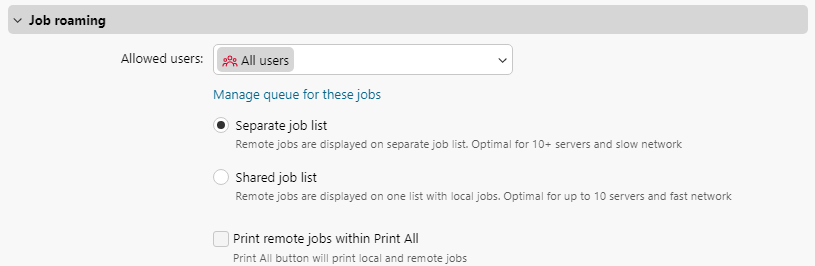
On a Site’s server WebUI go to MyQ > Settings > Jobs. In the Job roaming section, the following options are available:
-
Allowed users
Specify which users are allowed to use job roaming. -
Manage queue for these jobs
Click to open and manage the properties of the job roaming queue. -
Separate job list
Display remote print jobs on a separate job list. Use this option if you have 10 or more servers and a slow network connection. -
Shared job list
Display remote print jobs on the same job list as local jobs. Use this option if you have up to 10 servers and a fast network connection.-
Print remote jobs with Print All
Select this option to enable Print All terminal action to print both local and remote jobs. This option is available with a shared job list only.
-