
When a remote client connects to MyQ Document Processor (MDP) over HTTPS, the client machine must trust the MDP server certificate.
MyQ Print Server 10.3+ is the only client that connects to MDP.
This procedure is required when MDP uses its internally generated Certificate Authority (CA) and server certificate. It is not required when MDP uses a certificate issued by a publicly trusted CA.
Prerequisites
Before you begin, make sure that:
-
The client machine can reach the MDP server over the required network port.
-
The MDP server has a hostname that resolves from the client machine.
-
You know the hostname and port of the MDP server.
-
You have administrative access to the client machine.
Clients must connect to MDP using a hostname included in the MDP certificate, for example:
https://doc-processor.local:8080
Do not use the MDP server IP address.
Set up Certificate Trust
1. Export the MDP CA package
On the MDP server, use the SysTray Agent to export the MDP CA package.
The exported ZIP file contains:
-
ca.crt -
install-ca.bat
2. Copy the package to the client machine
Copy the exported ZIP file to the client machine using a secure method and extract it.
Keep ca.crt and install-ca.bat in the same folder.
3. Install the MDP CA certificate
You can install the MDP CA certificate in two ways – by running the exported batch script, or by installing the certificate manually.
Install the certificate with the batch script
On the client machine, run the file install-ca.bat. Confirm the User Account Control prompt when requested. The script installs the MDP CA certificate into the Trusted Root Certification Authorities store for the local machine.
When the installation completes successfully, the script displays:
[SUCCESS] Certificate installed successfully to Trusted Root Certification Authorities (Local Machine)
Install the certificate manually
-
On the client machine, double-click on the certificate
ca.crtfile and select Install Certificate... -
Set the Store Location to Local Machine and click Next. Click Yes on the UAC confirmation that appears.
-
For the certificate store, select Place all the certificates in the following store.
-
Click Browse, then select Trusted Root Certification Authorities and click OK.
-
Click Next and then Finish.
Validate the Connection
Go to MyQ > Settings > Connections, and define a connection to connection from the client application. Fill in the required fields, and click Test.
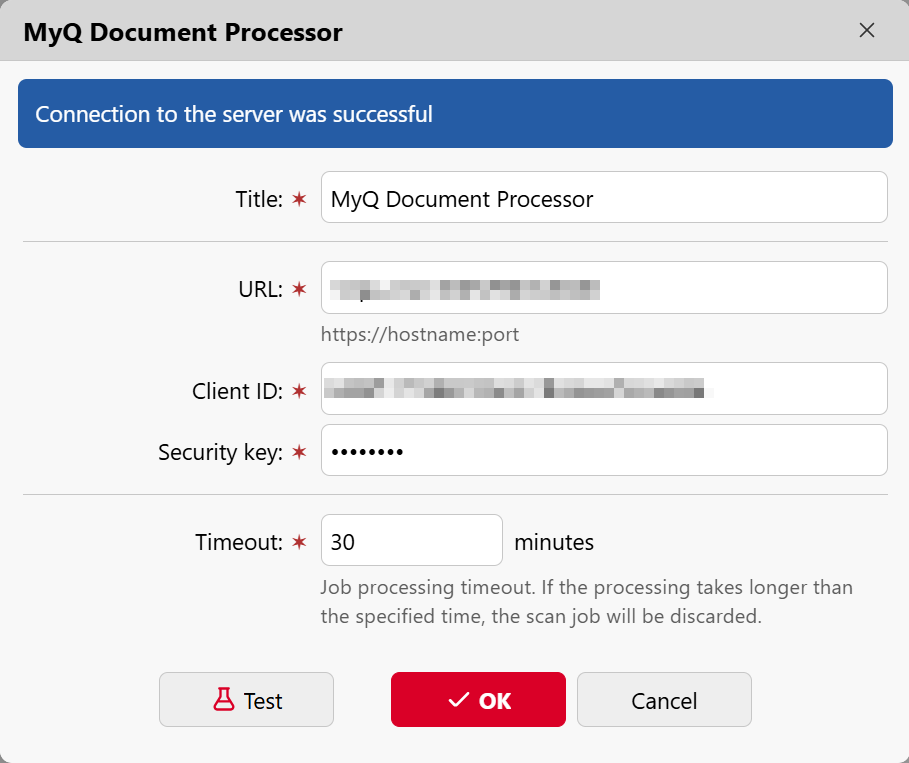
If the test is successful, the client trusts the MDP certificate correctly and you are ready to use MDP.